Order & Payment Flow
Step 1: Open Popcorn Cashier Lite
Launch the Popcorn Cashier Lite app on your device.
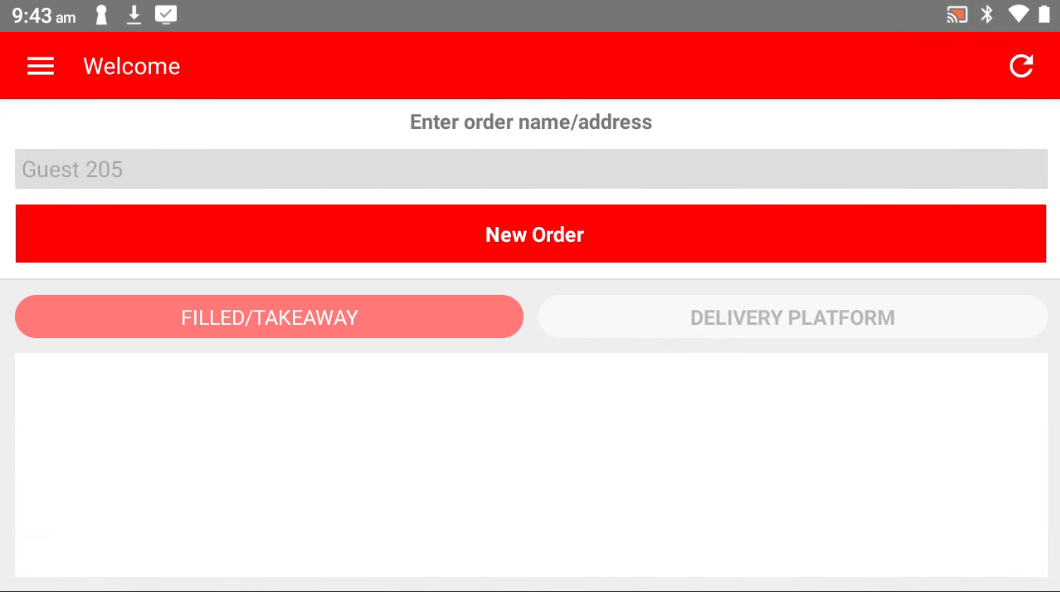
Step 2: Tap "New Order"
On the main screen, tap the "New Order" button to go the main menu.
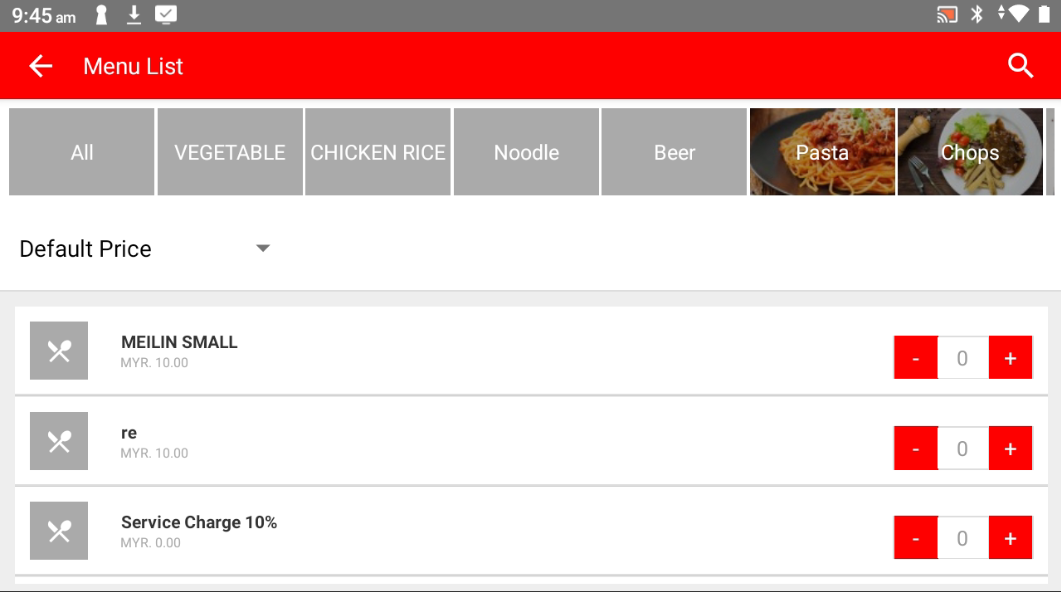
Step 3: Choose the Product
Browse or search your product list and tap on the item(s) the customer wants to purchase.
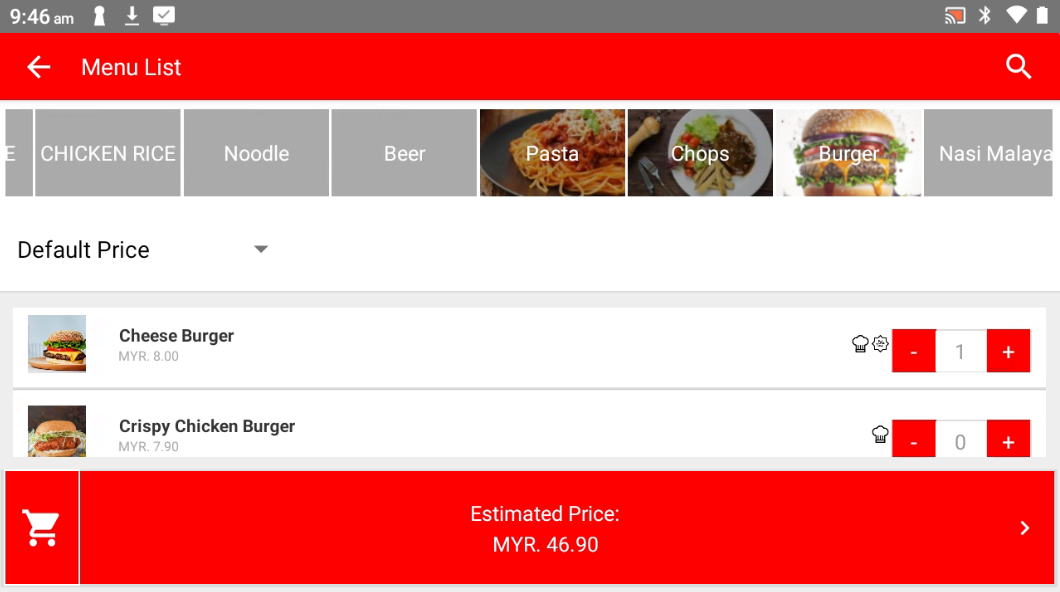
Step 4: Confirm the Order
Tap "Estimate Price" to review and confirm the selected items and total price.
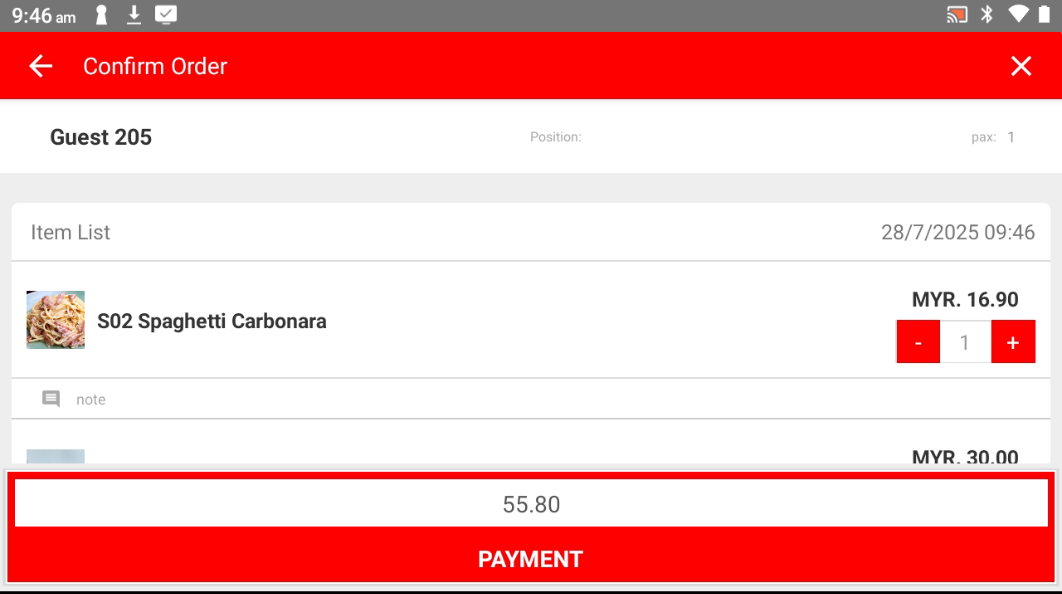
Step 5: Proceed to Payment
Tap the "PAYMENT" button to continue to the payment screen.
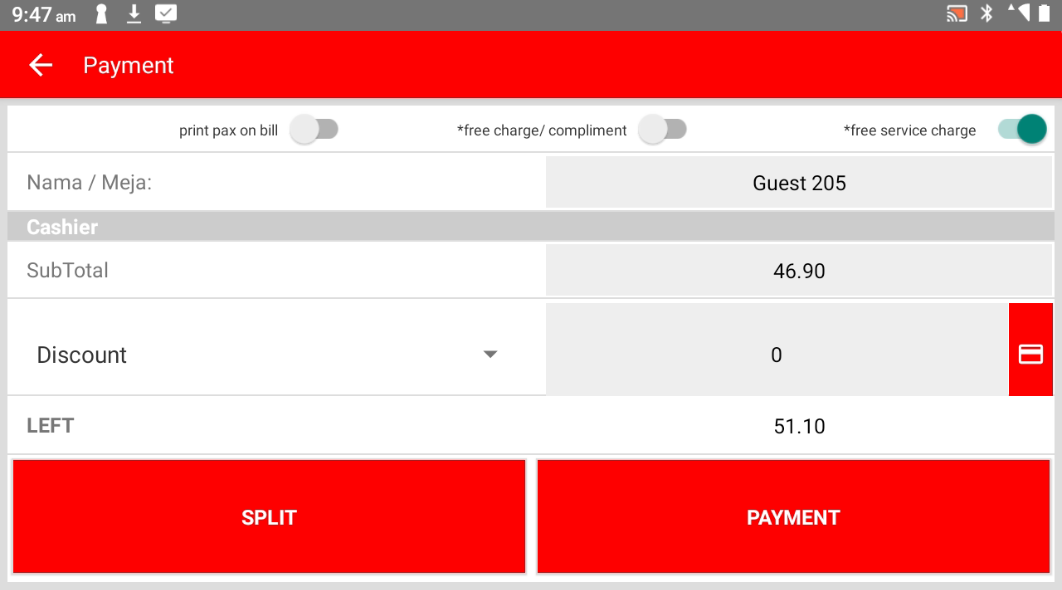
Step 6: Select Payment Method
Choose the customer's preferred payment method (e.g., cash, card, e-wallet).
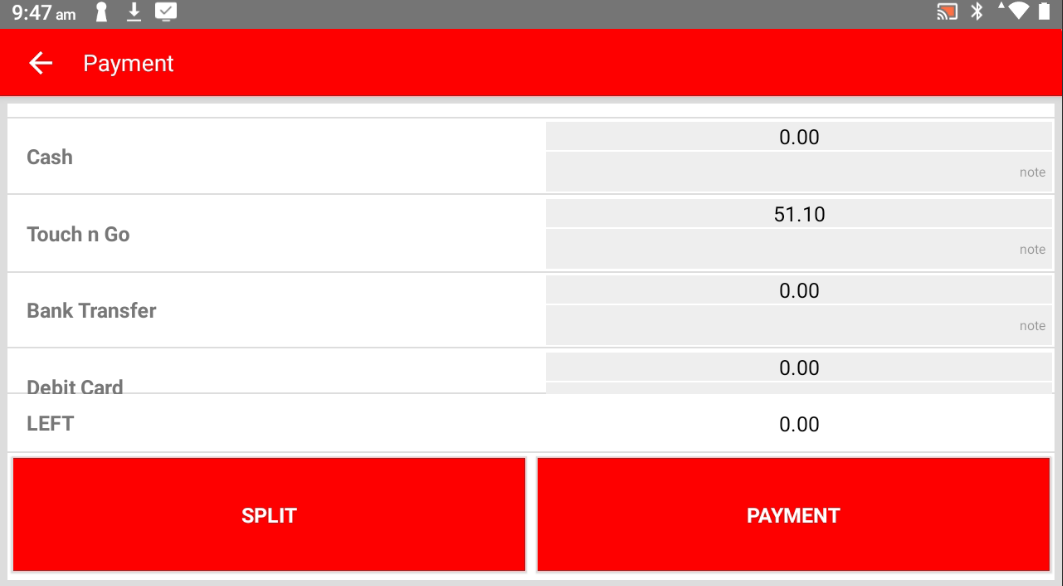
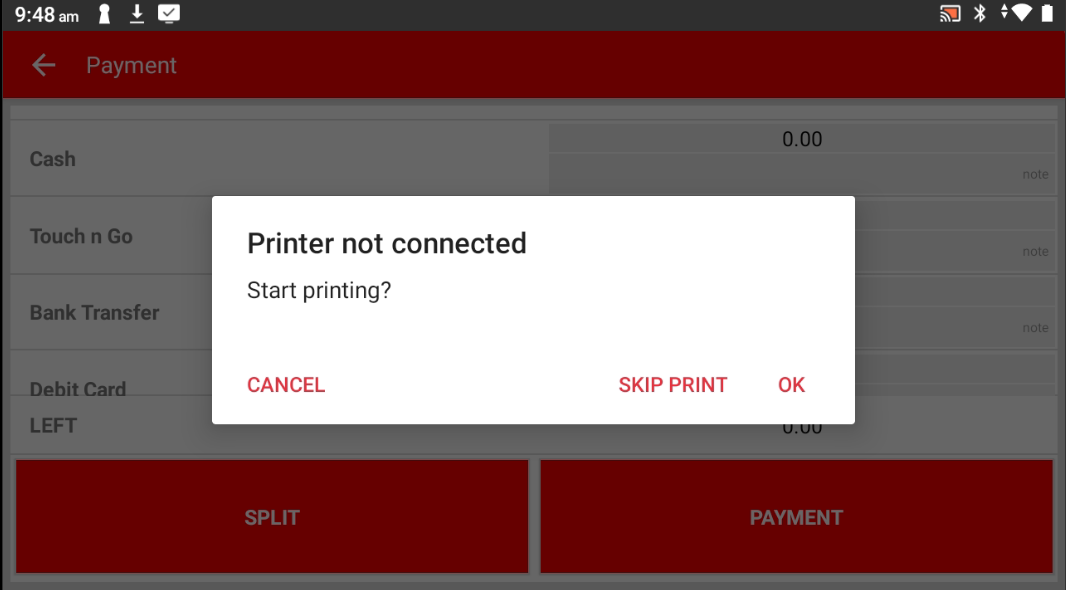
Step 7: Print Receipt (Optional)
Choose whether to print the receipt or skip it, based on the customer’s preference.
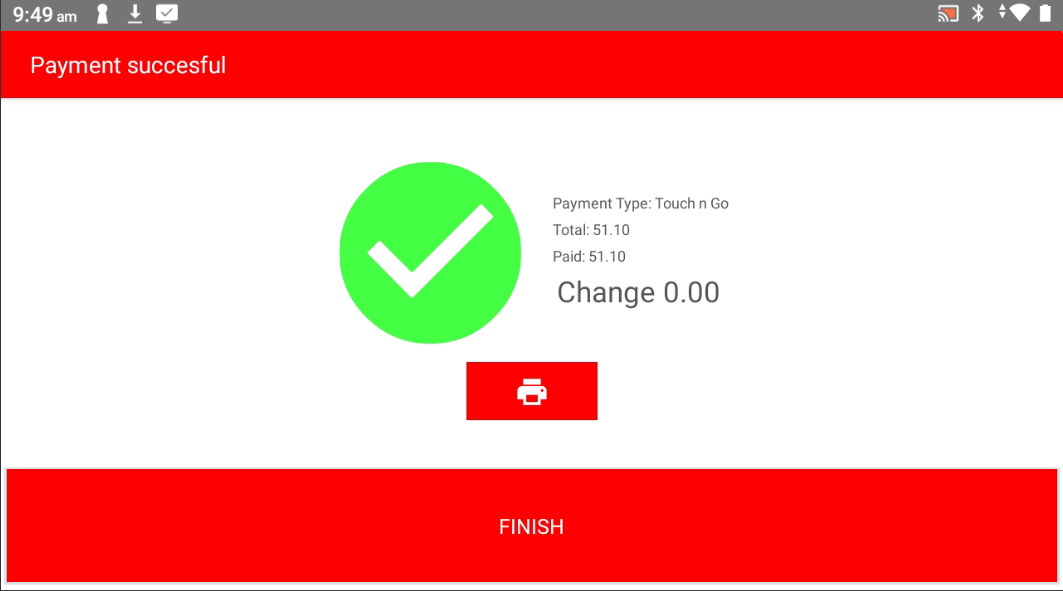
Step 8: Done! ?
The order is now complete and recorded.
Please refer to the link below:
------------------------------------------------------------------------------------------------------------------------------------------
Still stuck?
Our team is happy to walk you through this step by step.
