How to Key in Procurement Expenses
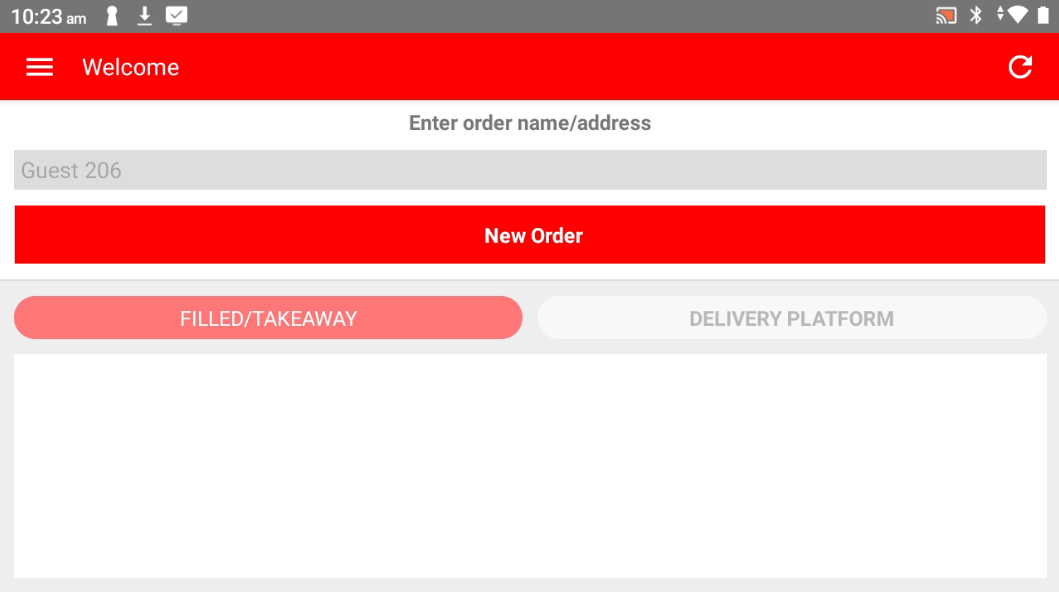
Step 1: Open Popcorn Cashier Lite
Launch the app on your device.
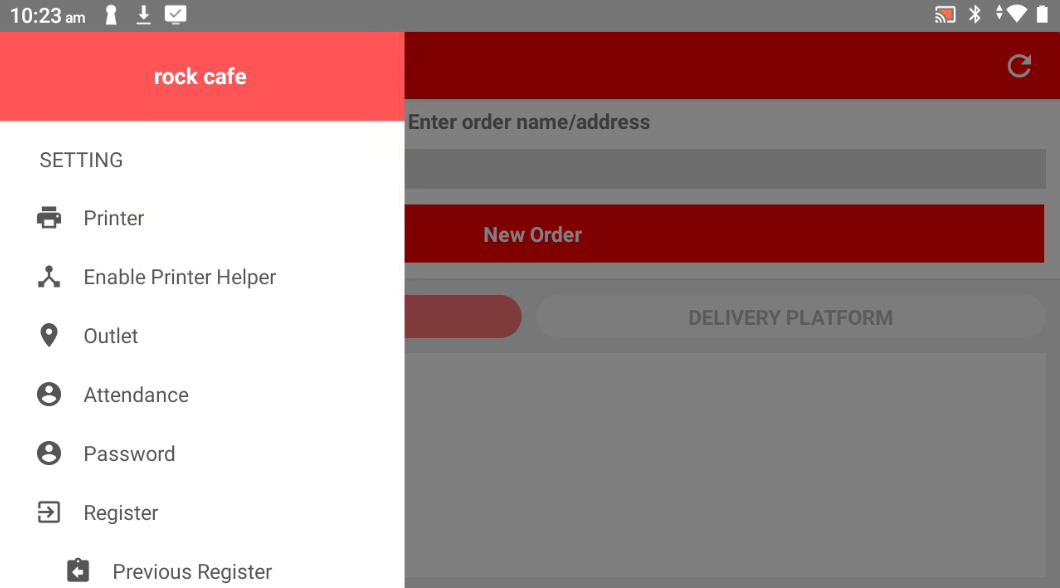
Step 2: Open the Sidebar
Tap the menu icon or swipe from the left to access the sidebar.
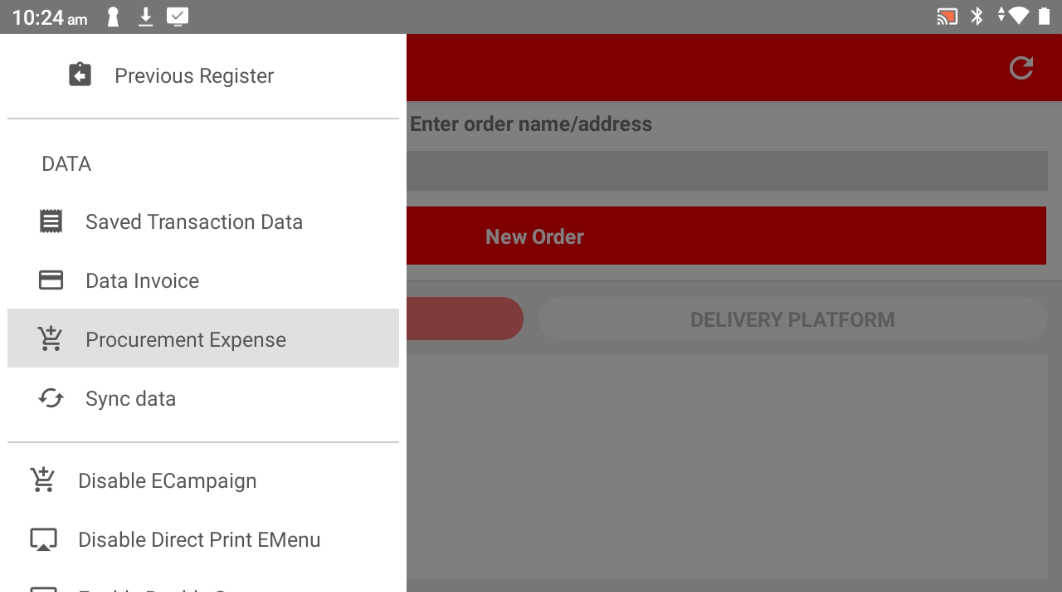
Step 3: Go to Procurement Expense
Under the Data category, tap on "Procurement Expense".
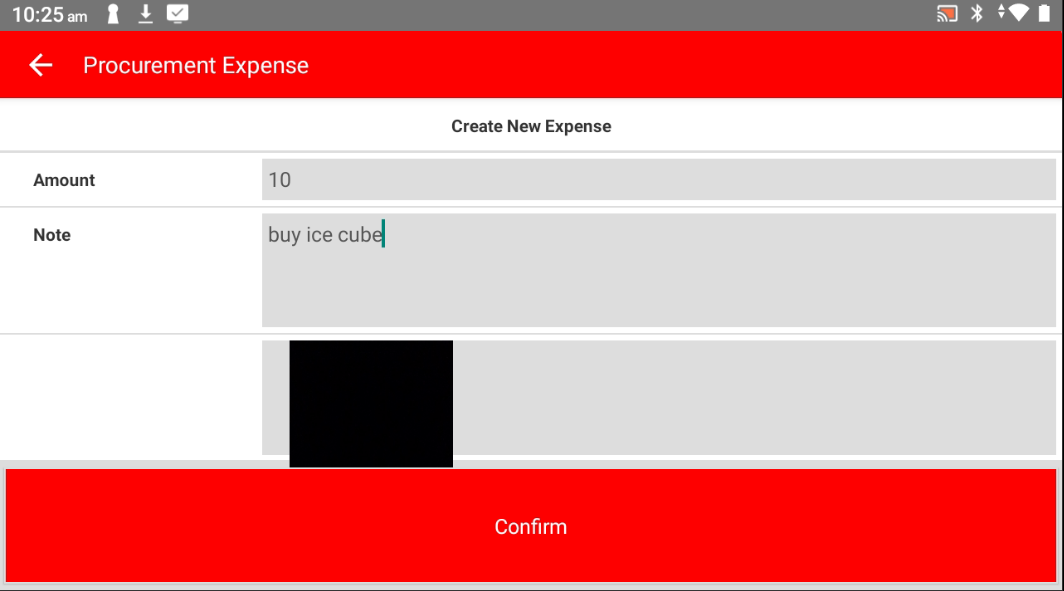
Step 4: Enter the Amount
Type in the total amount for the procurement expense.
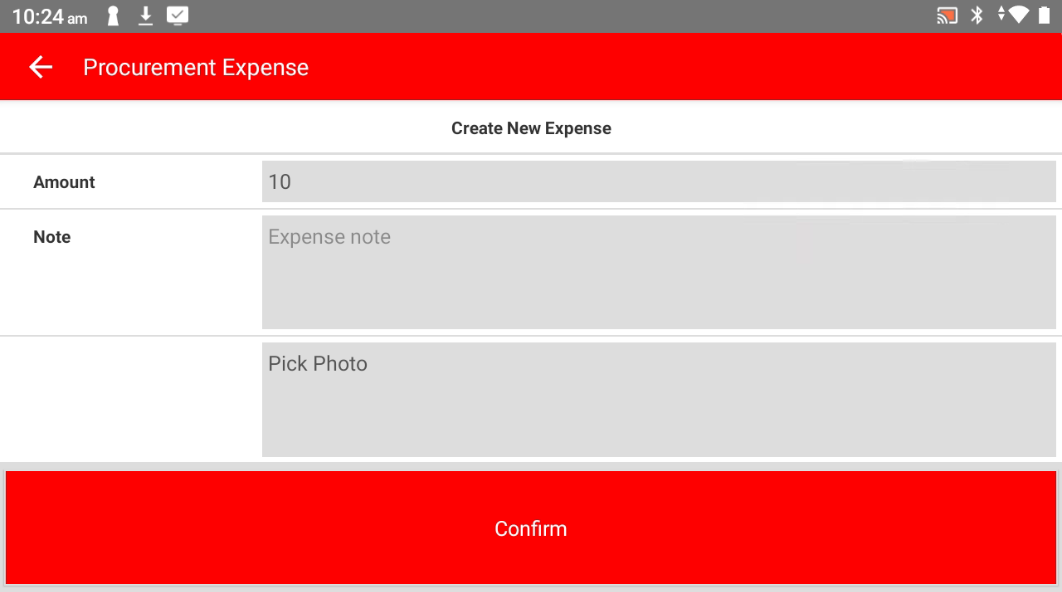
Step 5: Add a Note and Picture (Optional)
You may enter a short description and upload a photo (e.g., invoice, item, or receipt).
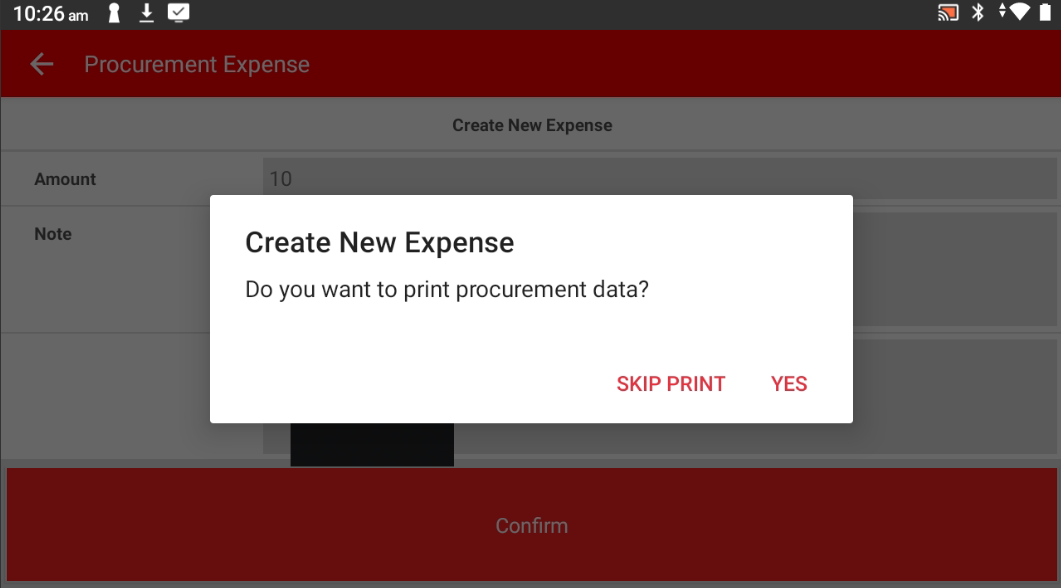
Step 6: Choose to Print or Not
Select whether you want to print the expense record.
Step 7: Done!
Your procurement expense has been successfully created.
Please refer to the link below:
https://www.youtube.com/watch?v=GvRU0AWCGdI&list=PLRi68gNUhBwSRvzJPPddmk0lhFImfwFax&index=3
------------------------------------------------------------------------------------------------------------------------------------------
Still stuck?
Our team is happy to walk you through this step by step.
