How to Clock In and Clock Out (Attendance)
Go to www.popcorncashier.com
Go to Settings:
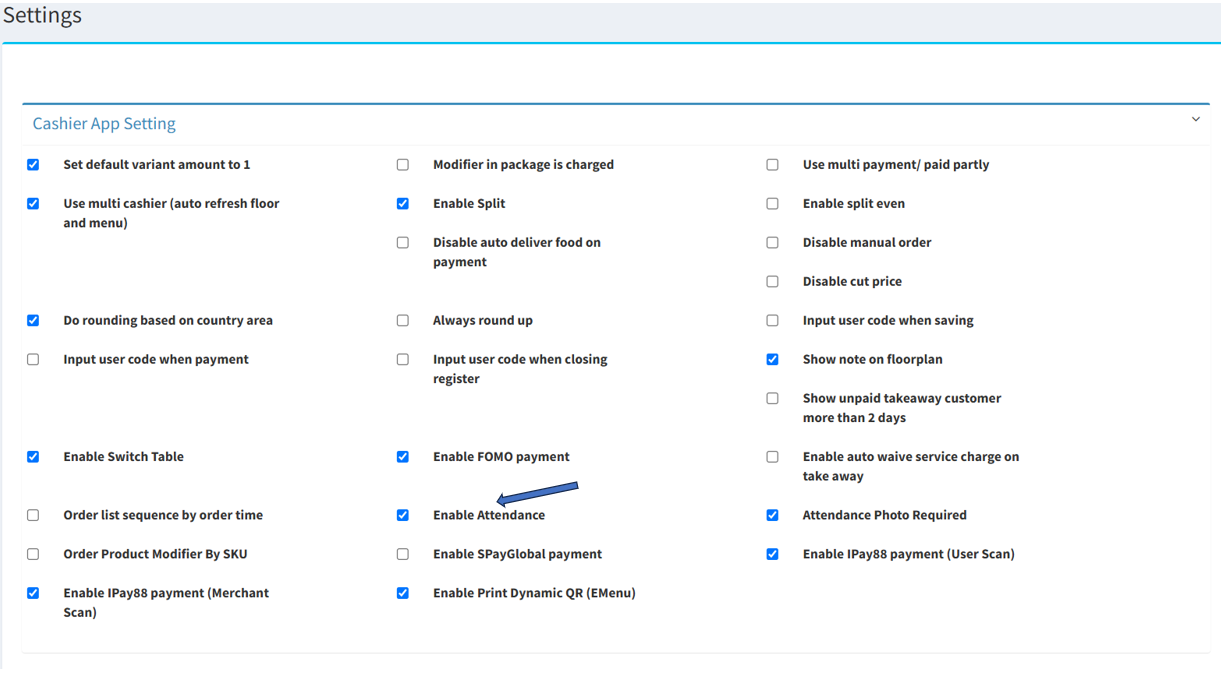
- At the Cashier App Setting section. Click the checkbox labeled "Enable Attendance"
- Scroll down and click the Update button to apply the setting.
Steps to Clock In :
Method 1
Go to Popcorn Cashier Lite:
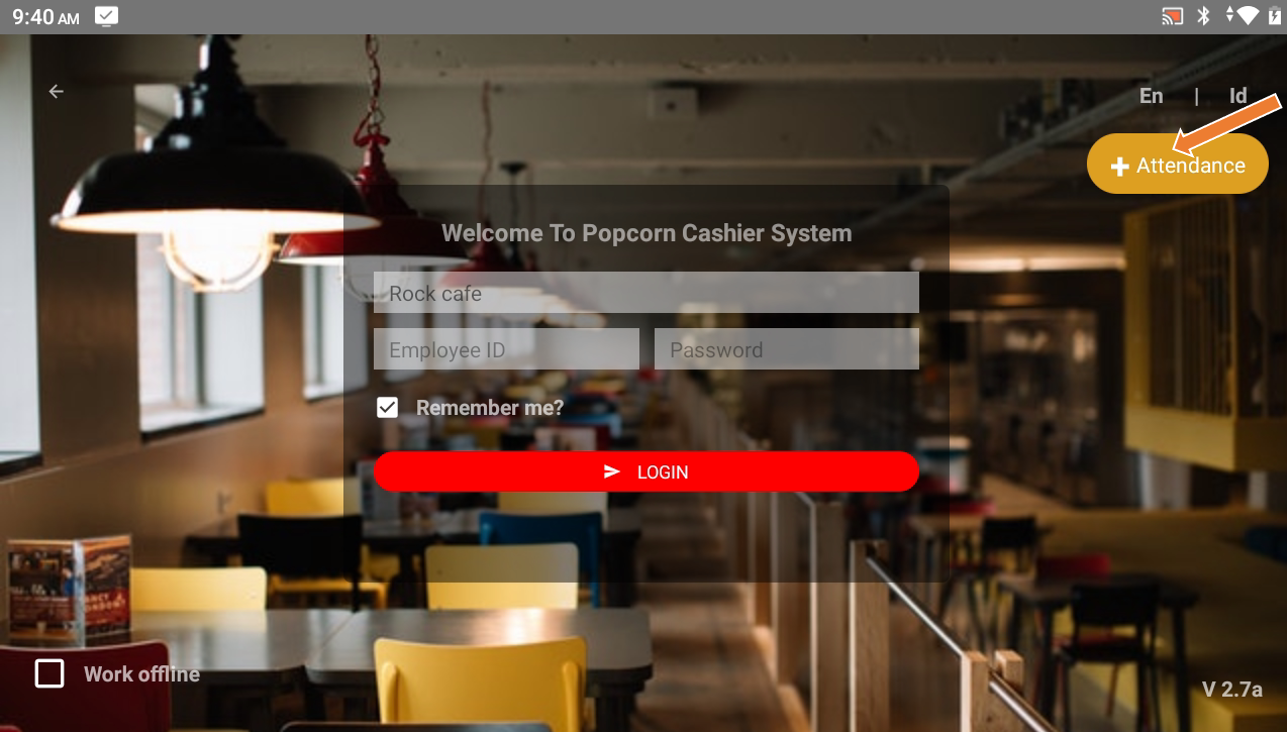
- Click the "+ Attendance" button at the top-right corner of the screen.
Method 2
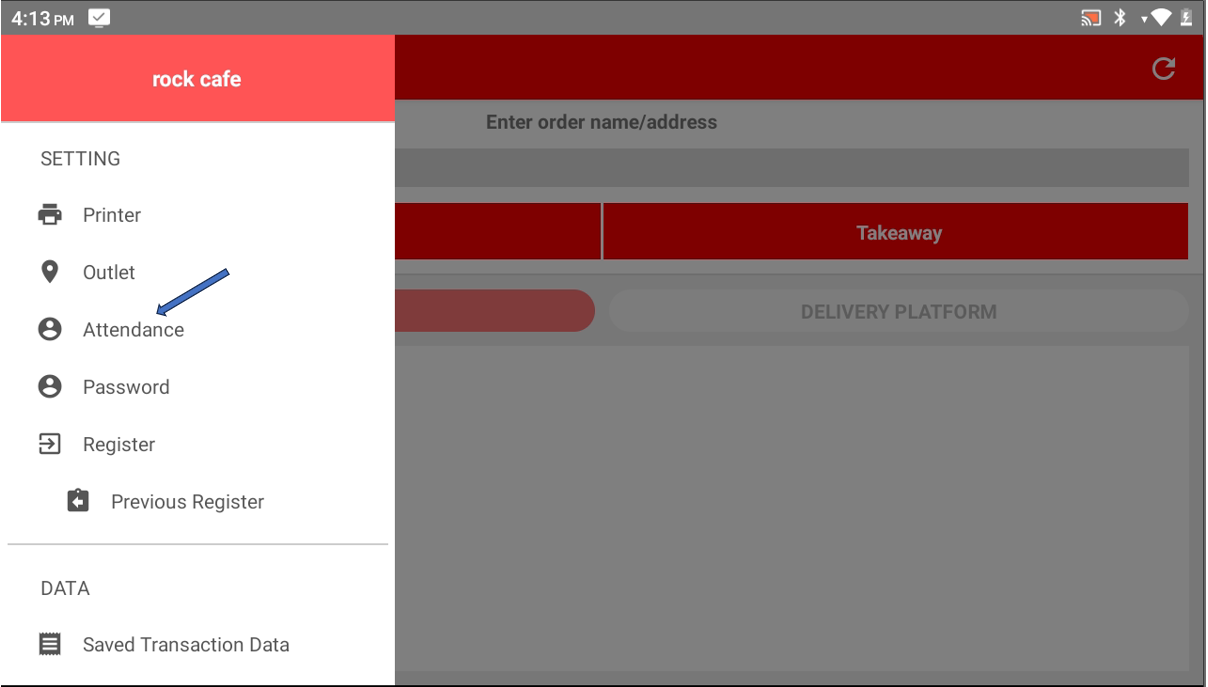
- Click the menu icon (☰) in the top-left corner.
- Click on "Attendance" to proceed to the attendance login screen.
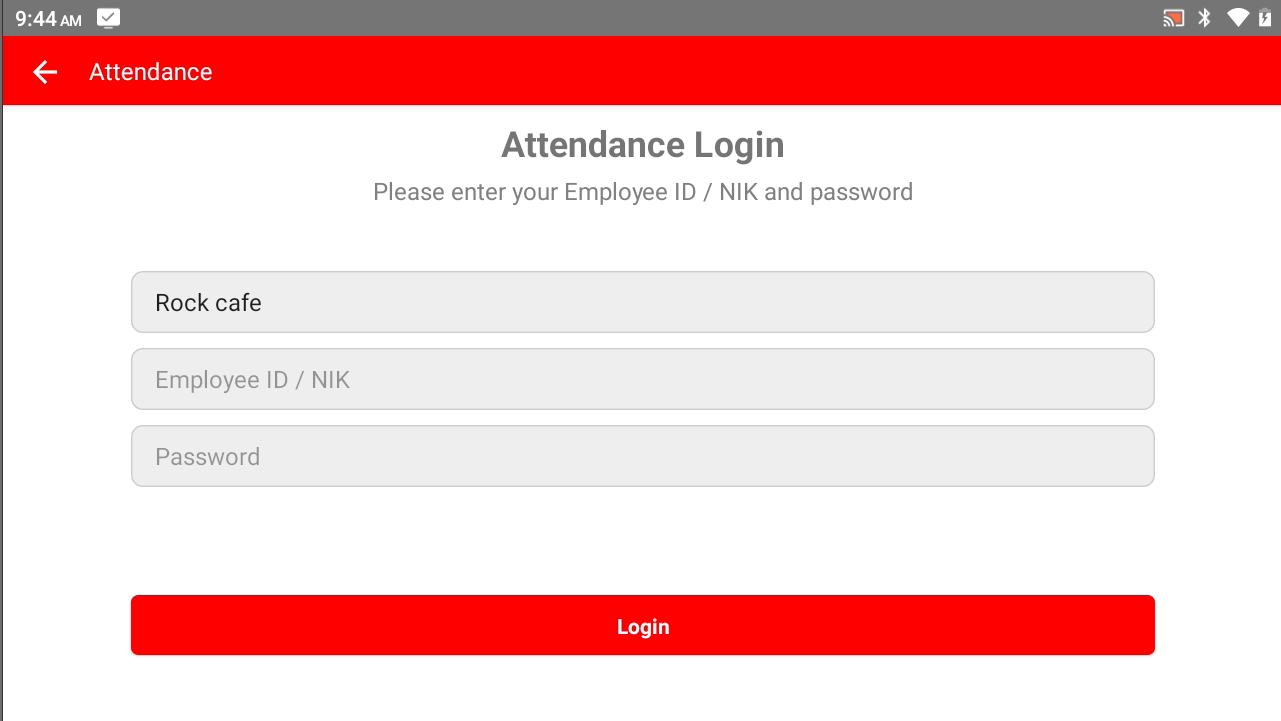
- Enter Employee ID / NIK and Password.
- Once done, click Login.
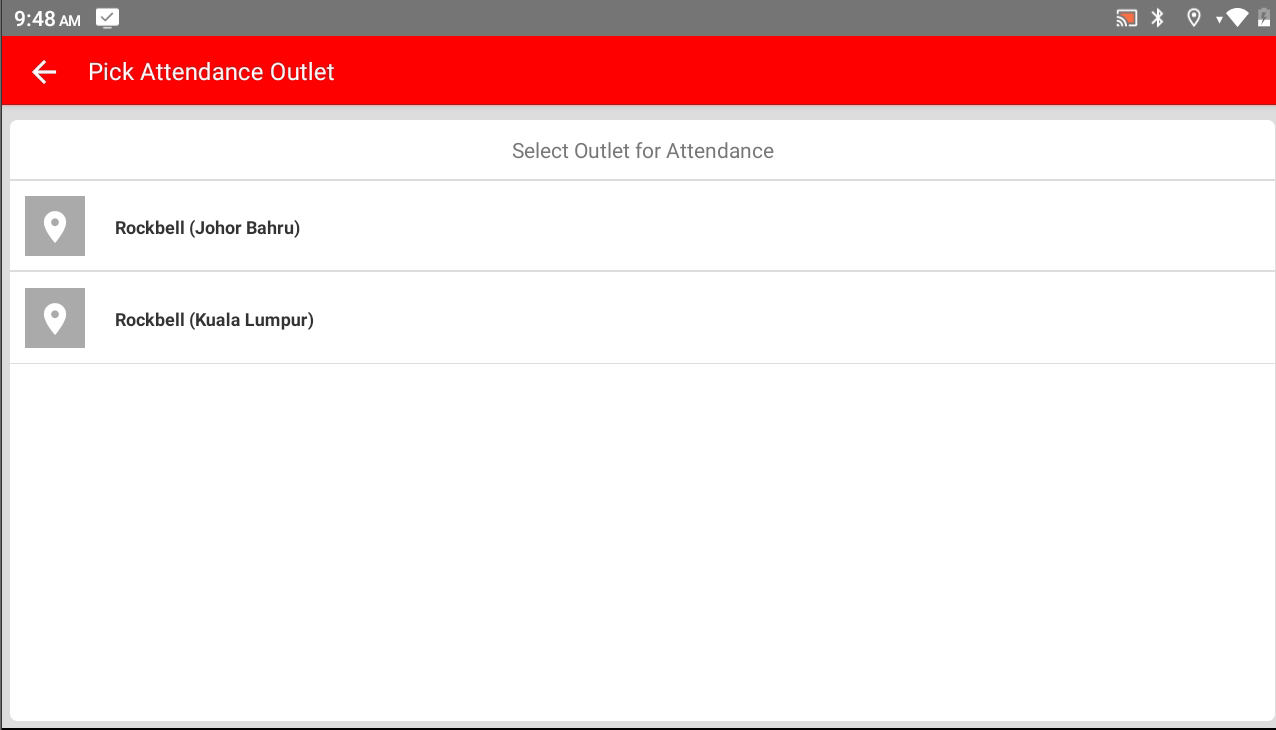
- Choose the outlet where you want to mark your attendance
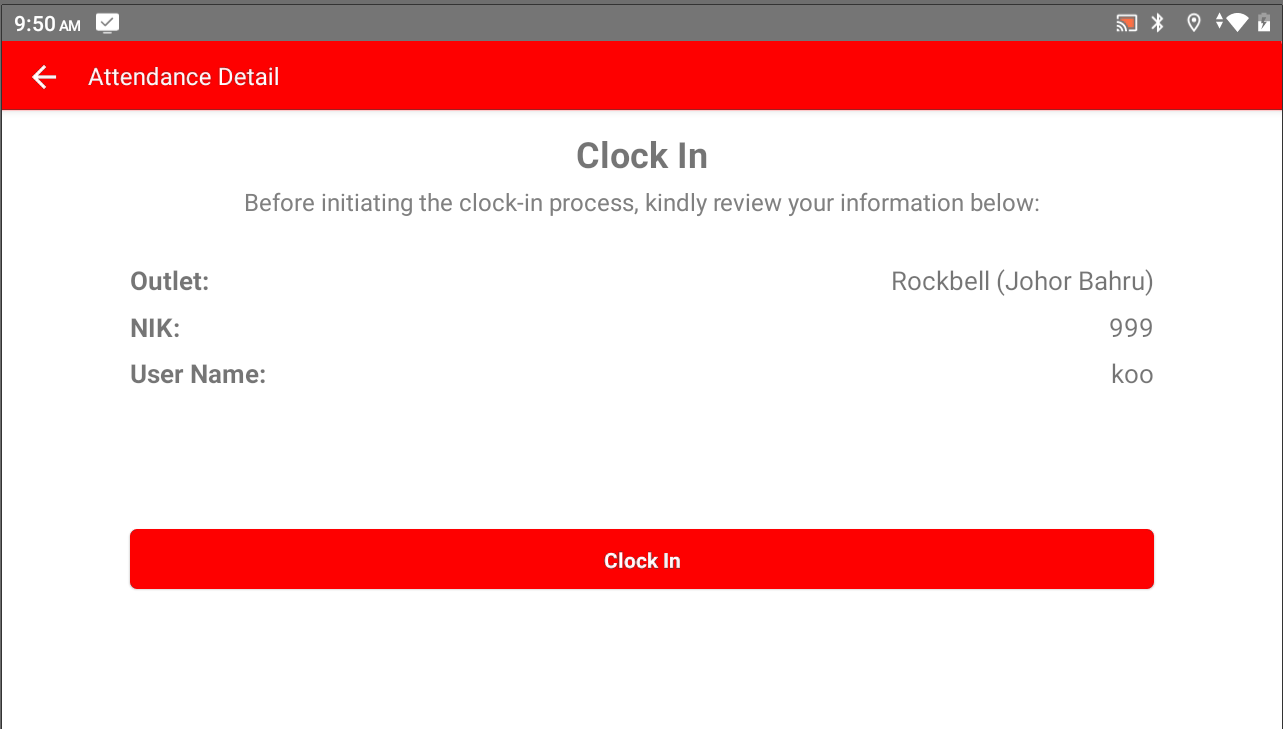
- Ensure the Outlet, NIK, and User Name are correct.
- Click "Clock In" button to proceed.
Steps to Clock Out
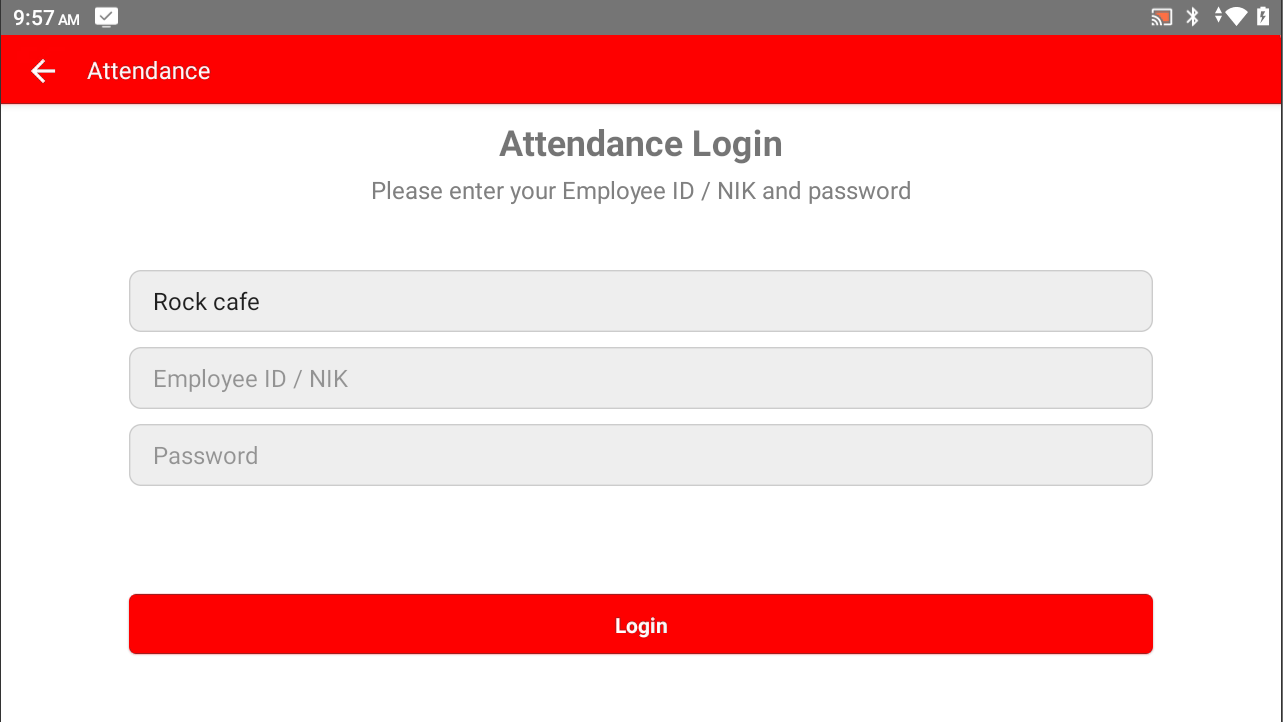
- Enter Employee ID / NIK and Password.
- Once done, click Login.
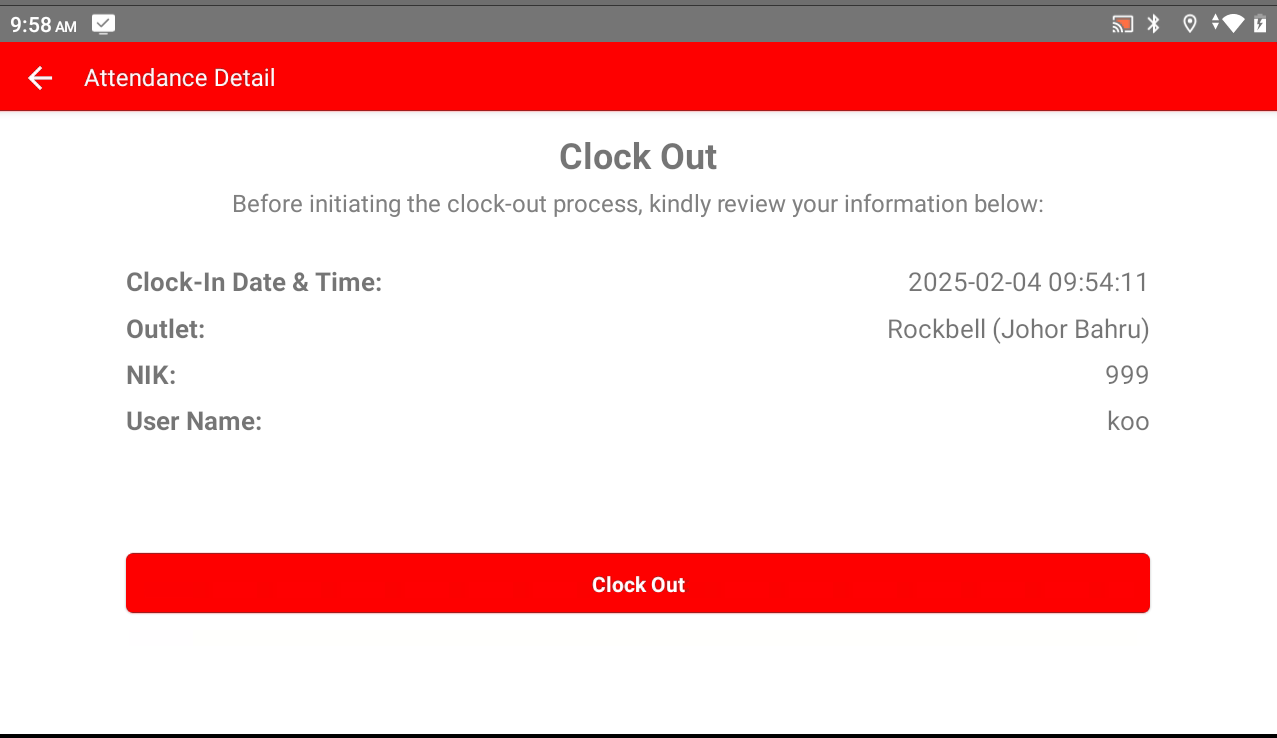
- Ensure the Outlet, NIK, and User Name are correct.
- Click "Clock Out" button to proceed.
Please refer to the link below:
------------------------------------------------------------------------------------------------------------------------------------------
Still stuck?
Our team is happy to walk you through this step by step.
