How to Refund (Cashier Lite)
Step 1:
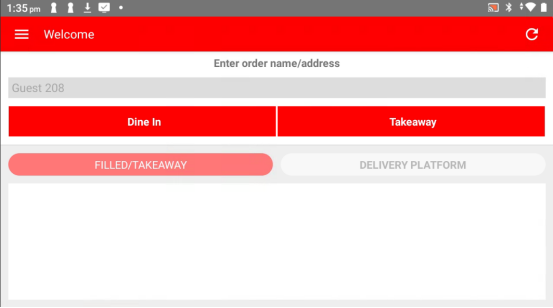
Open the Popcorn Cashier Lite app on your device.
Step 2:
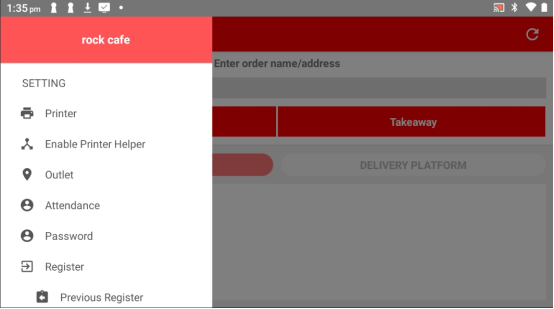
Tap the sidebar menu (found in the top-left corner).
Step 3:
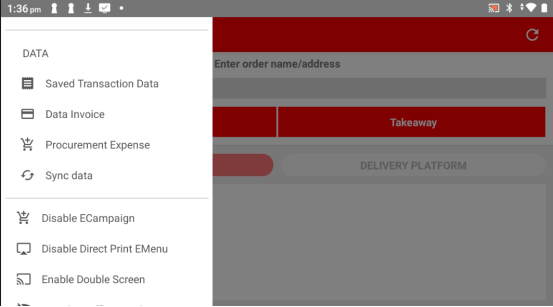
Under the "Data" category, select "Data Invoice."
Step 4:
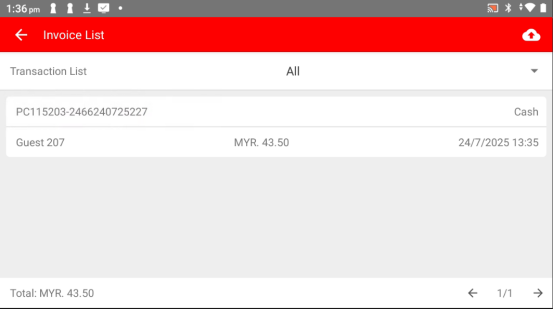
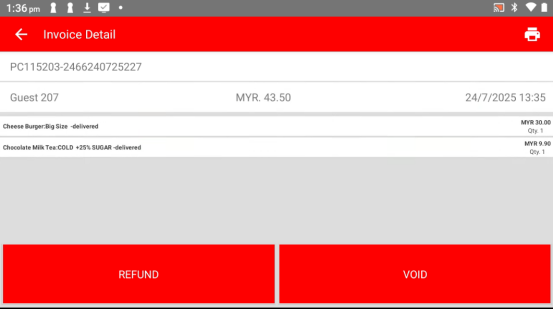
From the invoice list, choose the bill that want to refund.
Step 5:
Tap the "Refund" button.
Step 6:
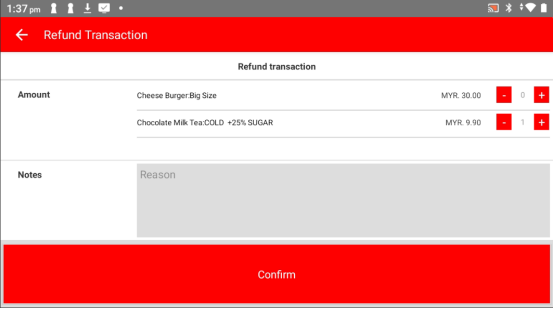
Select the specific item that want to refund from the bill.
Step 7:
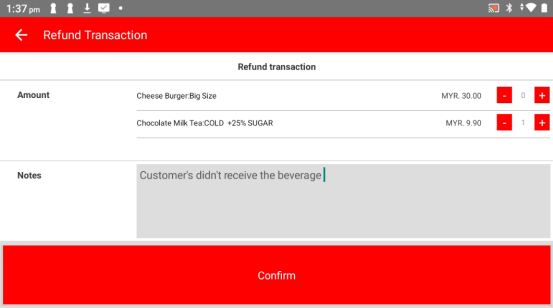
Enter the reason for the refund in the field provided.
Step 8:
Tap "Confirm" to submit the refund request.
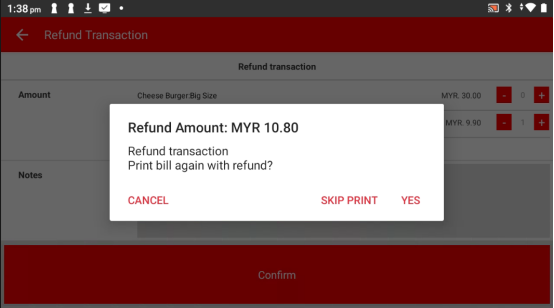
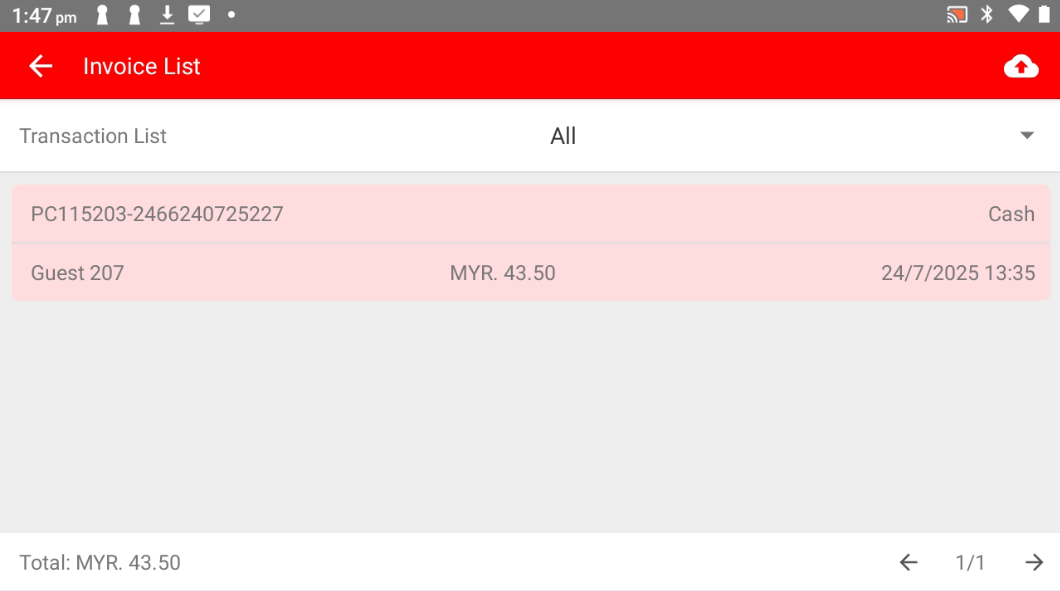
Once confirmed, the refunded bill will be highlighted in red, so you can easily spot it.
Please refer to the link below:
------------------------------------------------------------------------------------------------------------------------------------------
Still stuck?
Our team is happy to walk you through this step by step.
