How to Key in Company Information
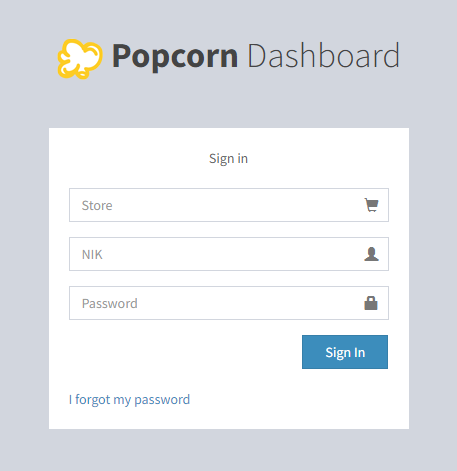
- Access to the link: https://www.popcorncashier.com
- To log in: Please fill in the Store Name, NIK (User ID) & Password
- After log in, it will shows out the Home Screen as below:
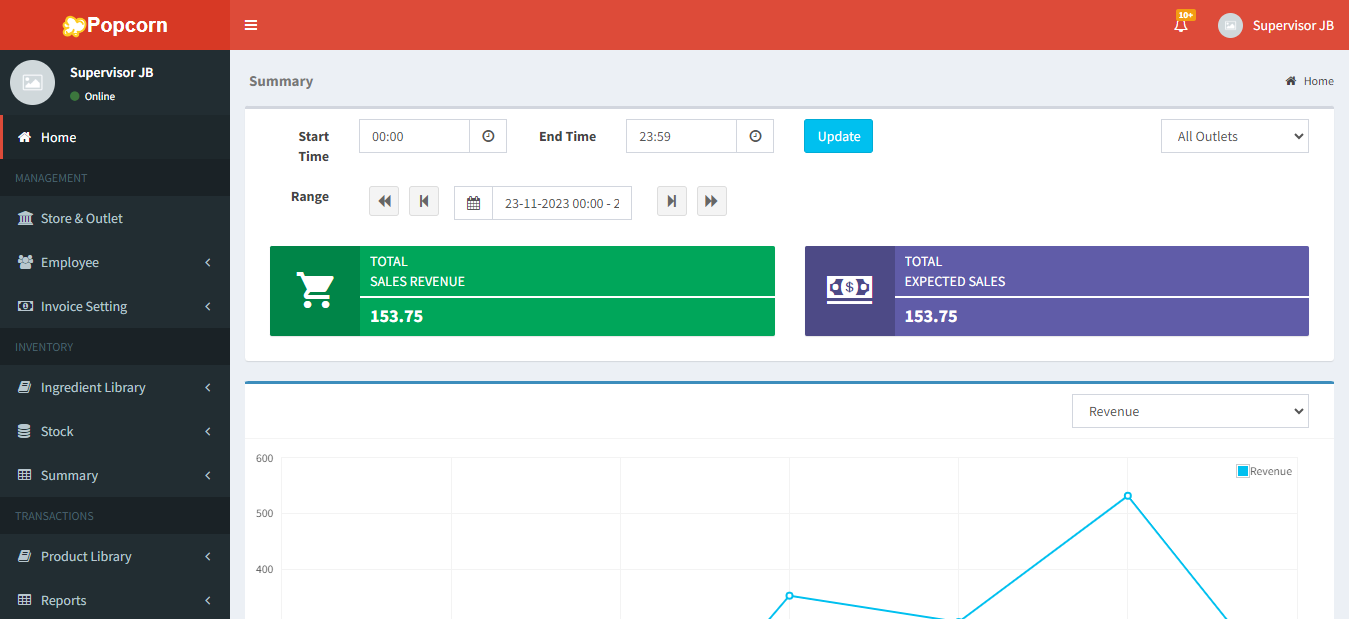
Store & Outlet
Go to Management > Store & Outlet > Outlet List:
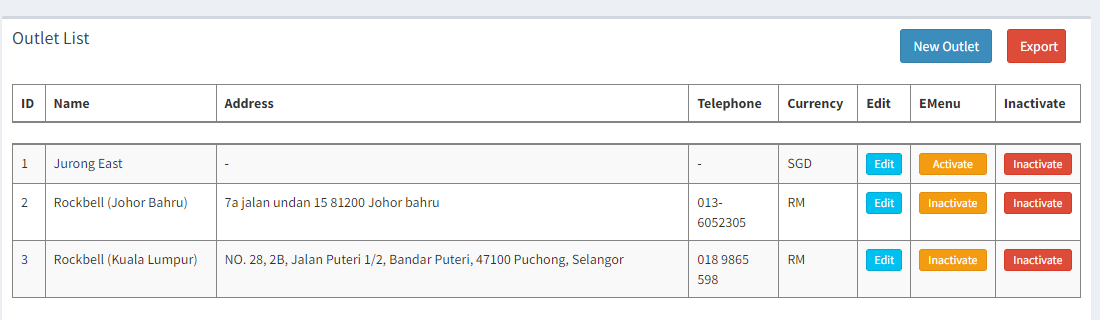
- Edit Outlet to Edit the Company Information
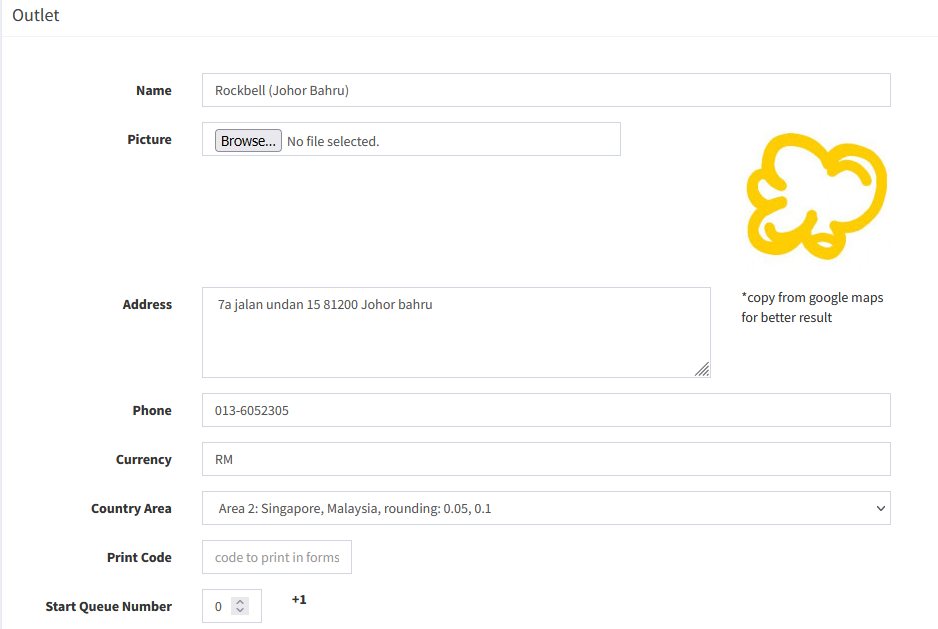
- Country Area: Rounding Method
- Print Code: Document Code to print in form (Purchase Order). Can set different document code for different outlets.
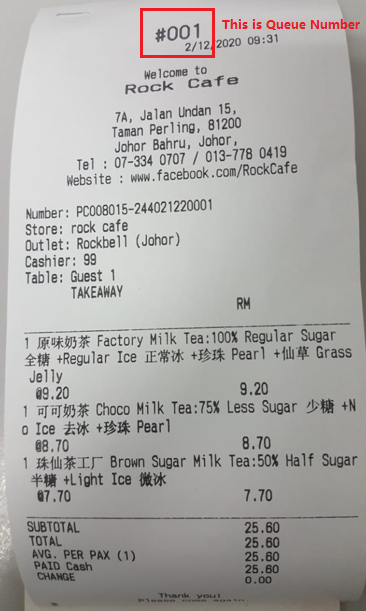
- Queue Number: Will be printed out on Bill Receipt
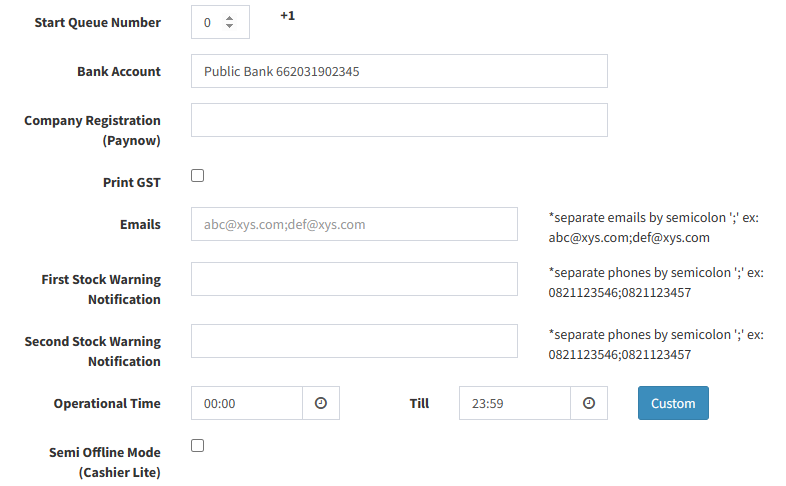
- Bank Account: Restaurant’s Bank Account (For E-Menu Bank Transfer Method)
- Company Registration (Paynow): For Singapore Company Only
- Print GST: For Singapore Company Only (Print Out GST Summary on Receipt)
- Emails: Can put in different Email Address (Can receive Daily Closing Report if enable the 'Send Email When Closing')
- First Stock & Second Stock Warning Notification: Applicable for Indonesia Company
- Operational Time: Can set restaurant operational time
- Semi Offline Mode (Cashier Lite): This function only applicable for Cashier Lite. Every transaction will be saved in device first, then every 1 hour apps will automatically sync the data to backend.
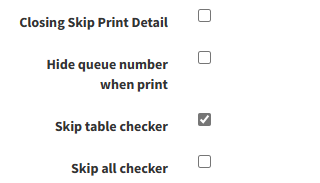
- Closing Skip Print Detail: Skip printing sales details on daily closing report
- Hide Queue Number when print: To hide the queue number on receipt
- Skip table checker: Skip printing table checker receipt on cashier printer
- Skip all checker: Skip both table and kitchen checker on cashier printer
After done making changes, click on  to save all the changes.
--------------------------------------------------------------------------------------------------------------------------------
Please refer to the video for more information:
Still stuck?
Our team is happy to walk you through this step by step.
