How to Add Printer
Go to Management > Invoice Setting > Printer: 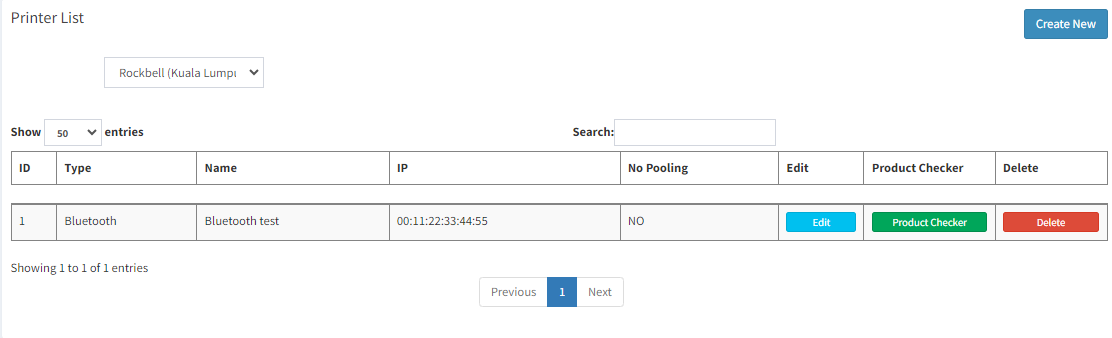
- Only Bluetooth Printer or LAN Printer can be used in Popcorn Pos System
Create LAN Printer (LAN Printer must be linked with LAN Cable):
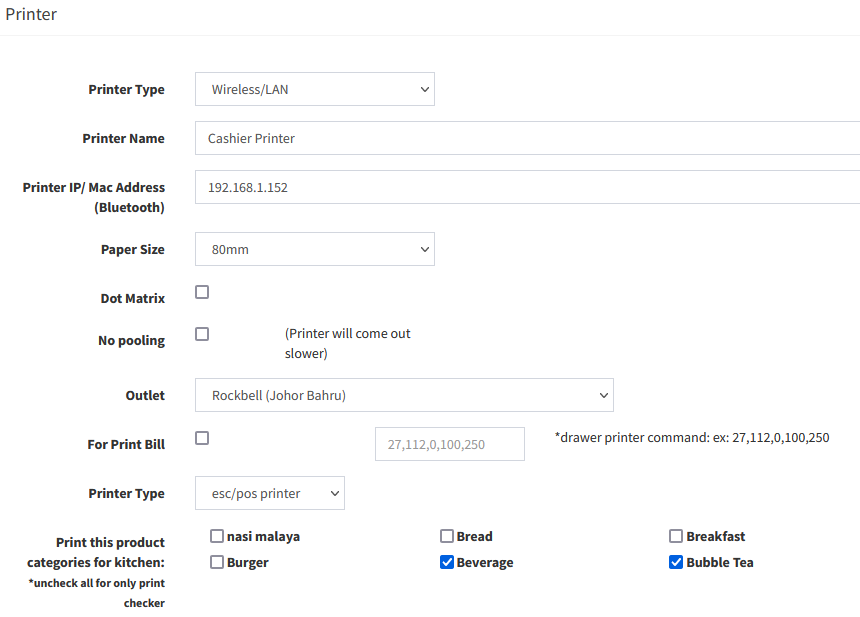
- Printer Type: Select Wireless/LAN
- Printer Name: e.g. Cashier Printer/Kitchen Printer/Bar Printer
- Printer IP: Print out the Self-Test from Printer, and key in the IP address to this column
*This step might need to assign a IP address to Printer (Printer Configuration) - Paper Size: Receipt Paper Size (58mm/80mm)
- Outlet: Select outlet for this printer
- For Print Bill: Tick this function to print out the receipt (Normally for Cashier Printer)
- Printer Type: For Normal Thermal Receipt Printer, please select esc/pos printer. For Sticker Label Printer, please select sticker printer
- Print this product categories for kitchen: For Kitchen Checker Use
Create Bluetooth Printer:
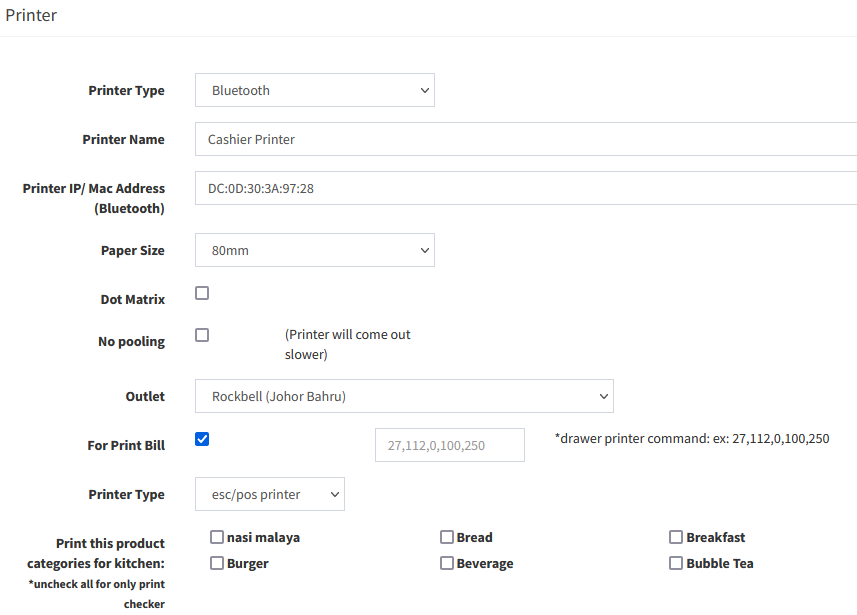
- Printer Type: Select Bluetooth
- Printer Name: e.g. Cashier Printer/Kitchen Printer/Bar Printer
- Mac Address: Print out the Self-Test from Printer, and key in the Mac/BDA address to this column
- Paper Size: Receipt Paper Size (58mm/80mm)
- Outlet: Select outlet for this printer
- For Print Bill: Tick this function to print out the receipt (Normally for Cashier Printer)
- Printer Type: For Normal Thermal Receipt Printer, please select esc/pos printer. For Sticker Label Printer, please select sticker printer
- Print this product categories for kitchen: For Kitchen Checker Use
----------------------------------------------------------------------------------------------------------------------------------------------------------
Please refer to the video below for more information:
Still stuck?
Our team is happy to walk you through this step by step.
