How to Void
Step 1: Open the App
Launch the Popcorn Cashier App on your device.
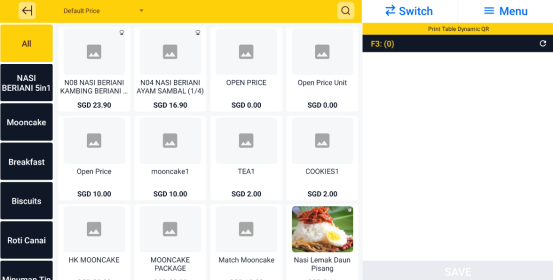
Step 2: Add Any Food Item (For Example)
Start a sample order by selecting any food item. This will demonstrate how to void an active order.
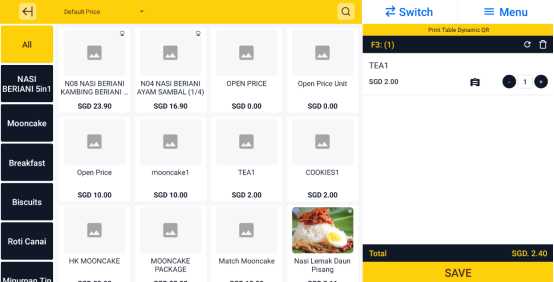
Step 3: Save the Order
Tap the Save button to save the order. This step is required before voiding can be done.
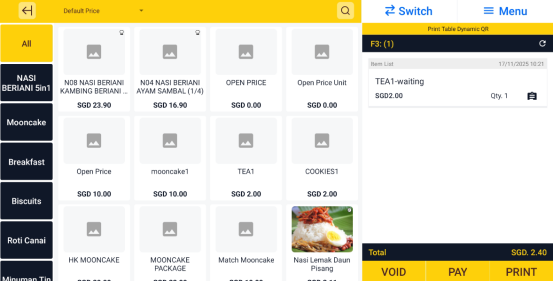
Step 4: Click "Void"
After the order is saved, click the Void button to begin the cancellation process.
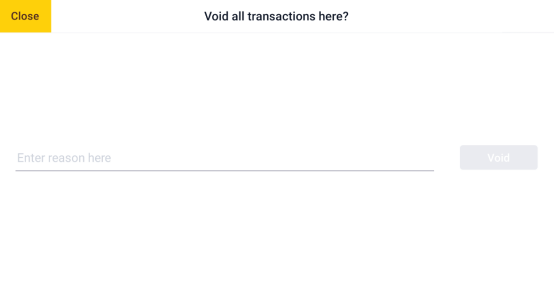
Step 5: Type the Reason for Voiding
Enter a reason for voiding the order (e.g., "Customer changed mind" or "Wrong order").
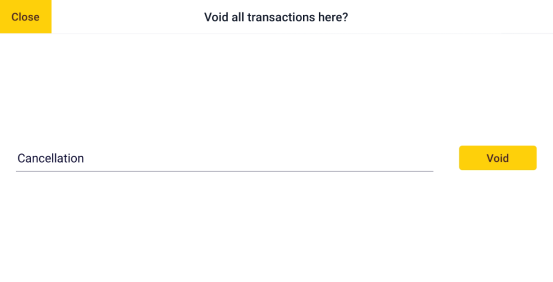
Step 6: Order is Voided
Once the reason is submitted, the order will be voided and removed from active transactions.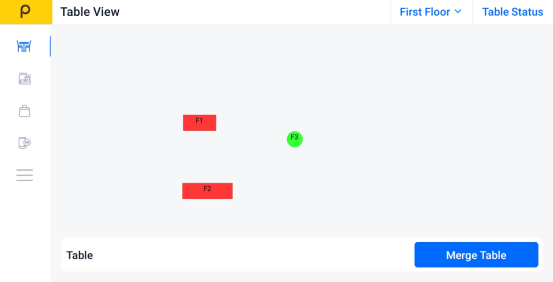
Still stuck?
Our team is happy to walk you through this step by step.
