How to Switch to Offline Mode
Step 1: Open the App
Launch the Popcorn Cashier App on your device.
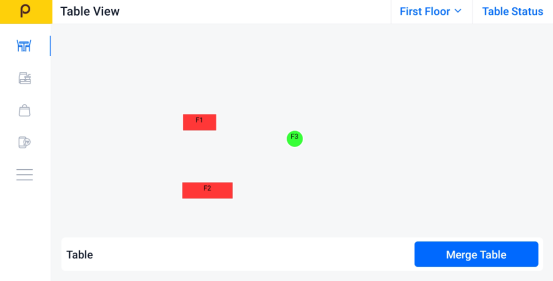
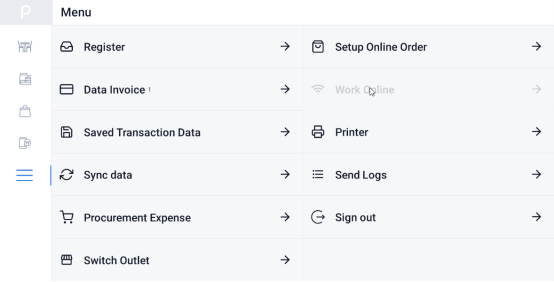
Step 2: Open the Sidebar
Tap the menu icon (☰).
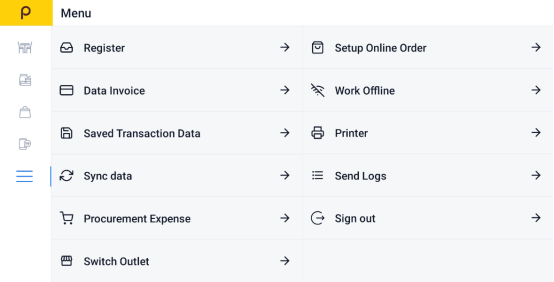
Step 3: Switch to Offline Mode
Tap "Work Offline".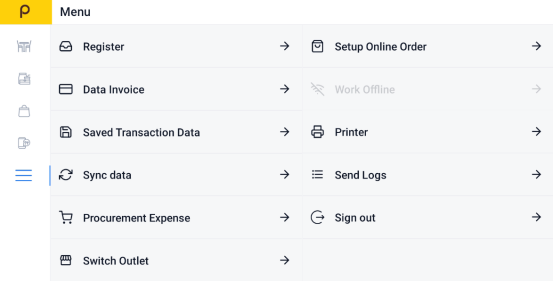
Step 4: Confirm Offline Mode
The icon at the top left turns grey, and “Work Offline” becomes “Work Online.”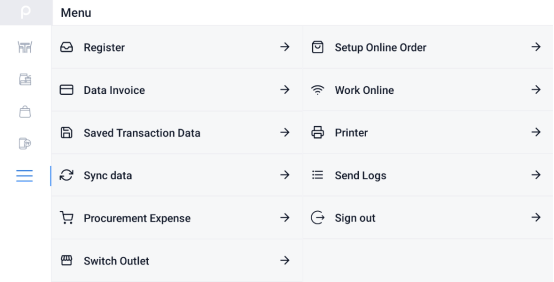
Step 5: Take the Order
Proceed to take the customer's order as you normally would.
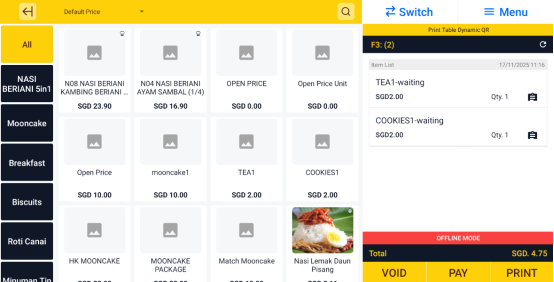
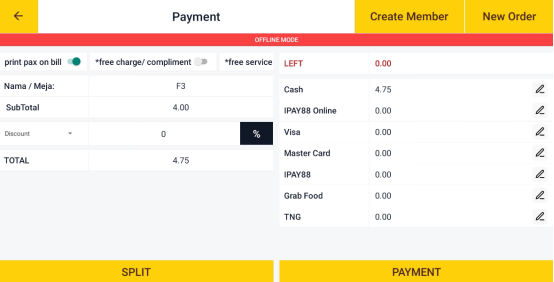
Step 6: Make the Payment
Complete the transaction. The data will be stored locally while offline.
Step 7: Return Online
When you're connected to the internet again, tap "Work Online".
Step 8: Sync Transactions
Once you're back online, the app will automatically prompt you to sync all offline transactions. Confirm to complete the process.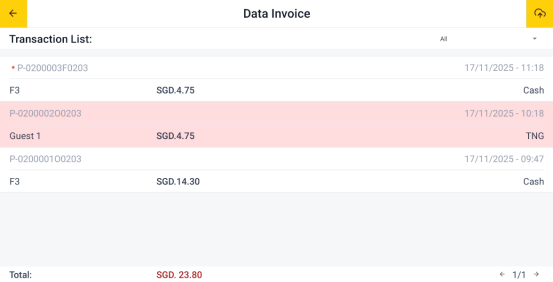
Step 9: Upload to Cloud
Tap the cloud icon at the top right to upload the offline invoices to the cloud.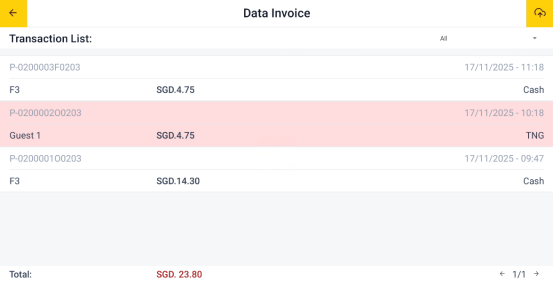
Still stuck?
Our team is happy to walk you through this step by step.
