How to Void
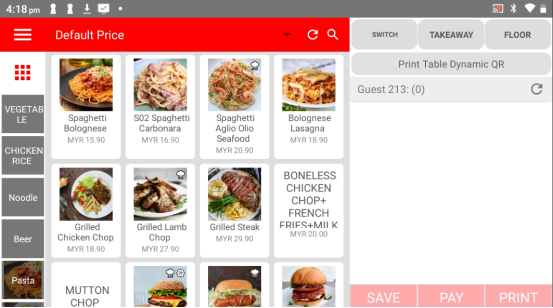
Step 1: Open the App
Launch the Popcorn Cashier App on your device.
Step 2: Add Any Food Item (For Example)
Start a sample order by selecting any food item. This will demonstrate how to void an active order.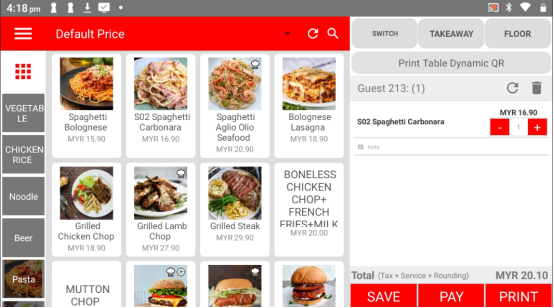
Step 3: Save the Order
Tap the Save button to save the order. This step is required before voiding can be done.
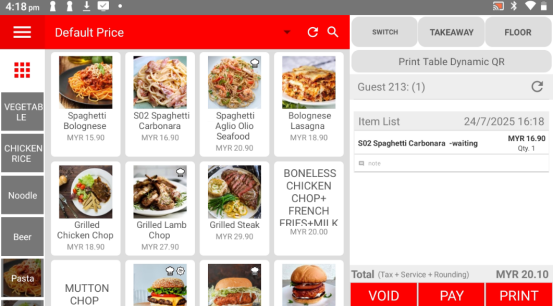
Step 4: Click "Void"
After the order is saved, click the Void button to begin the cancellation process.
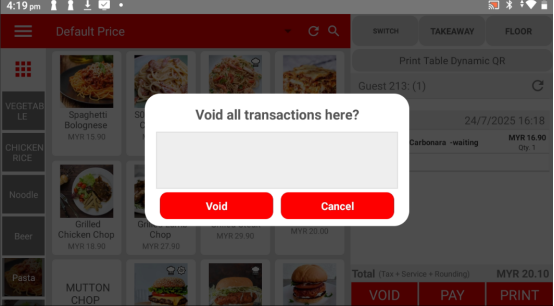
Step 5: Type the Reason for Voiding
Enter a reason for voiding the order (e.g., "Customer changed mind" or "Wrong order").
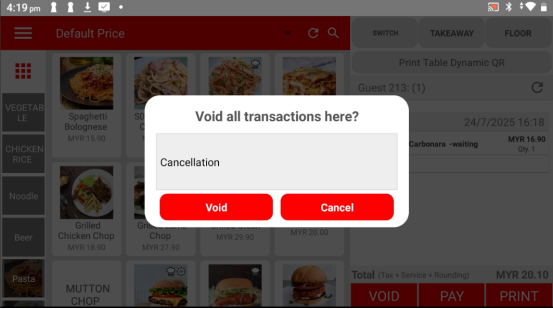
Step 6: Order is Voided
Once the reason is submitted, the order will be voided and removed from active transactions.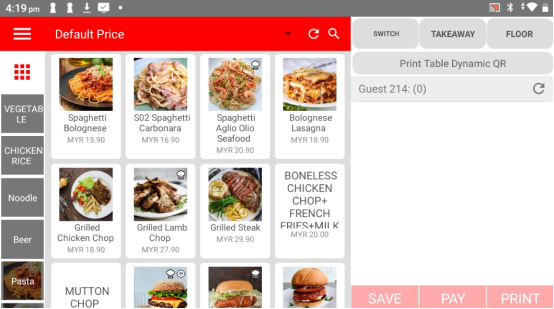
Please click the link below to access the article:
---------------------------------------------------------------------------------------------------------------------------------------------------------------------
Please refer to the video below for more information:
Still stuck?
Our team is happy to walk you through this step by step.
