How to Key in Procurement Expenses
Step 1: Open the App
Launch the Popcorn Cashier App on your device and ensure you’re logged in with the proper access level.
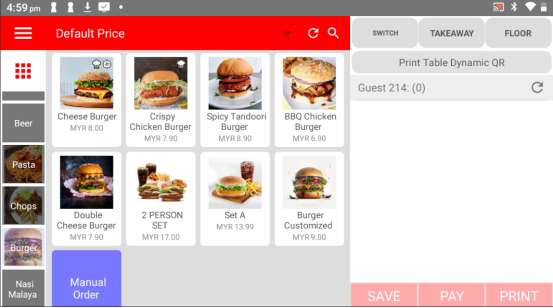
Step 2: Click the Sidebar
Tap the menu icon (☰) or swipe from the left to open the sidebar menu.
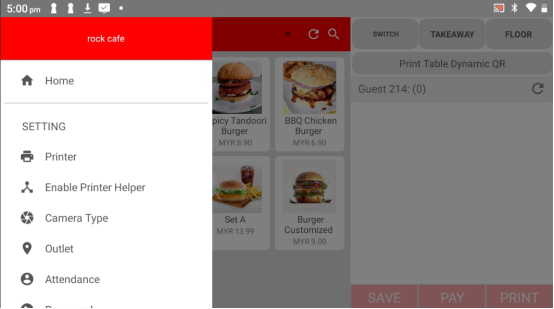
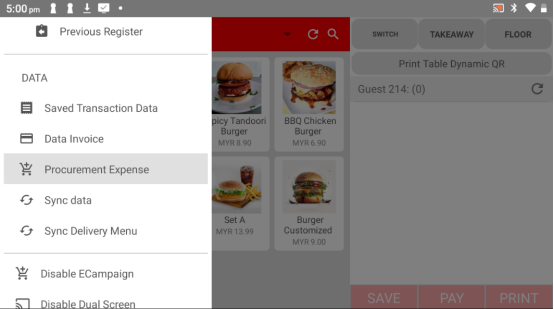
Step 3: Click "Procurement Expense" under the Data Category
In the sidebar, scroll to find the Data section and select Procurement Expense.
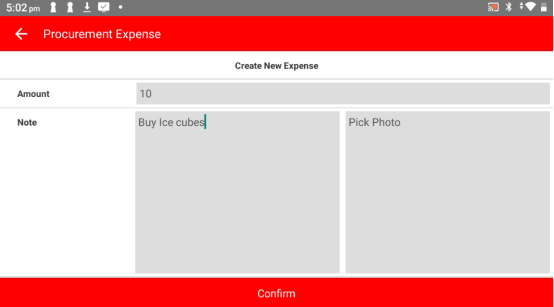
Step 4: Enter the Details
Fill in the required fields:
Amount – The total cost of the procurement
Note – A short description (e.g., "Buy Ice Cubes")
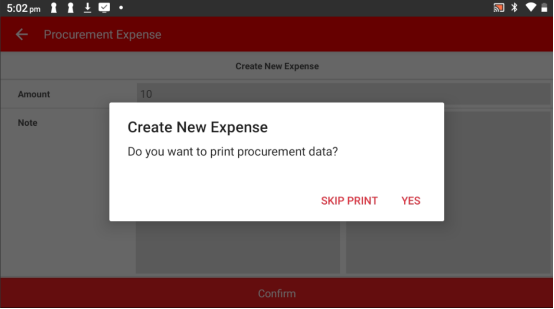
Step 5: Procurement Data Saved
Click YES or SKIP PRINT to record the expense in the system.
Please click the link below to access the article:
---------------------------------------------------------------------------------------------------------------------------------------------------------------------
Please refer to the video below for more information:
Still stuck?
Our team is happy to walk you through this step by step.
