How to Take Away
Step 1: Open the App
Launch the Popcorn Cashier App on your device. Make sure you're logged in with the correct account.
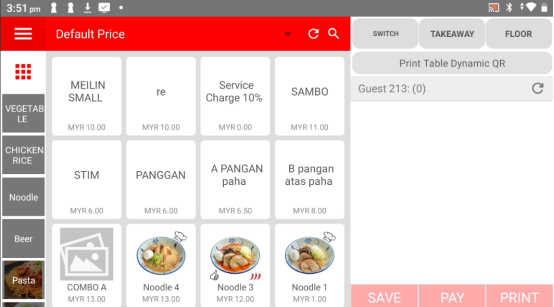
Step 2: Click "Takeaway"
On the main screen, tap the Takeaway button to start a new takeaway order.
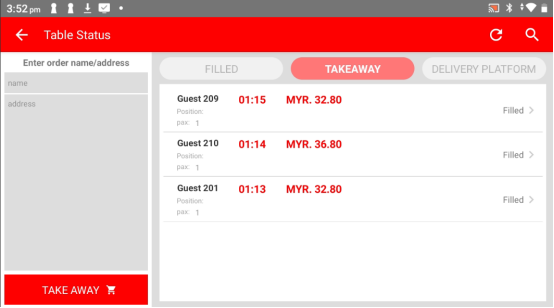
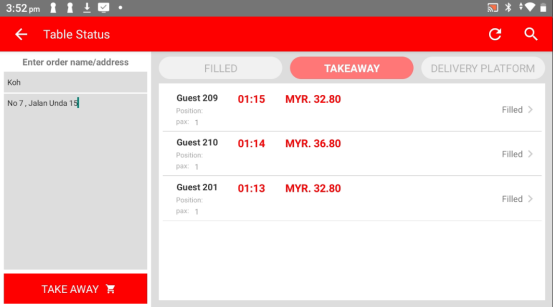
Step 3: Enter Customer Details
Fill in the customer's details, such as name and address. Then press Takeaway to continue.
Step 4: Start the Order
Begin adding the food and drink items the customer wants to order. Tap to select each item and adjust quantities as needed.
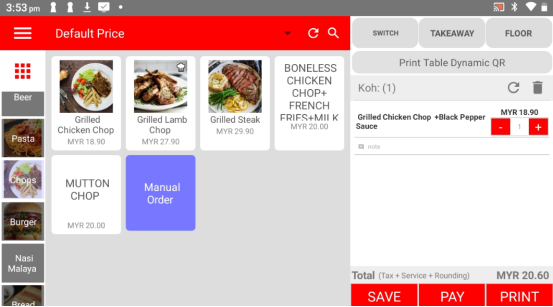
Step 5: Save the Order
Once all items are added, press the Save button to record the order in the system.
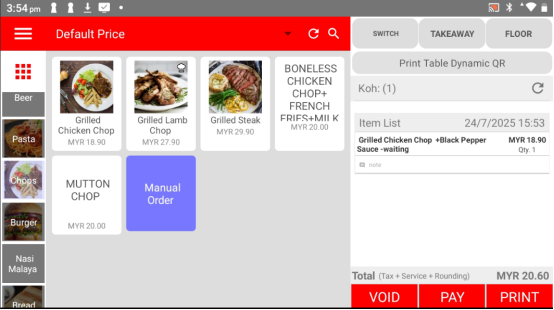
Step 6: Click 'Pay' (If the Customer is Ready)
If the customer is ready to pay, tap the Pay button to proceed.
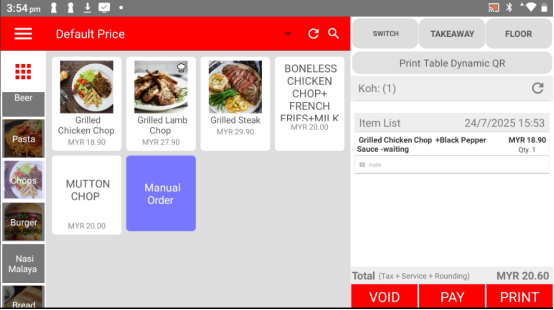
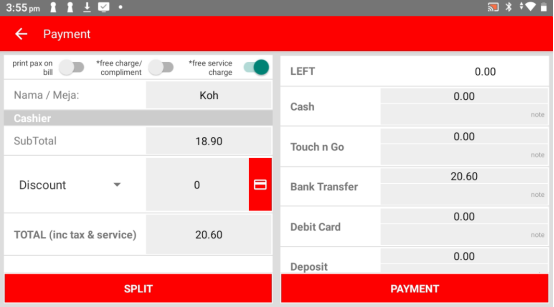
Step 7: Select the Payment Method
Choose the payment method the customer prefers—cash, card, e-wallet, etc.
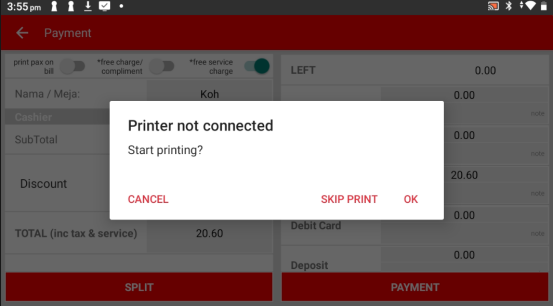
Step 8: Choose to Print the Receipt or Not
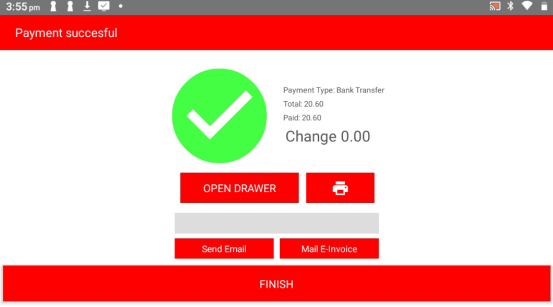
After completing the payment, the app will ask if you'd like to print a receipt. Select OK or Skip Print depending on the customer's request.
Step 9: Finish
That’s it! The takeaway order is now complete and ready for preparation or pickup.
Please click the link below to access the article:
---------------------------------------------------------------------------------------------------------------------------------------------------------------------
Please refer to the video below for more information:
Still stuck?
Our team is happy to walk you through this step by step.
