How to Open & Close Register
Part 1: Open Register
Step 1: Open the App
Launch the Popcorn Cashier App on your device.
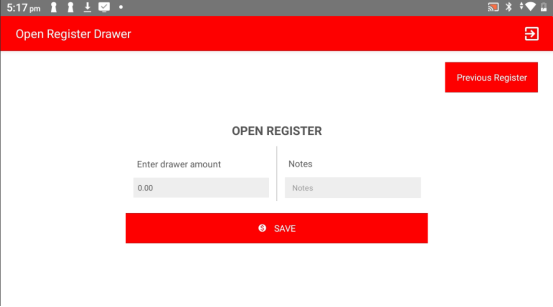
Step 2: Enter the Opening Amount
When prompted, enter the amount of cash in the register drawer at the start.
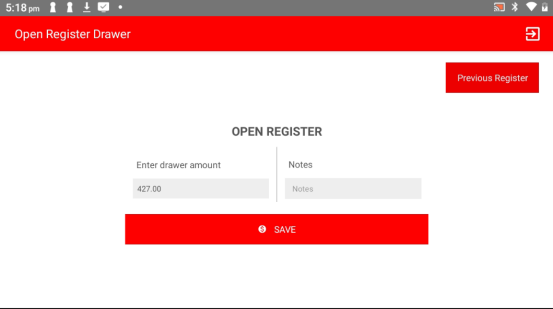
Step 3: Click Save
Tap Save to confirm the opening balance.
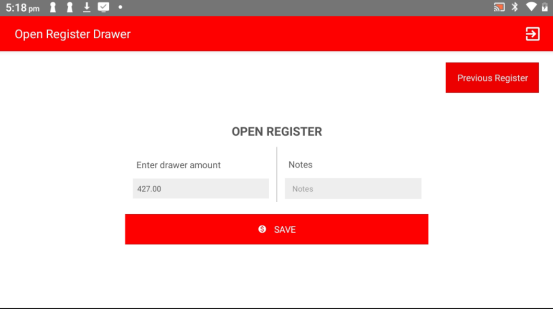
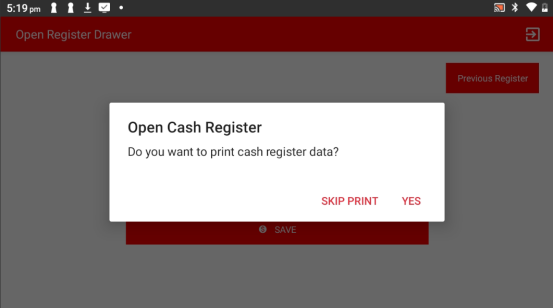
Step 4: Choose to Print or Not
You will be asked whether you want to print the opening register receipt. Select Yes or Skip as needed.
Part 2: Close Register
Step 5: Go to Main Menu
From the home screen or order screen, tap to return to the main menu.
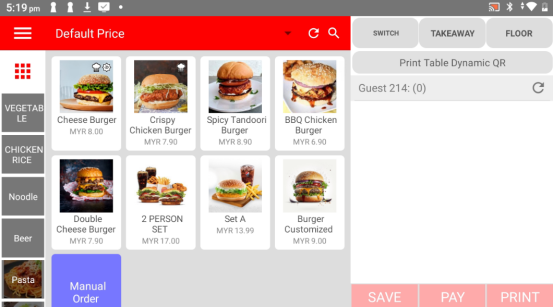
Step 6: Open the Sidebar Menu
Tap the menu icon (☰) or swipe from the left to open the sidebar.
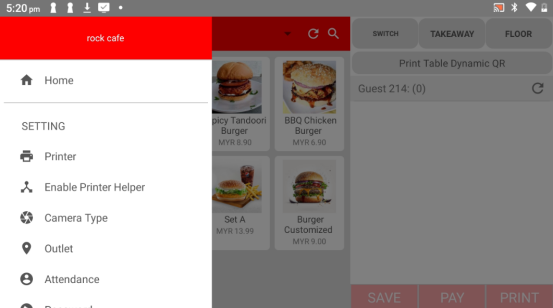
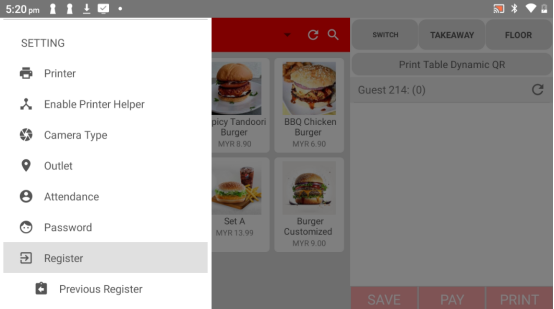
Step 7: Click "Register" under the Settings Category
Under the Settings section, select Register to manage register actions.
Step 8: Click "Close Register"
Tap the Close Register button to begin the closing process.
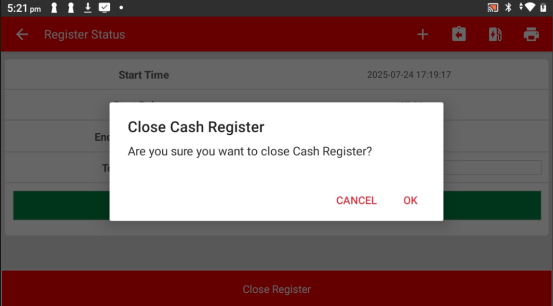
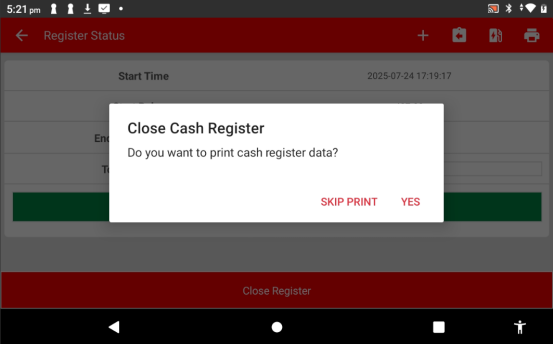
Step 9: Choose to Print or Skip
You’ll be given the option to print a closing receipt. Select YES to print or SKIP if you don’t need a printed copy.
Please click the link below to access the article:
---------------------------------------------------------------------------------------------------------------------------------------------------------------------
Please refer to the video below for more information:
Still stuck?
Our team is happy to walk you through this step by step.
