STEPS TO SET UP BLUETOOTH PRINTER IN POS TERMINAL
Model Involved:
iMIN D1 DESKTOP POS
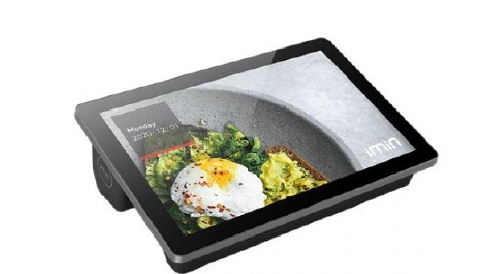 IMIN FALCON 1
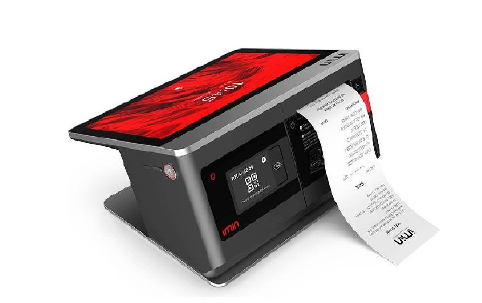
IMIN D4-503
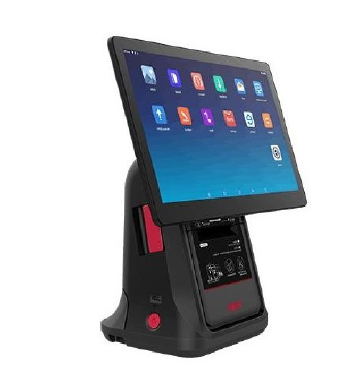
IMIN D4-504
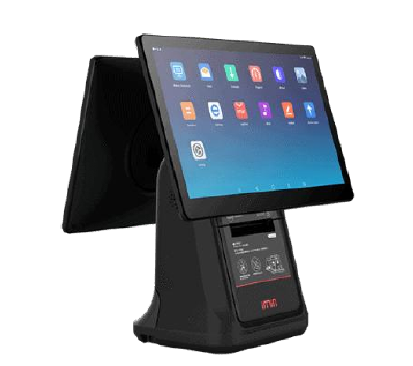
IMIN M2 MAX
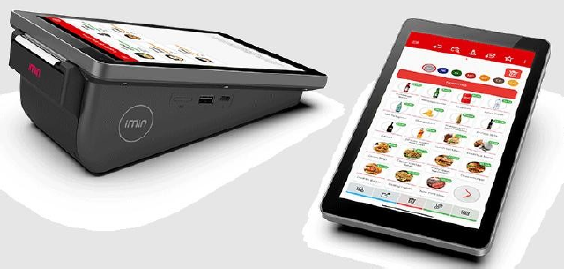
SUNMI D3 MINI
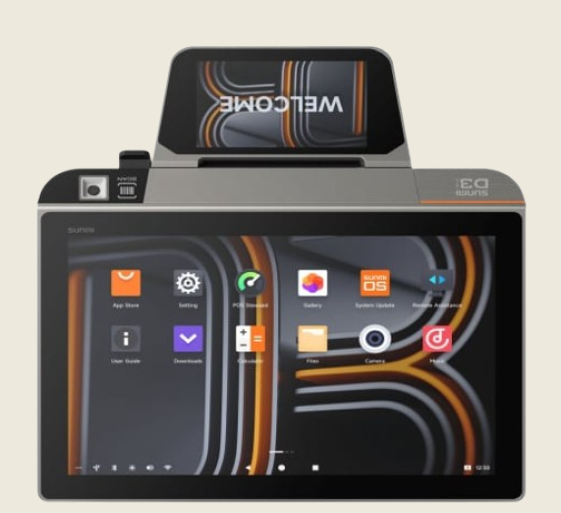
V3MIX
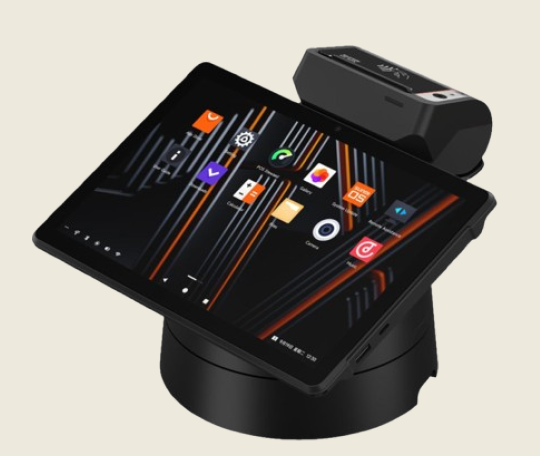
D2S PLUS
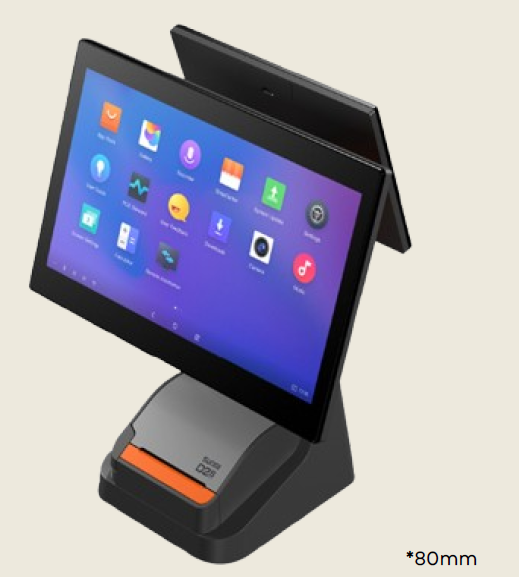
Go to the device
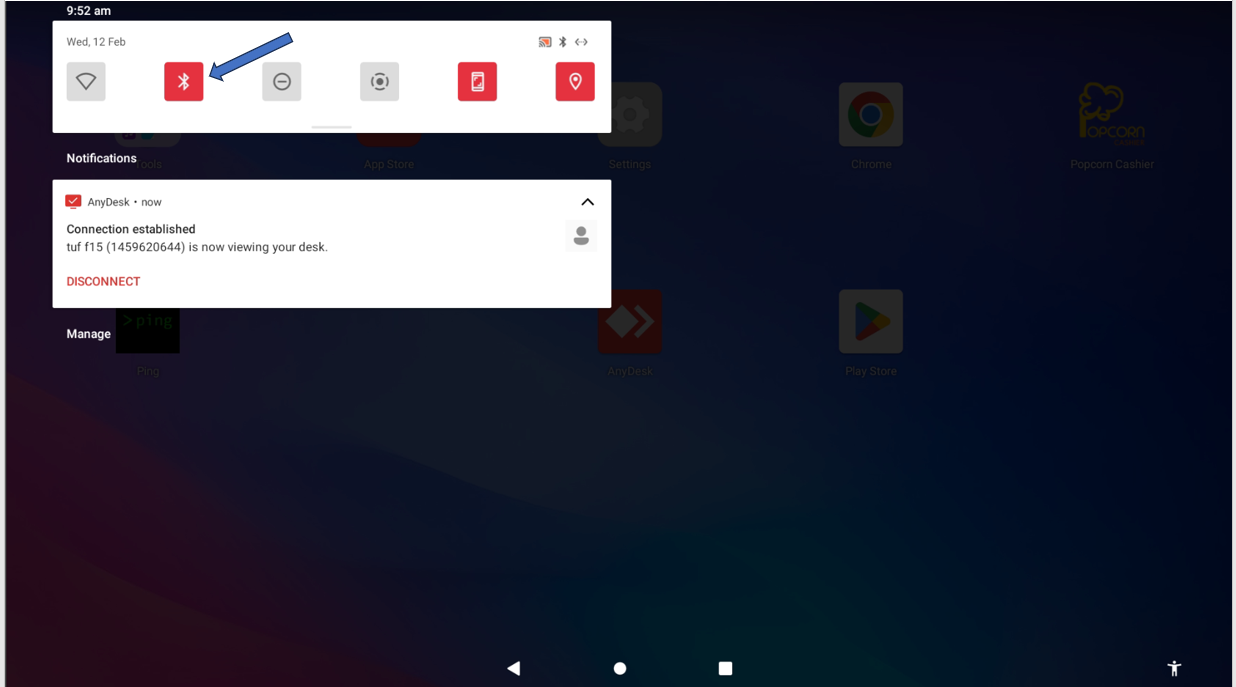
- Swipe down from the top of your screen to open the Quick Settings Panel.
- Tap the Bluetooth icon to turn it ON if it is off.
Go to www.popcorncashier.com
Go to Management > Invoice Setting > Printer:
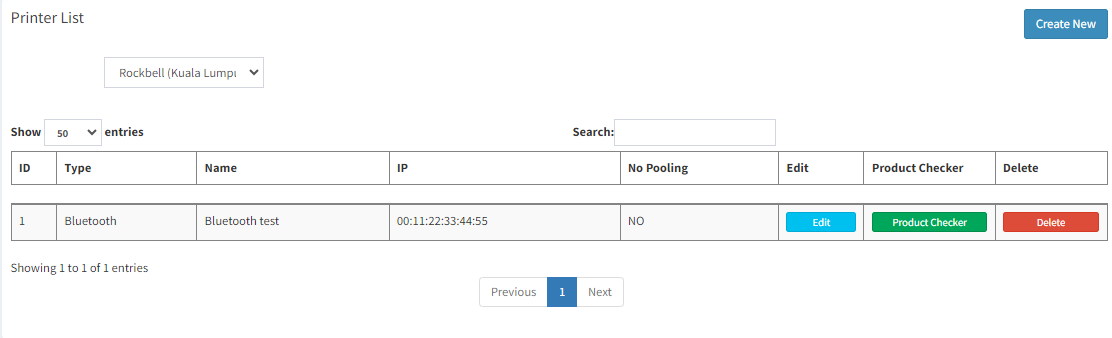
- Locate the "Create New" button on the top right corner.
- Click on it to open the New Printer Setup form.
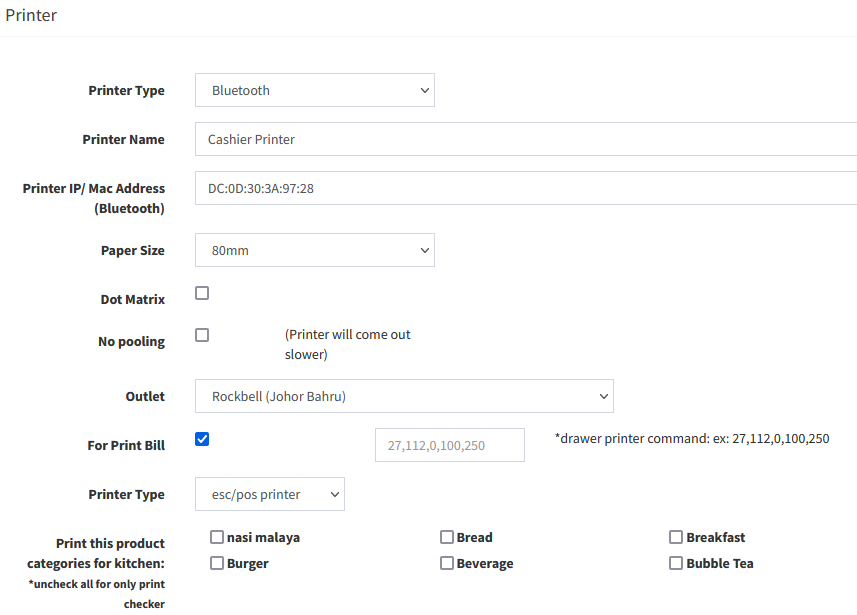
- Printer Type: Select Bluetooth
- Printer Name: e.g. Cashier Printer/Kitchen Printer/Bar Printer
- Printer IP/Mac Address: Print out the Self-Test from Printer, and key in the Mac/BDA address to this column
- Paper Size: Receipt Paper Size (58mm/80mm)
- Outlet: Select outlet for this printer
- For Print Bill: Tick this function to print out the receipt (Normally for Cashier Printer)
- Printer Type: For Normal Thermal Receipt Printer, please select esc/pos printer. For Sticker Label Printer, please select sticker printer
- Print this product categories for kitchen: For Kitchen Checker Use
How to check printer connection status in Popcorn Pos Cashier?
Go to Popcorn Cashier App:
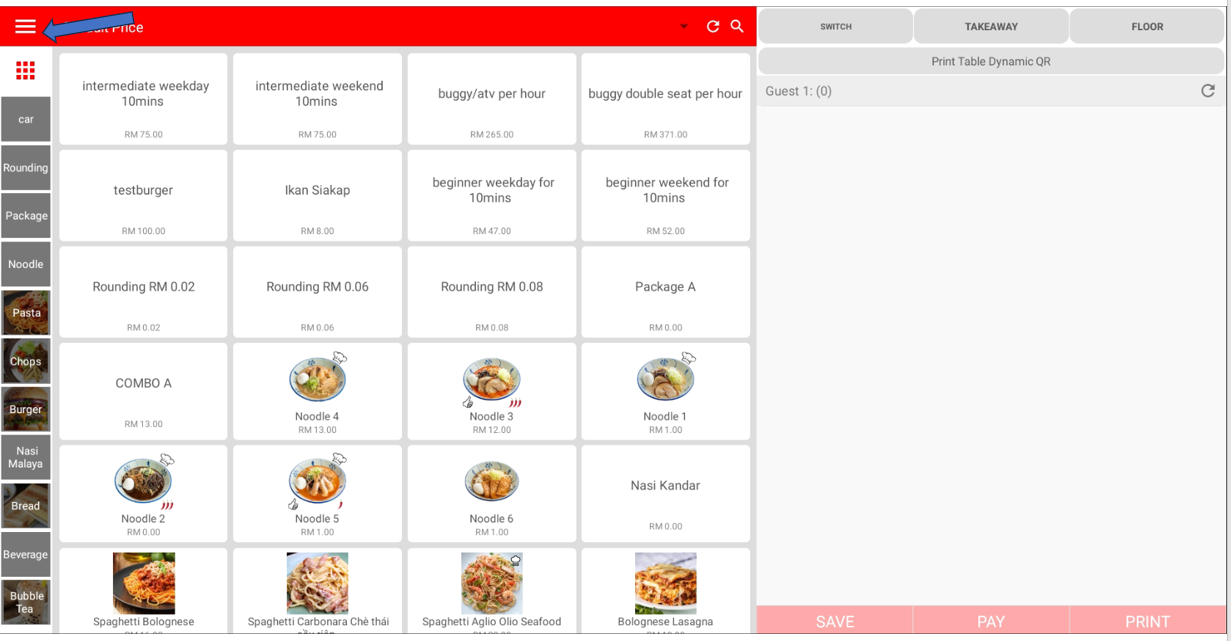
- Locate the three horizontal lines (☰) at the top left corner of the screen.
- Click on it to open the menu options.
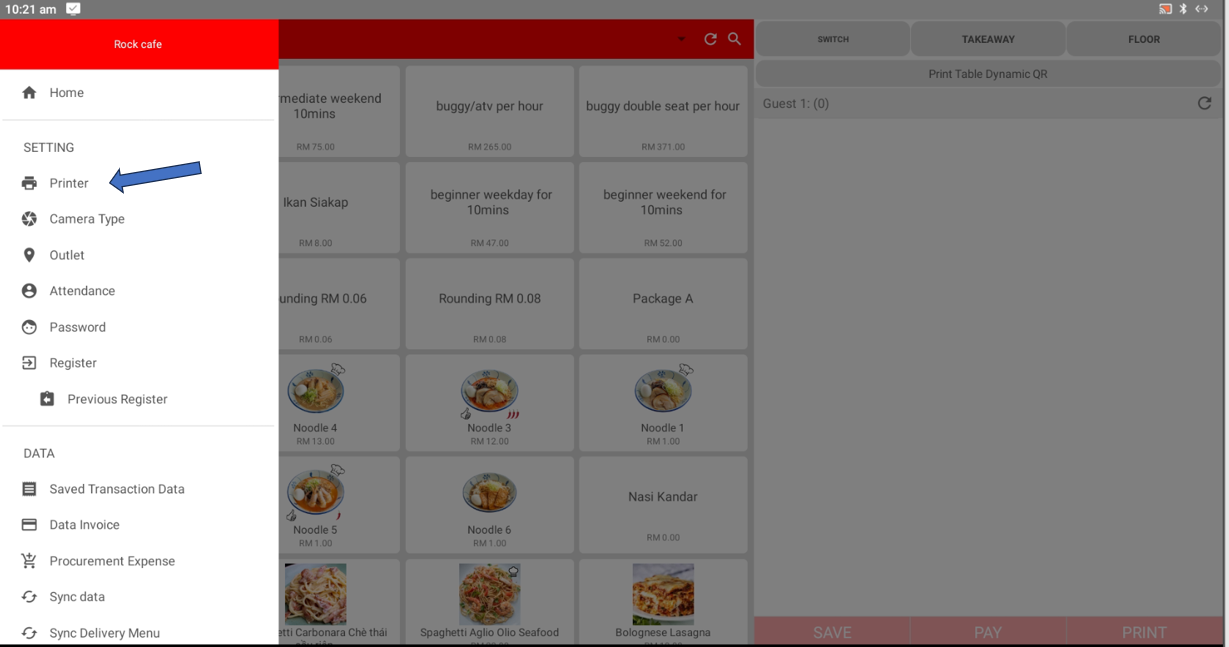
- From the menu, locate the "Printer" option under SETTINGS.
- Click on "Printer" to open the printer configuration settings.
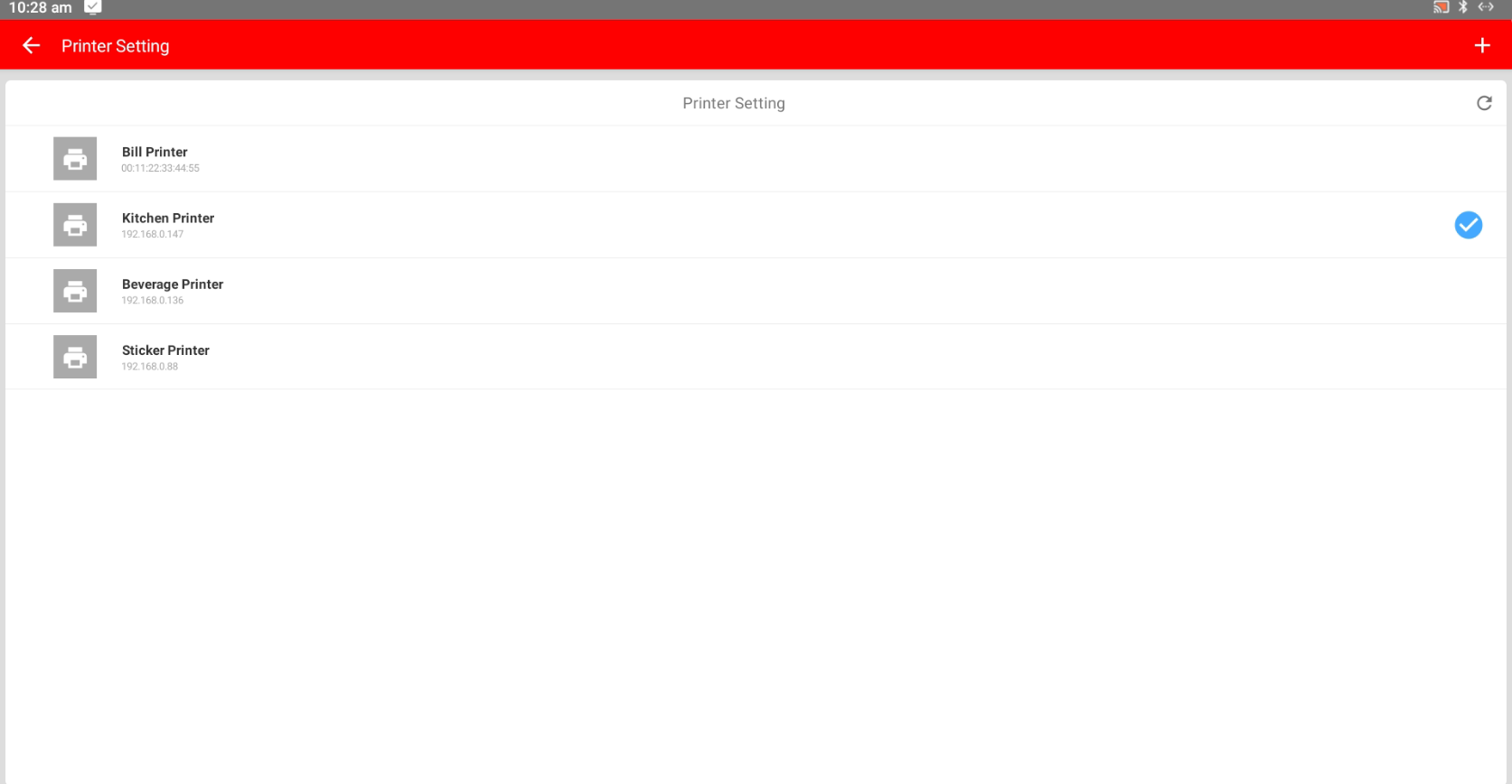
- Click on the printer you want to connect to.
- If a blue checkmark (✔) appears next to the printer, it means the printer has been successfully connected.
Still stuck?
Our team is happy to walk you through this step by step.
