STEPS TO LINK THE CASH DRAWER
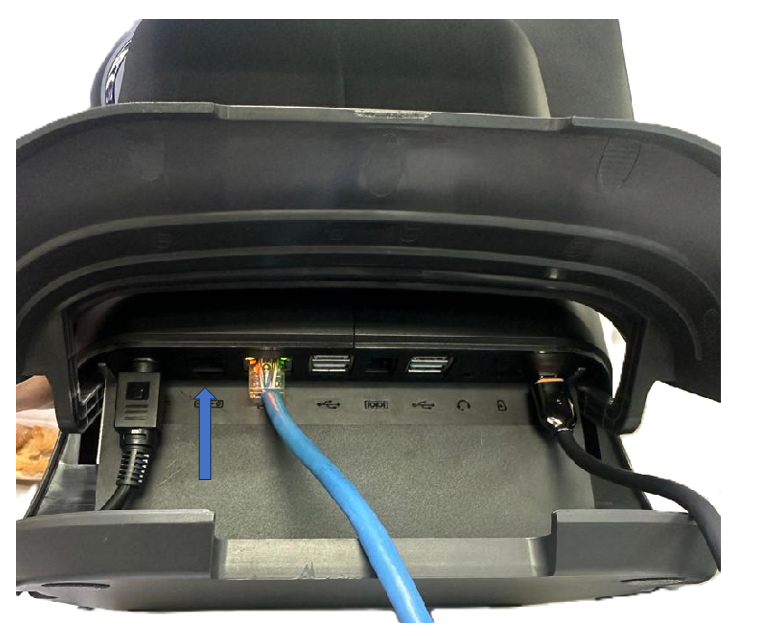
Step: Use the cable from the cash drawer and plug into the cash drawer port on the device.
Go to www.popcorncashier.com
Go to Management > Invoice Setting > Printer:
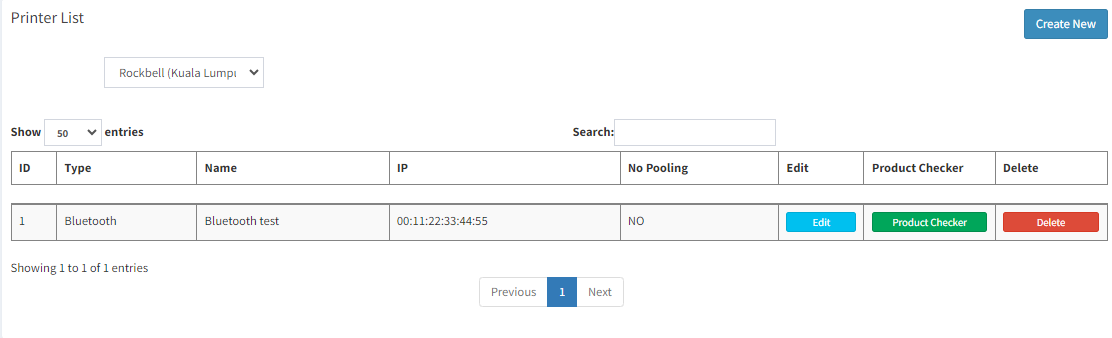
- Locate the "Create New" button on the top right corner.
- Click on it to open the New Printer Setup form.
How to Connect a Cash Drawer via Bluetooth
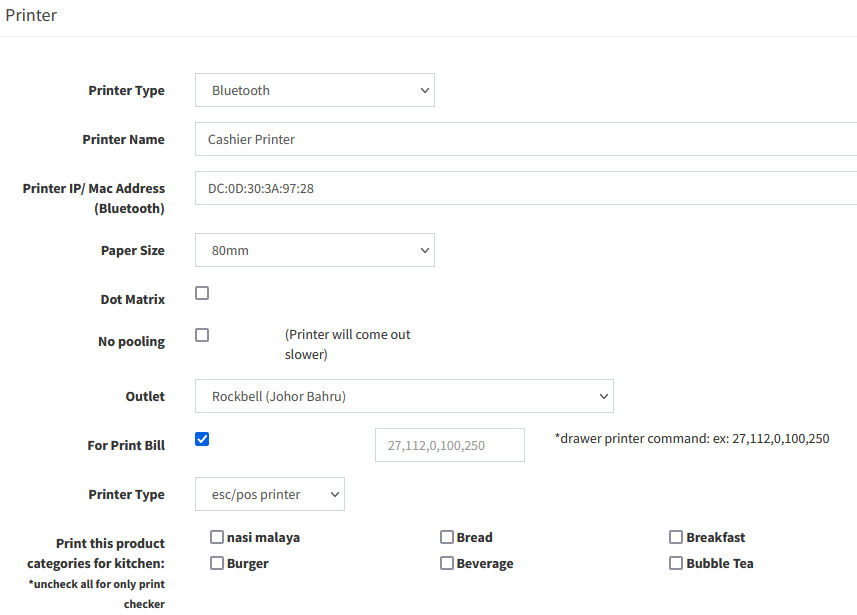
- Printer Type: Select Bluetooth
- Printer Name: e.g. Cashier Printer/Kitchen Printer/Bar Printer
- Printer IP/ Mac Address: Print out the Self-Test from Printer, and key in the IP address to this column
*This step might need to assign a IP address to Printer (Printer Configuration) - Paper Size: Receipt Paper Size (58mm/80mm)
- Outlet: Select outlet for this printer
- For Print Bill: Tick this function to print out the receipt (Normally for Cashier Printer)
- Enter the drawer printer command: 10,10,10,10,16,20,0,0,0,29,86,65,0 to enable the cash drawer to open automatically.
- Printer Type: For Normal Thermal Receipt Printer, please select esc/pos printer. For Sticker Label Printer, please select sticker printer
- Print this product categories for kitchen: For Kitchen Checker Use
How to Connect a Cash Drawer via Wireless/LAN
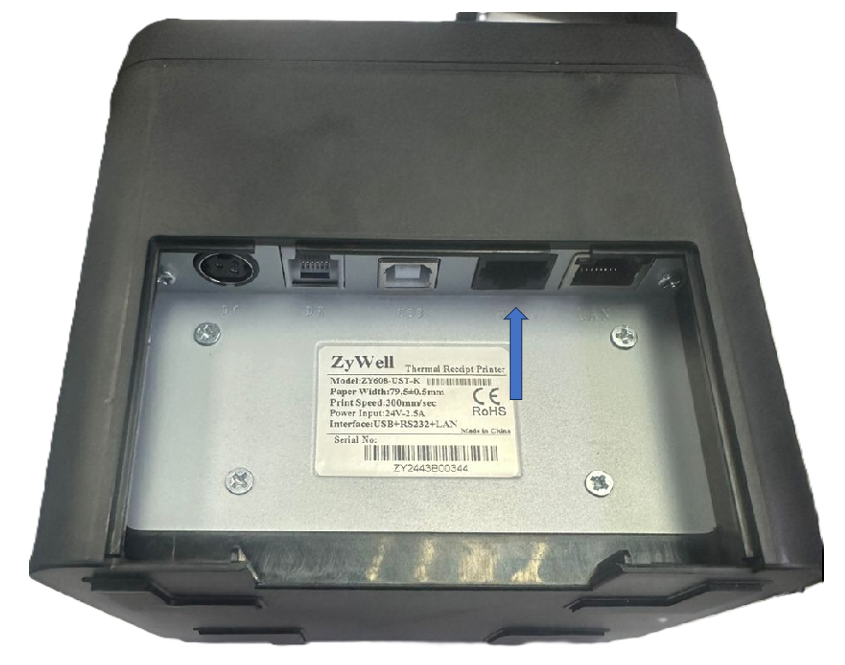
Step: Plug the cash drawer cable to the printer plot
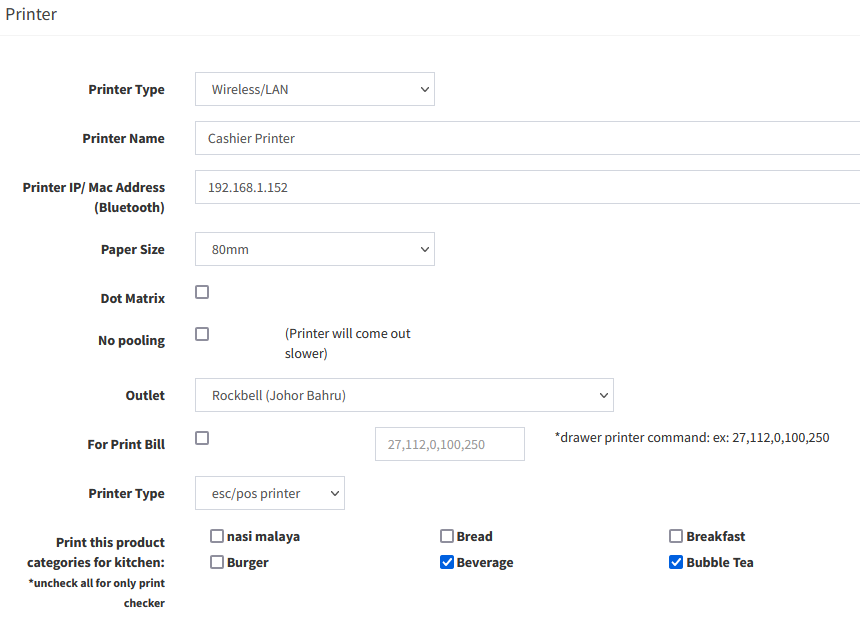
- Printer Type: Select Wireless/LAN
- Printer Name: e.g. Cashier Printer/Kitchen Printer/Bar Printer
- Printer IP: Print out the Self-Test from Printer, and key in the IP address to this column
*This step might need to assign a IP address to Printer (Printer Configuration) - Paper Size: Receipt Paper Size (58mm/80mm)
- Outlet: Select outlet for this printer
- For Print Bill: Tick this function to print out the receipt (Normally for Cashier Printer)
- Printer Type: For Normal Thermal Receipt Printer, please select esc/pos printer. For Sticker Label Printer, please select sticker printer
- Print this product categories for kitchen: For Kitchen Checker Use
Still stuck?
Our team is happy to walk you through this step by step.
