Version V2.8A
PopCorn POS Cashier Enhancements
Version V2.8a (Date: 2025 )
? Summary of This Version (2025)
- E-Invoice Integration
Submit directly to MYINVOIS via Popcorn backend or app, with email and QR code options.
- Delivery Platform Exemption
Orders from Grab, Foodpanda, Shopee, etc. are exempted from consolidated e-Invoice submission.
- SST Item Tax Settings
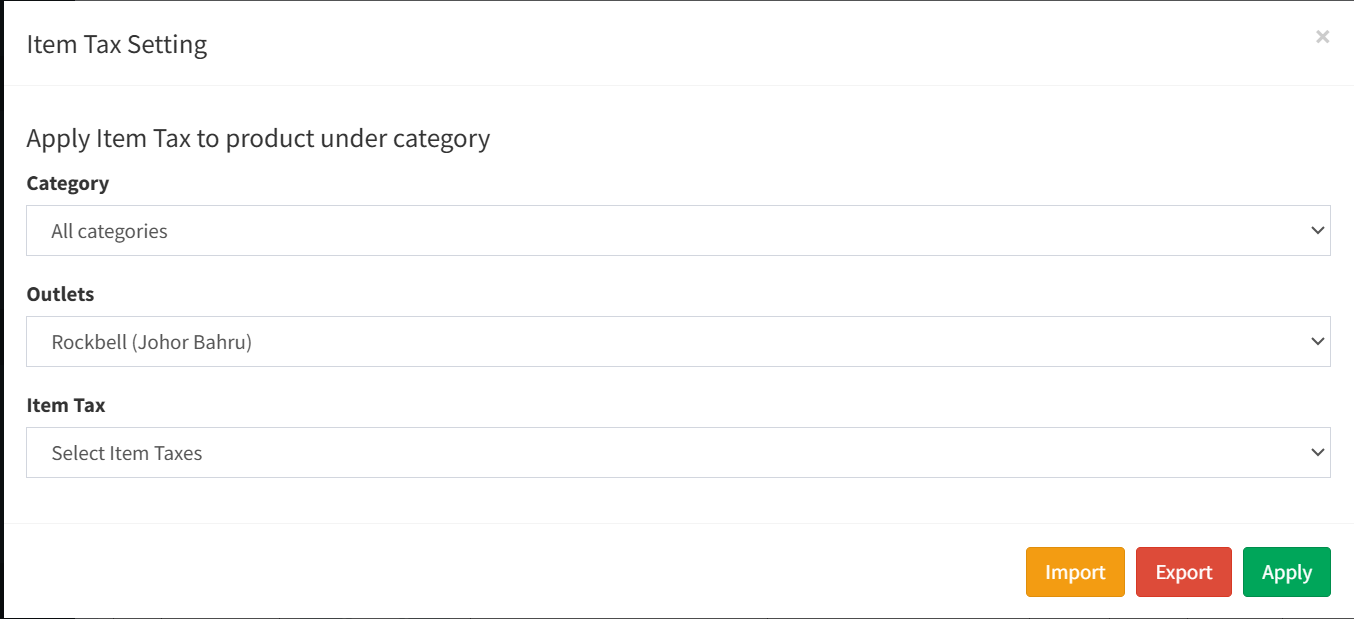
Support for 6% and 8% SST, with customizable inclusive/exclusive tax codes.
- Refund Process
Enhanced with item-level refund option for better accuracy.
- Pricing Type
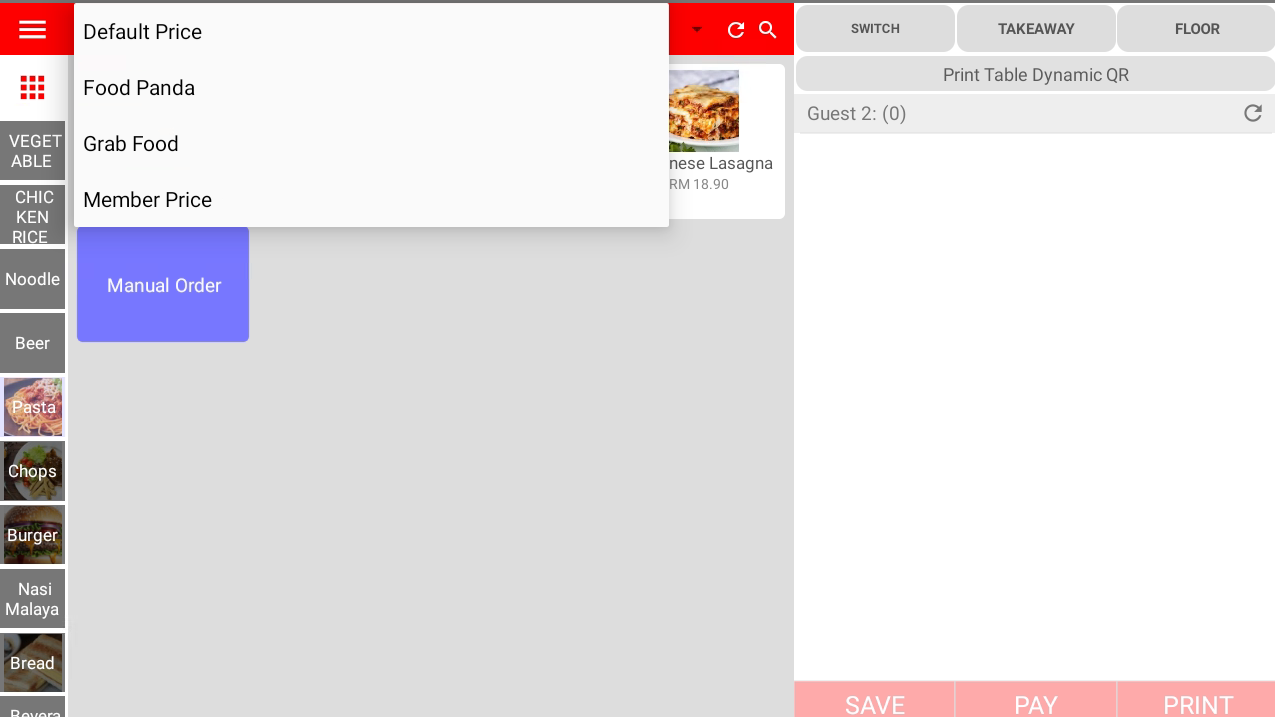
Allows assigning different pricing types for manually keyed-in third-party orders.
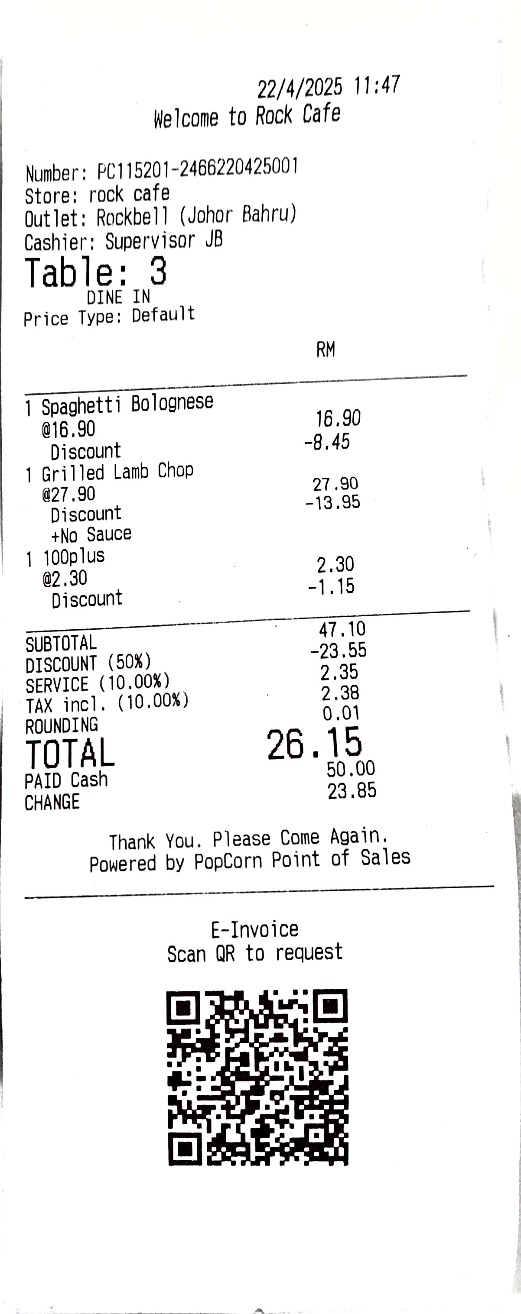
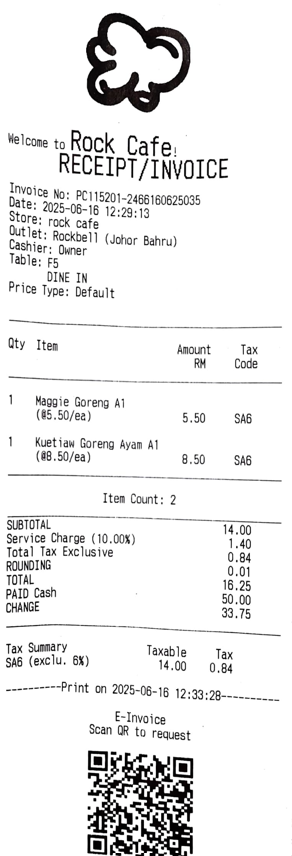
- Bill Receipt for E-Invoice
New format supports QR code and email submission features.
- Bill Receipt for SST
Clearly shows tax-inclusive and tax-exclusive pricing for SST items.
- Service Charge Calculation (Singapore & Malaysia)
Malaysia: SST is calculated before service charge.
Singapore: GST is calculated after service charge (on the total amount including service charge).
Section 1: Government Regulation Updates
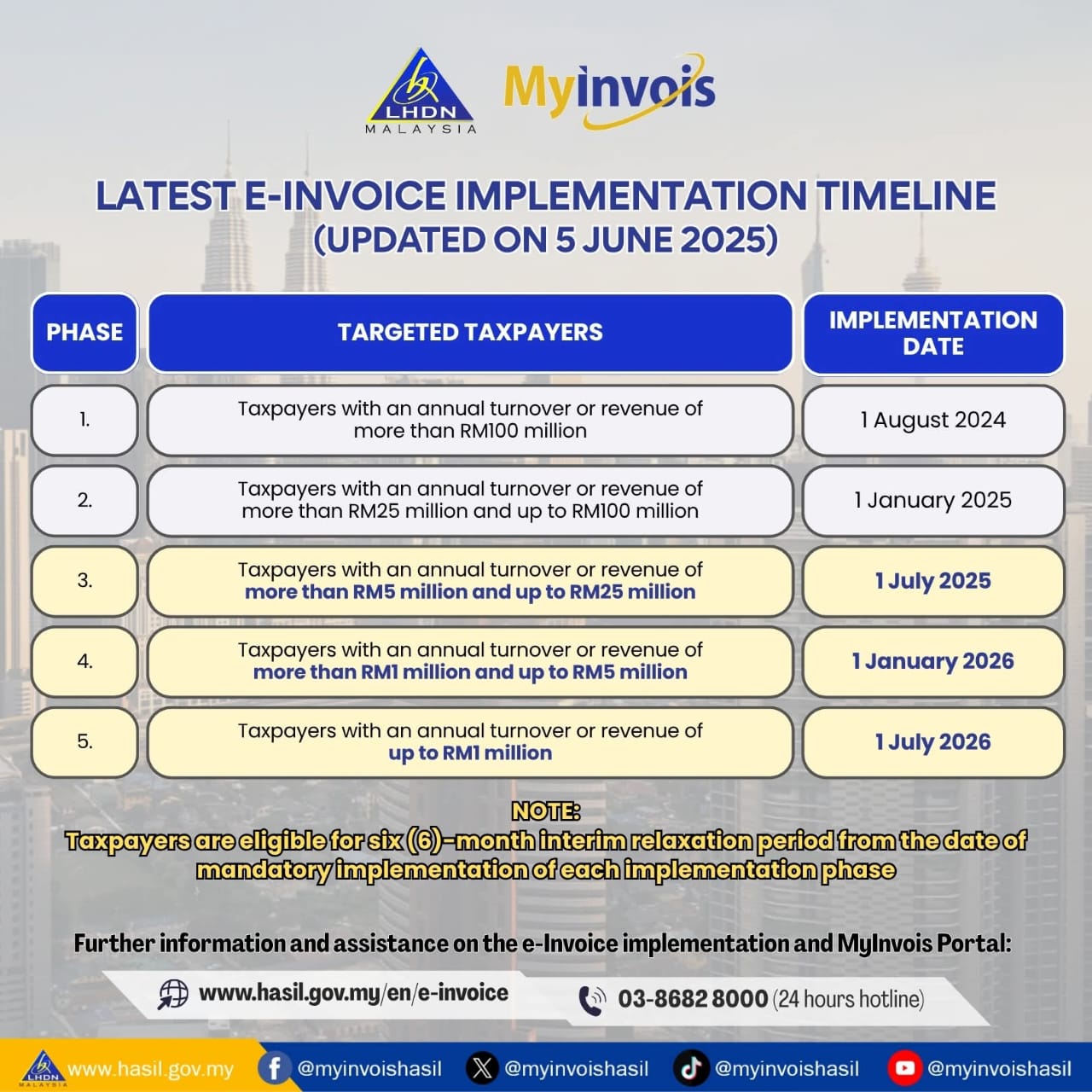
E-Invoicing
- Setup E-Invoicing Information in Popcorn Backend Website (www.popcorncashier.com)
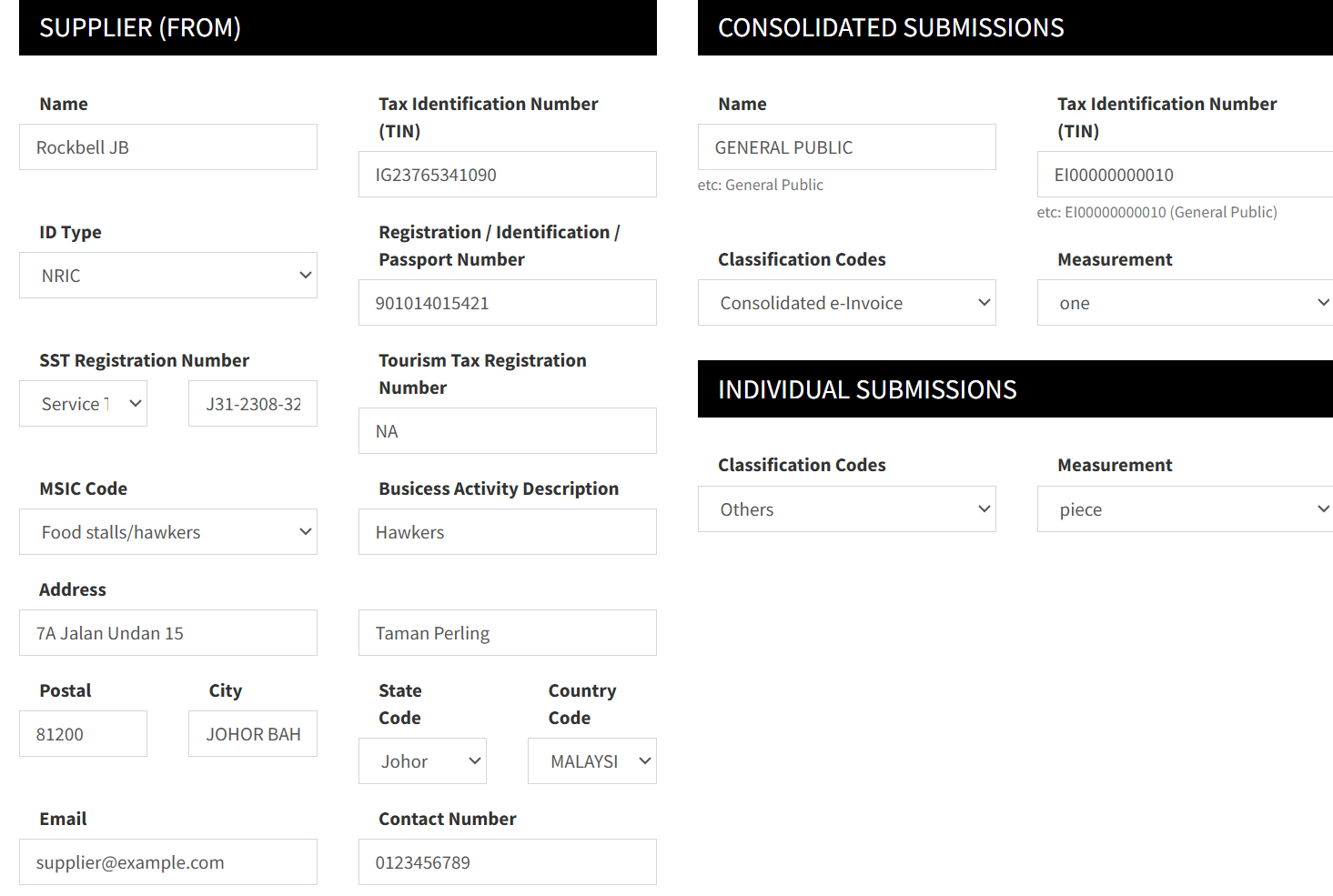
- If you don’t have an SST Registration Number or Tourism Tax Registration Number, please write "NA".
- Phone number format should not include any symbols.
- For the Consolidated Submissions section, please follow the example in the photo above for “Name”, “Tax Identification Number (TIN)”, “Classification Code”, and “Measurement”.
- For the Individual Submissions section, please follow the photo above for “Classification Codes” and “Measurement”.
Consolidated E-Invoice Submission
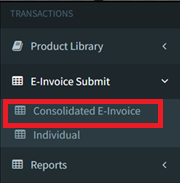
- Go to Popcorn Website (www.popcorncashier.com) > E-Invoice Submit > Consolidated E-Invoice
- Choose the Month & Outlet > Submit
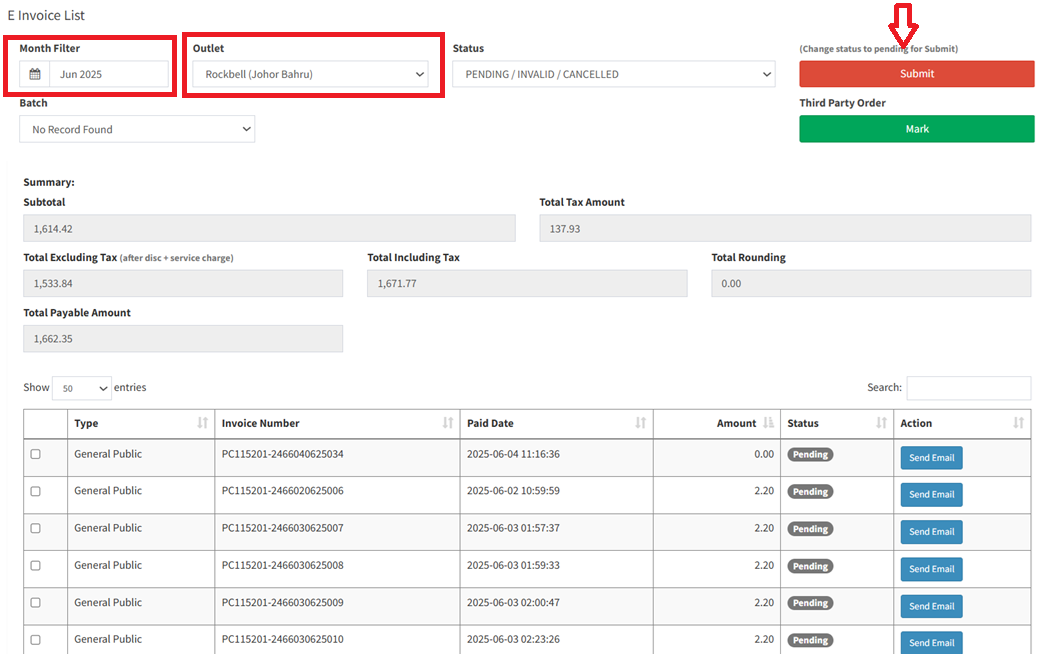
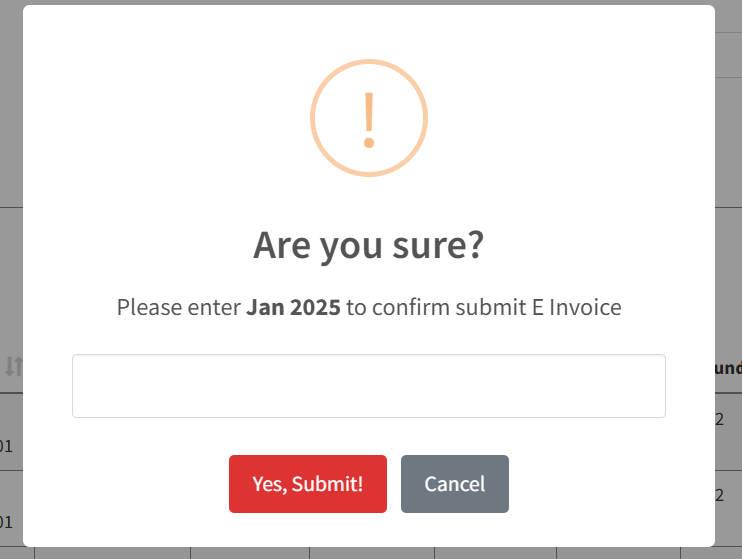
- Key in the Month and Year, then submit the consolidated report; this step will directly send the report to the MYINVOIS Portal.
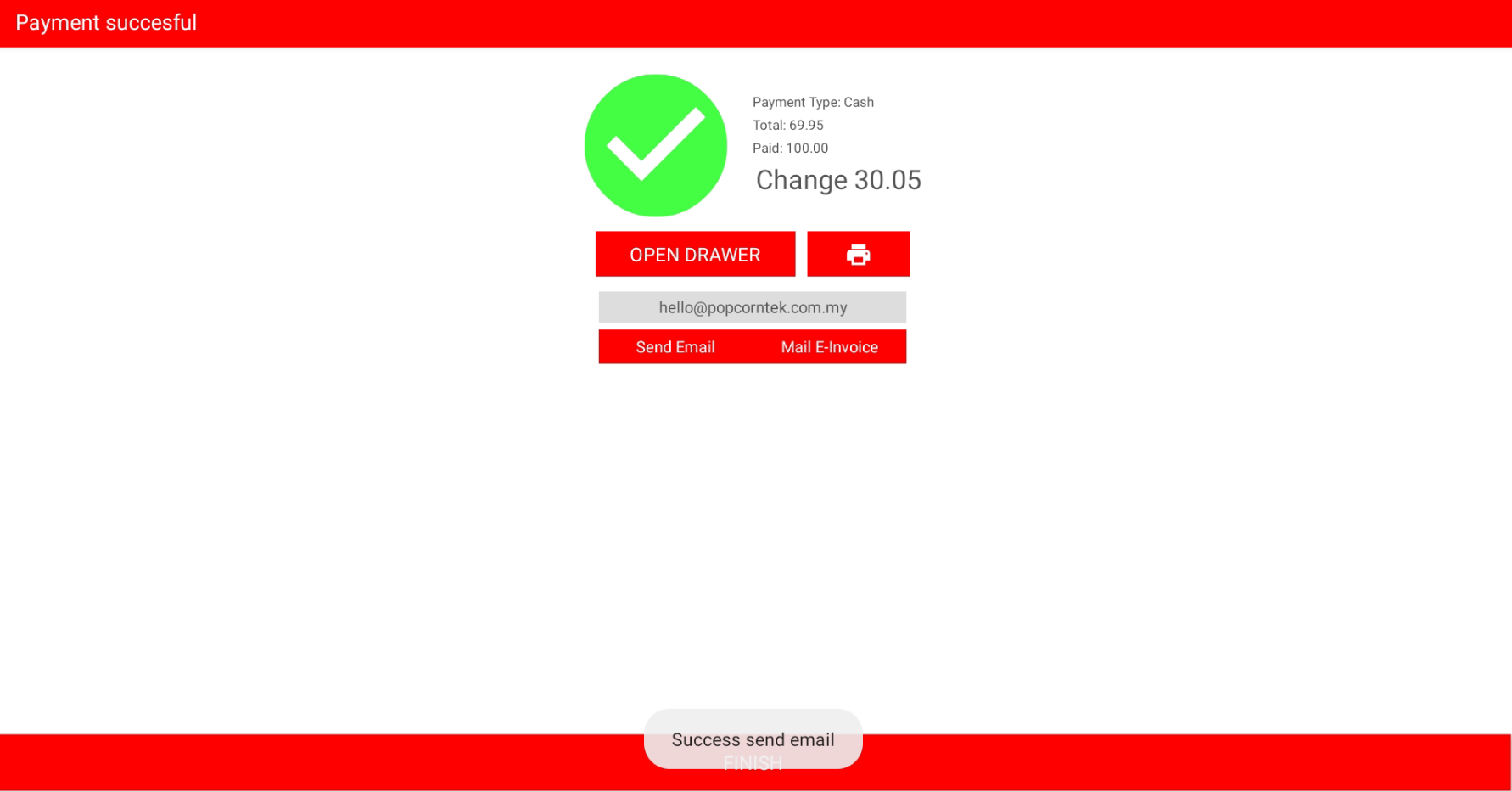
Popcorn Cashier Apps: When customer request for E-Invoice
- Method 1: Scan the QR Code on the Bill Receipt
- Method 2: On the Checkout page, the cashier can enter the customer’s email address in the email column and click “Mail E-Invoice.”
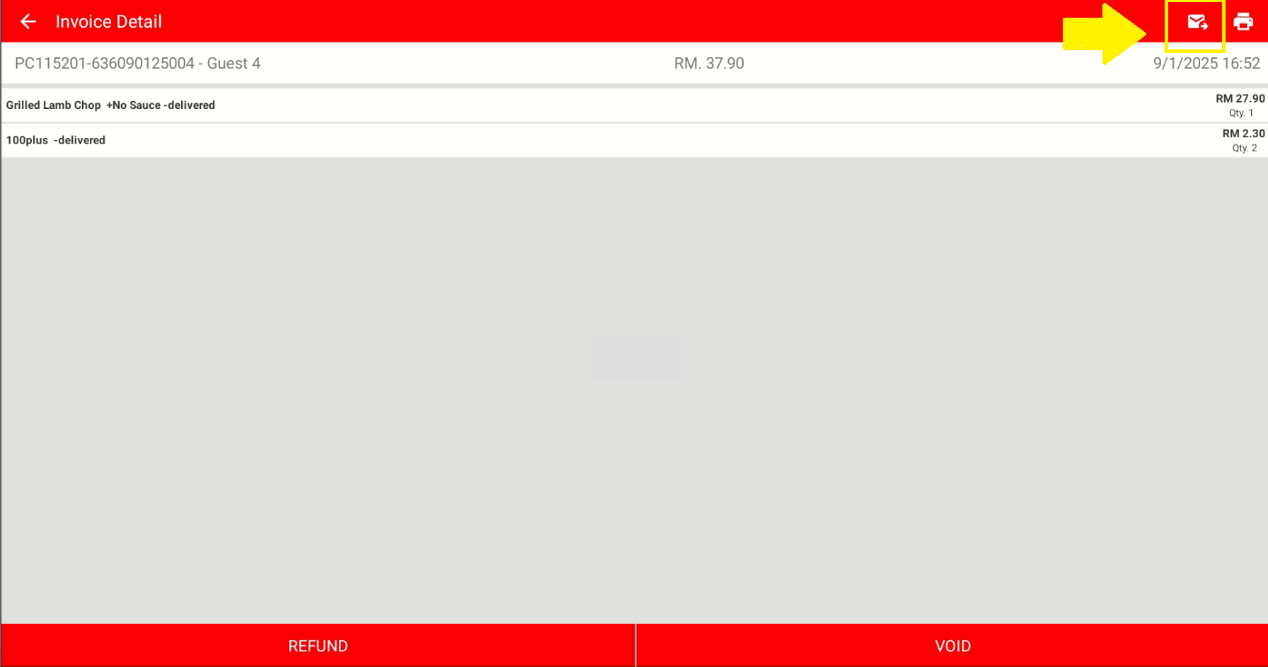
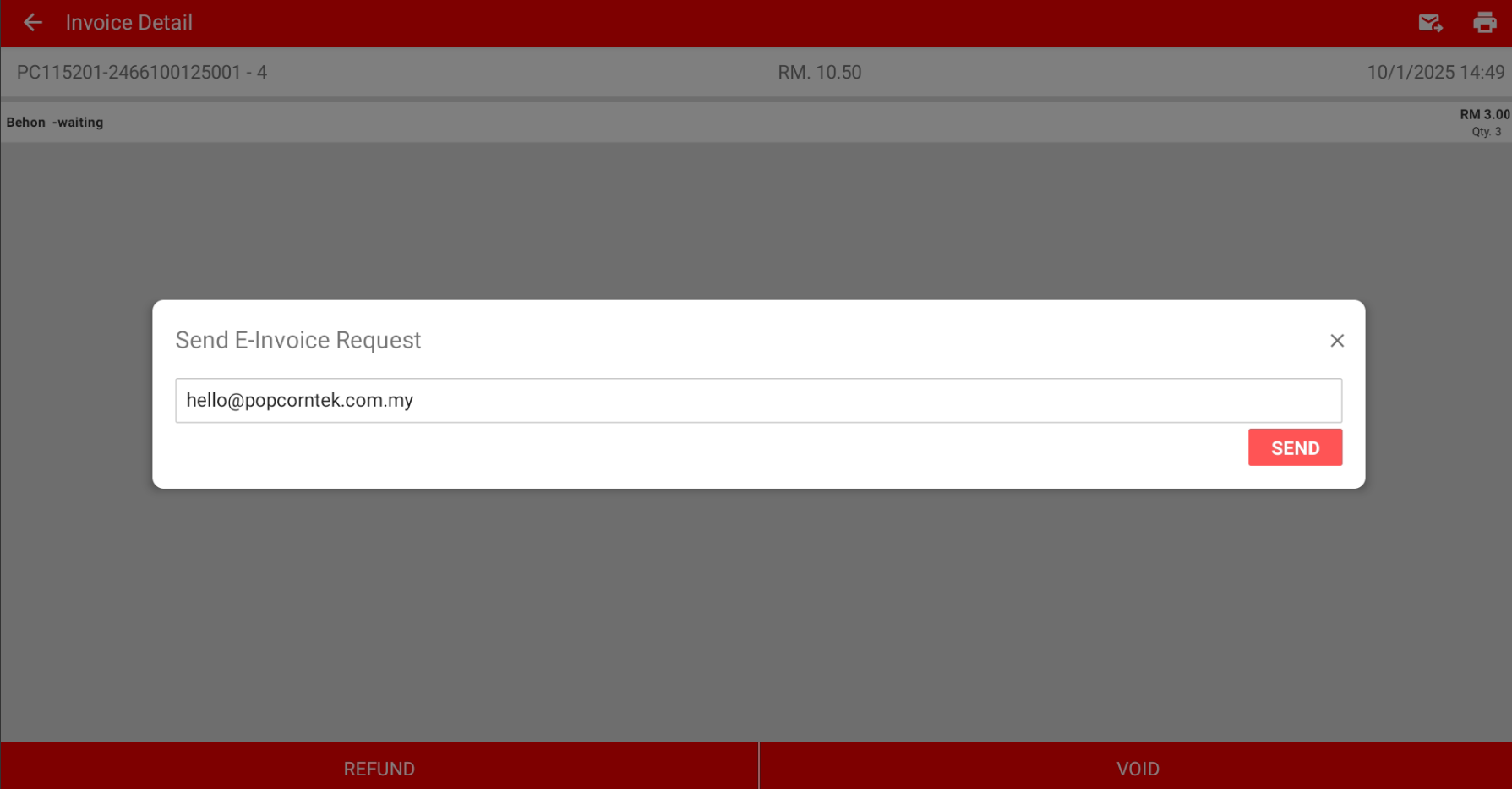
- Method 3: Go to Data Invoice > Choose the bill > Click Mail Button & Send the Email
- Method 4: Go to Popcorn Backend Portal (www.popcorncashier.com) > E-Invoice Submit > Consolidated Invoice > Choose the bill that requested by customer > Send Email
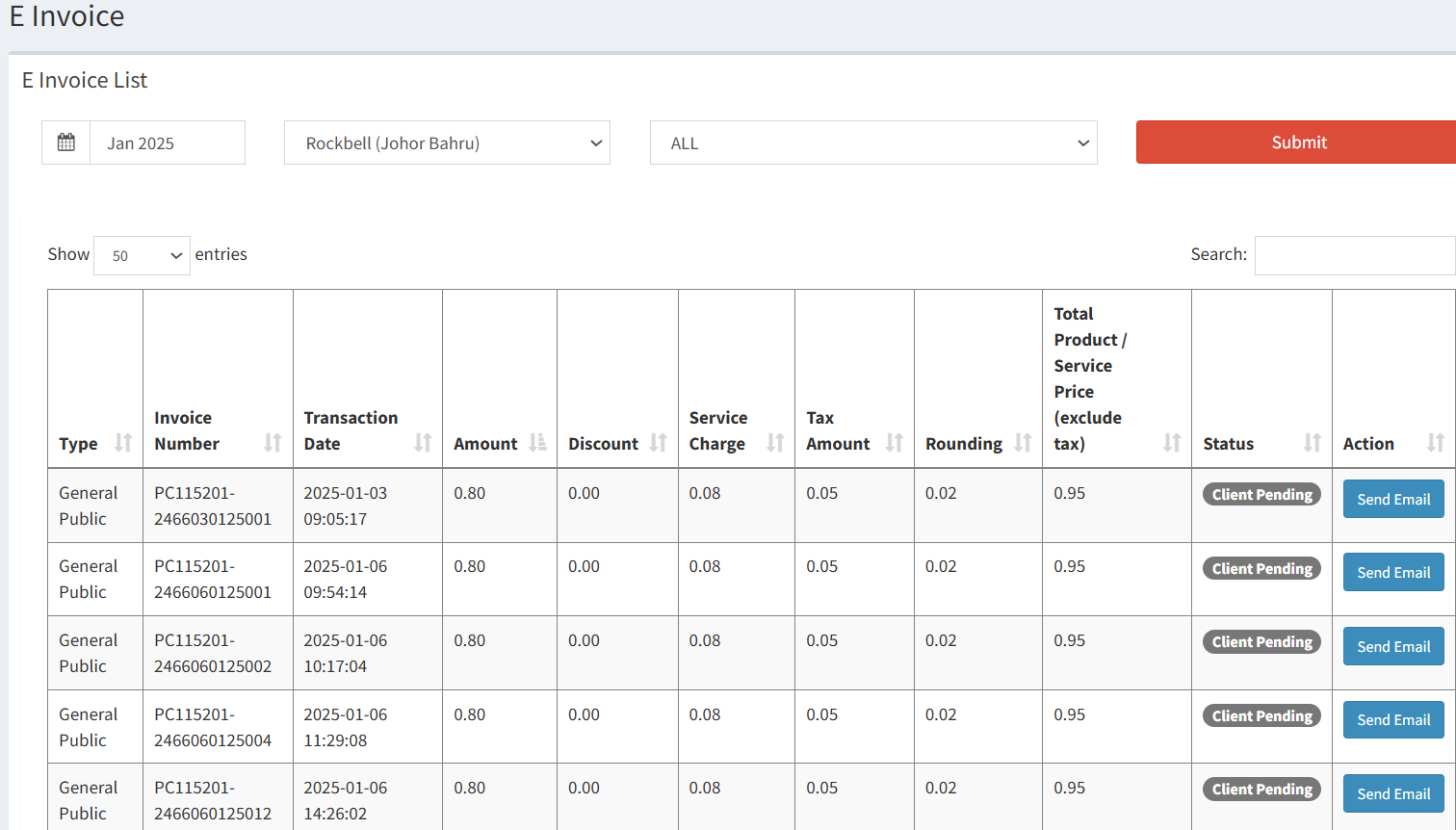
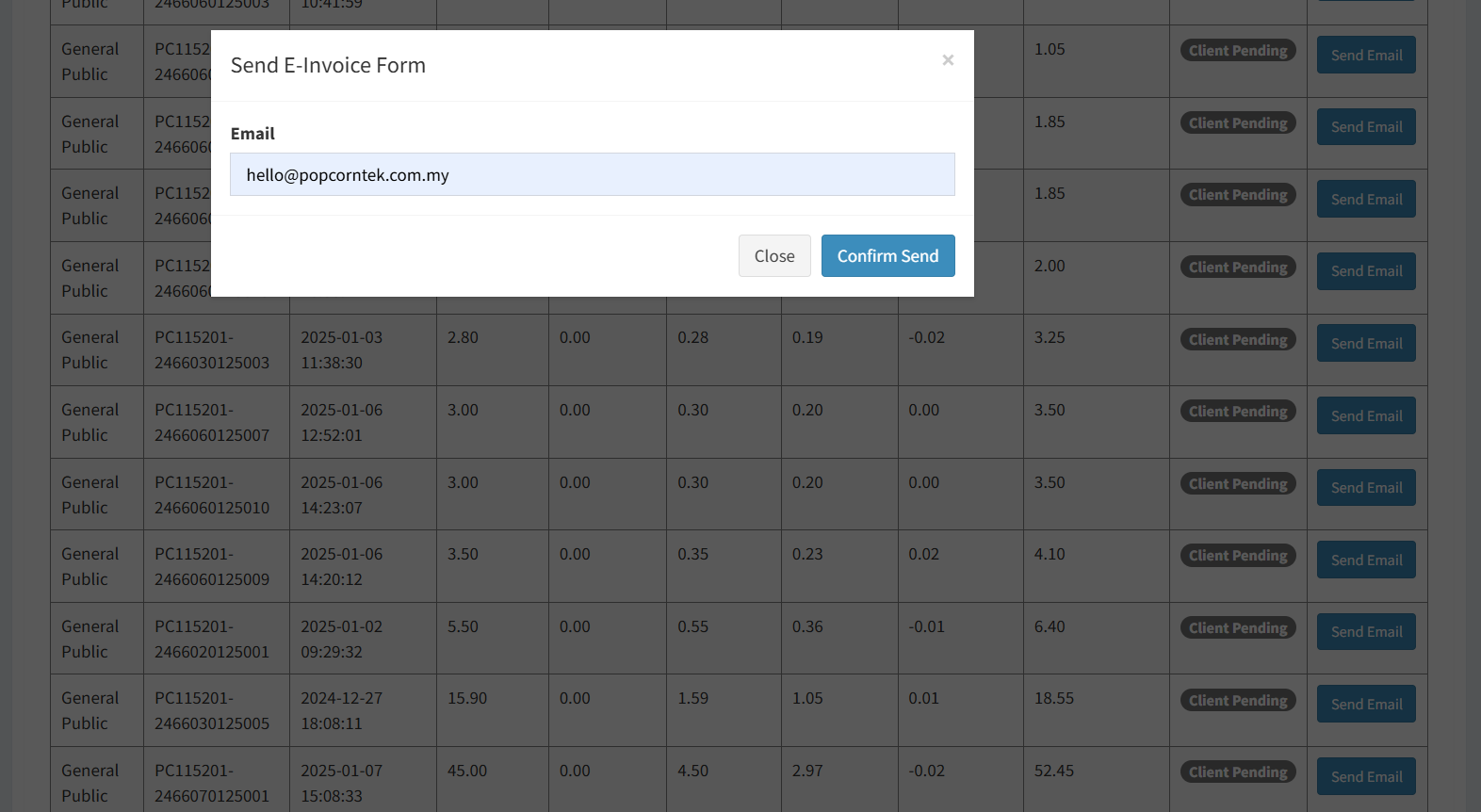
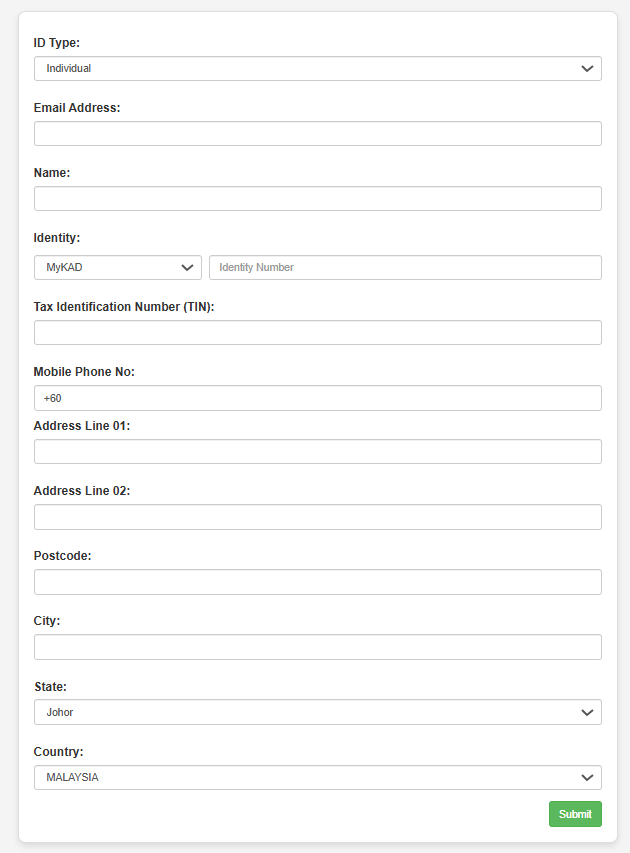
- Once the customer receives the email, they can click the URL in the email, fill in all the required information, and submit it.
- Once submitted, the form will be directly sent to the MYINVOIS Portal.
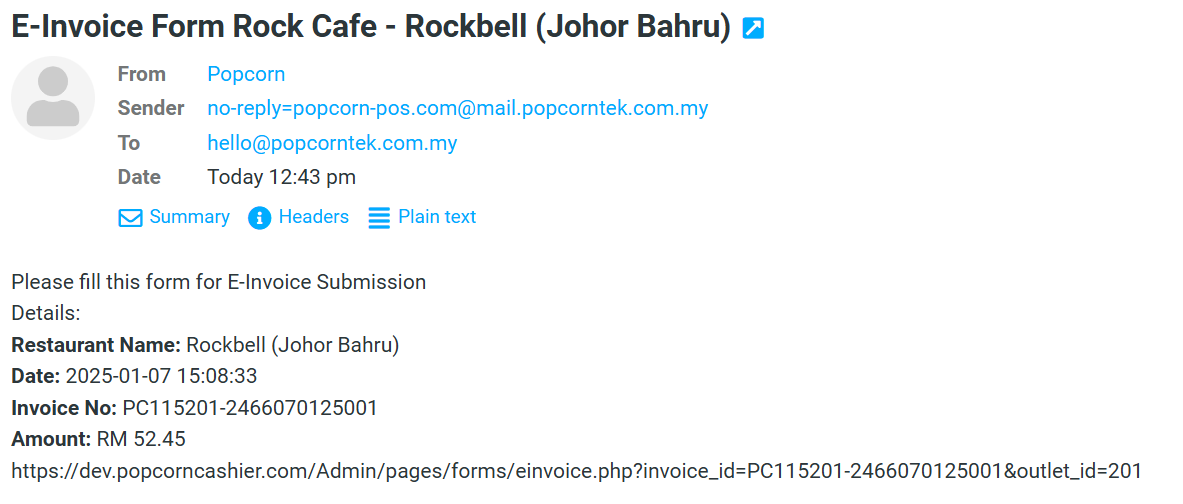
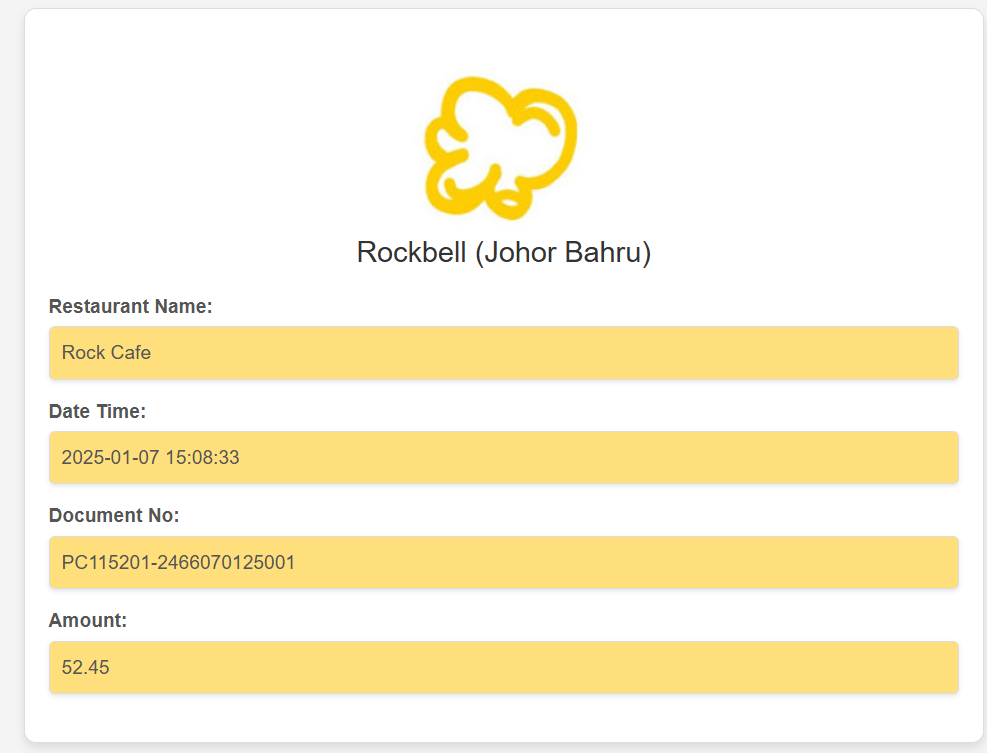
Submission of consolidated e-invoices is not required for orders received via Grab, Foodpanda, Shopee, and similar delivery platforms.
Why no need to include Grab/Foodpanda/Shopee orders in consolidated e-Invoice:
Platform issues the E‑Invoice: E-commerce platforms (like Grab, Foodpanda, Shopee) issue their own self‑billed e-Invoices to customers, not merchants
- Not B2C from merchant’s side: The merchant sells to the platform, not directly to the end customer.
- Already reported via platform: Platform handles reporting to IRBM; merchants don’t need to duplicate in consolidated e-Invoice.
- Supported Documents: https://help.grab.com/merchant/en-my/32988625223961 /
https://www.hasil.gov.my/media/1xwaitfw/lhdnm_industry-specific-faqs_e-commerce_microsite_bi.pdf?utm_source=chatgpt.com
How to Remove Grab Order from Popcorn Backend – Consolidated E- Invoice
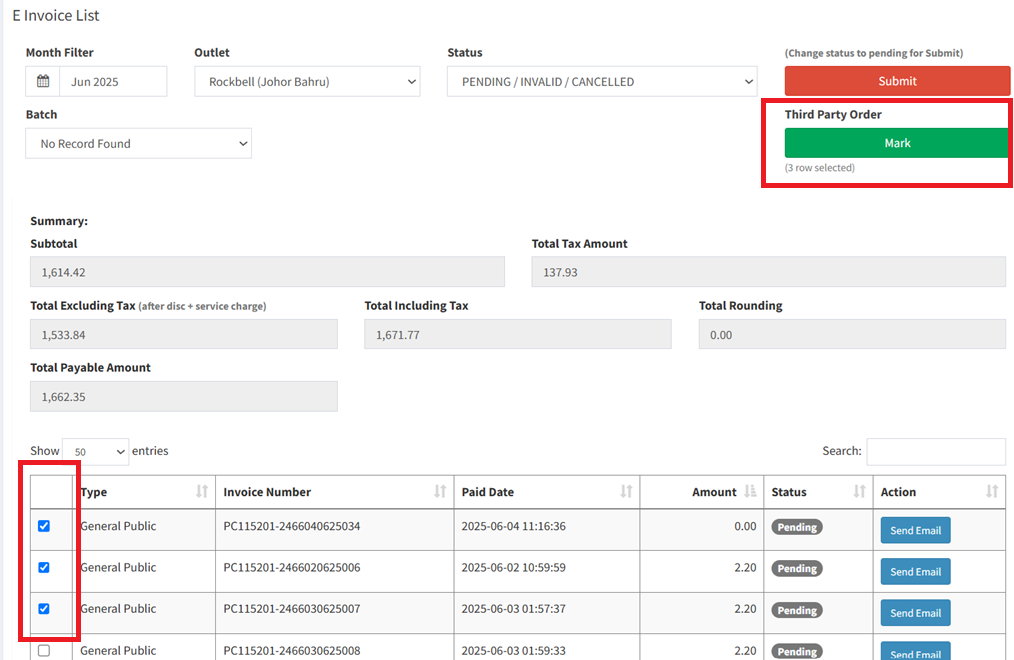
Scenario 1: Manual key in Grab/Foodpanda/Shopee Food Order to Popcorn
- You can select the order, click MARK
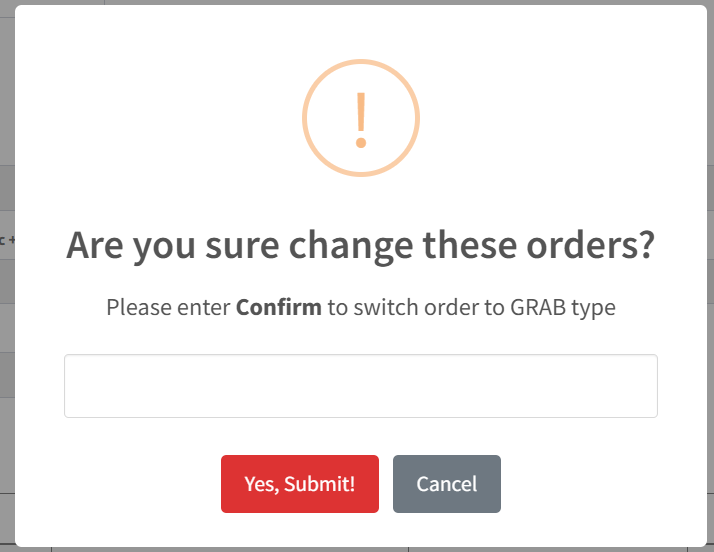
- Key in CONFIRM
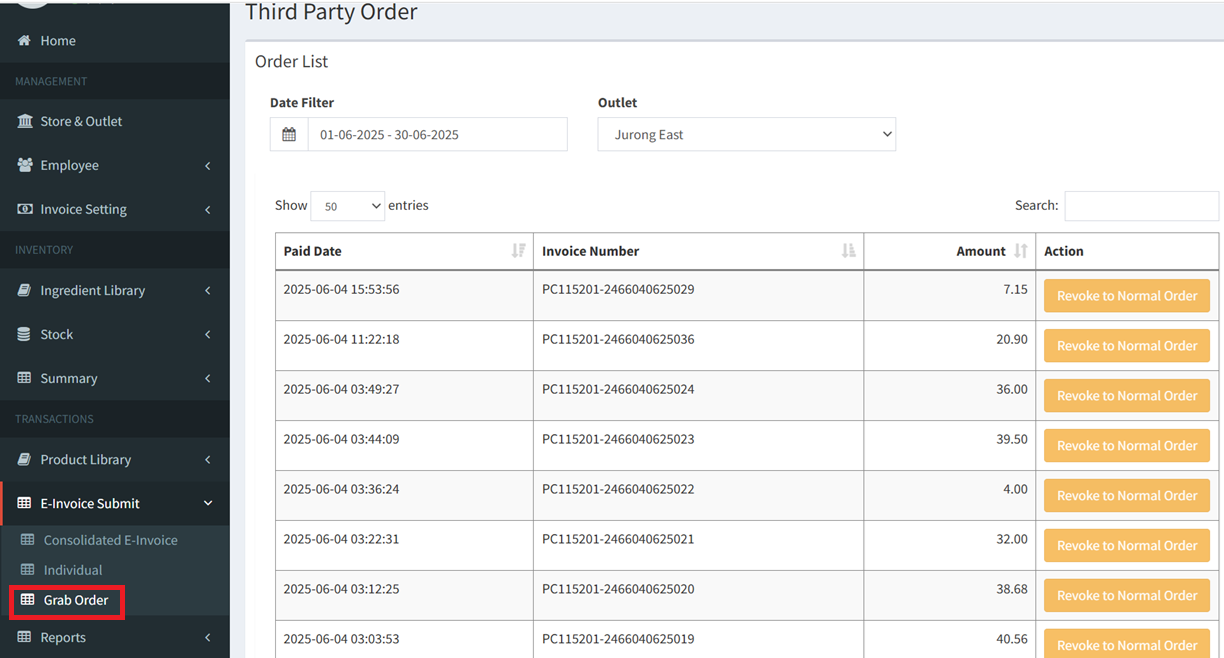
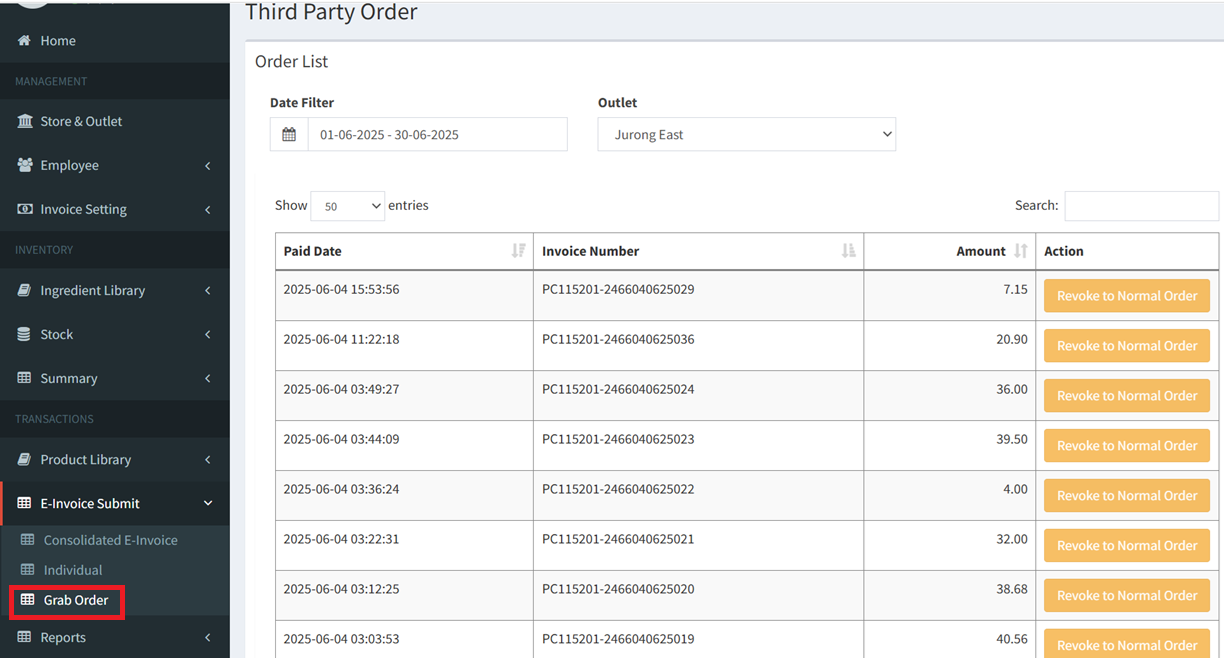
- The order will be moved to this GRAB ORDER report
Scenario 2: For Merchants already Connected to Grab via Popcorn
- The Grab Order will directly recorded in E-Invoice Submit > Grab Order
SST Item Tax
SST 6% vs 8% Summary (Effective 1 March 2024)
- Food & non-alcoholic drinks:
- Still subject to 6% SST
- Alcoholic beverages (e.g. beer, wine):
- Now subject to 8% SST
? Reference Documents:
- F&B Guide (RMCD) https://mysst.customs.gov.my/assets/document/Industry%20Guides/Guide%20on%20Food%20&%20Beverages_20032023.pdf
- Service Tax Policy 3/2024
https://mysst.customs.gov.my/assets/document/Service%20Tax%20Policy/STP-3-2024.pdf
SST Item Tax Setting In Popcorn Dashboard
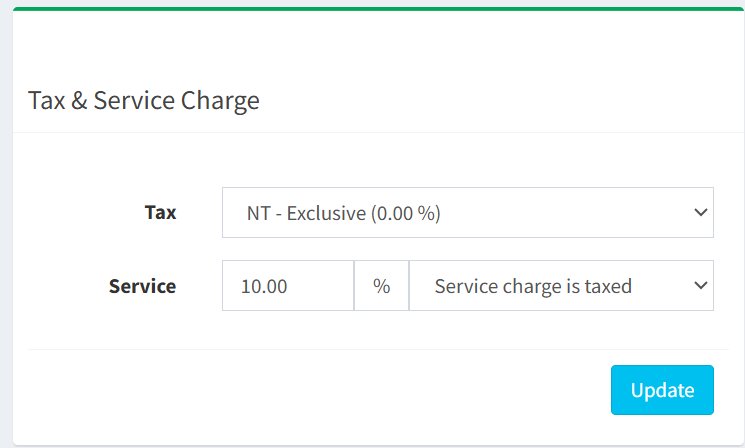
- Go to Store & Outlet > Edit Outlet > Tax & Service Charge
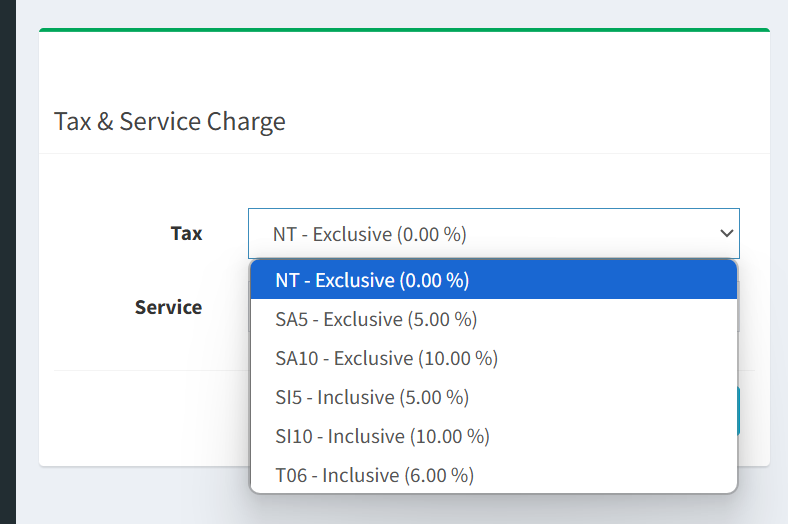
Code | Type | Rate | Meaning |
NT | Exclusive | 0% | added on top of price |
SA10 | Exclusive | 10% | added on top of price |
SI5 | Inclusive | 5% | price already includes SST |
S110 | Inclusive | 10% | price already includes SST |
T06 | Inclusive | 6% | Commonly used for F&B (non-alcohol) under SST. |
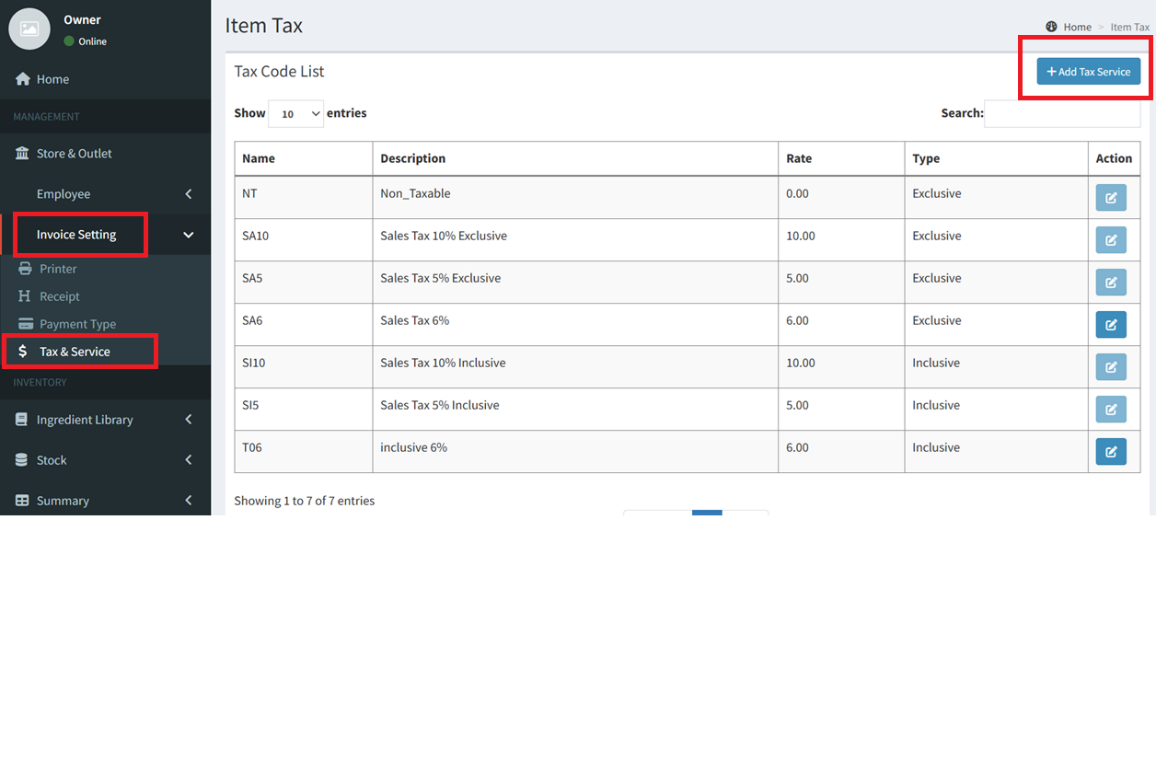
- You are able to create new tax code under INVOICE SETTING > TAX & SERVICE
To Apply Tax Code to Item & Category
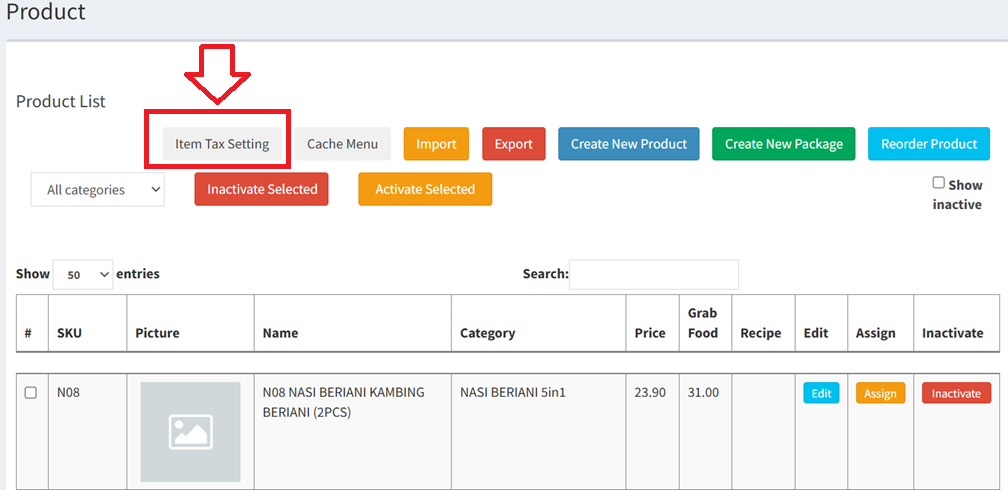
- Product Item Tax Setting
- Go to Product Library > Product
Section 2: Popcorn Pos Cashier Apps Updates
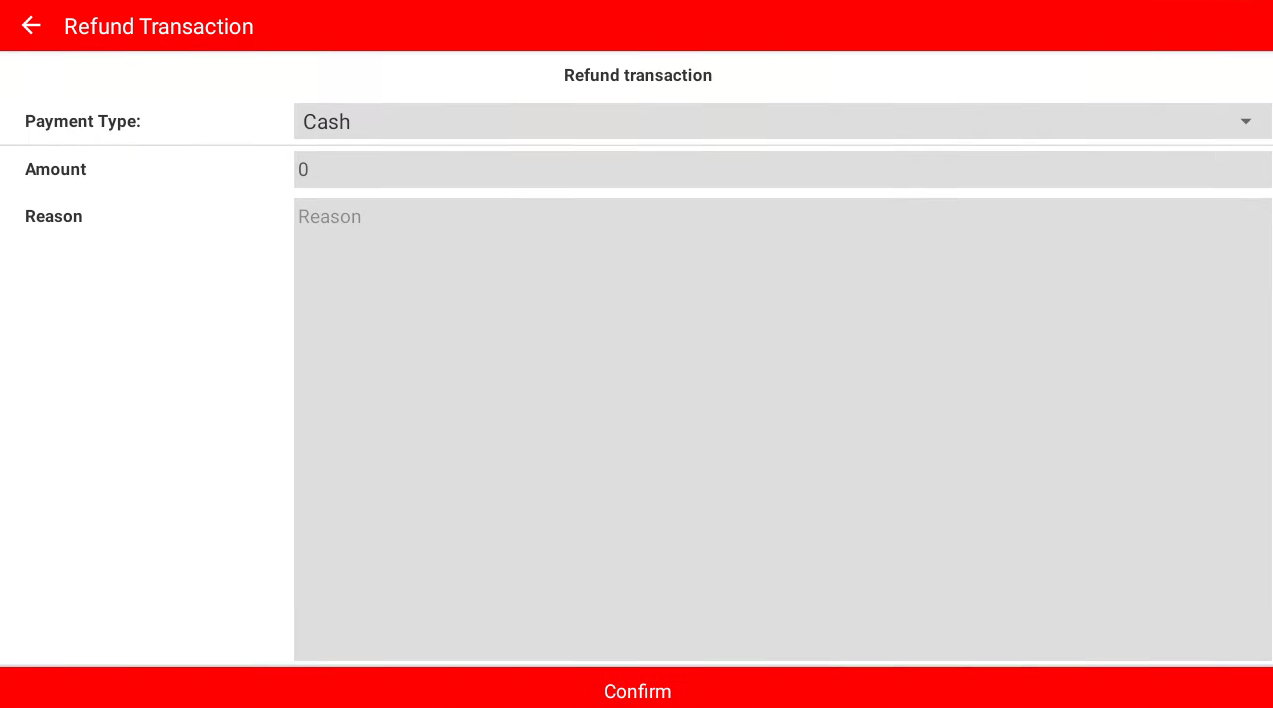
Enhancement 1: Refund Process (Refund by Item)
- Previous Version (V2.7a & Earlier)
- This Version:
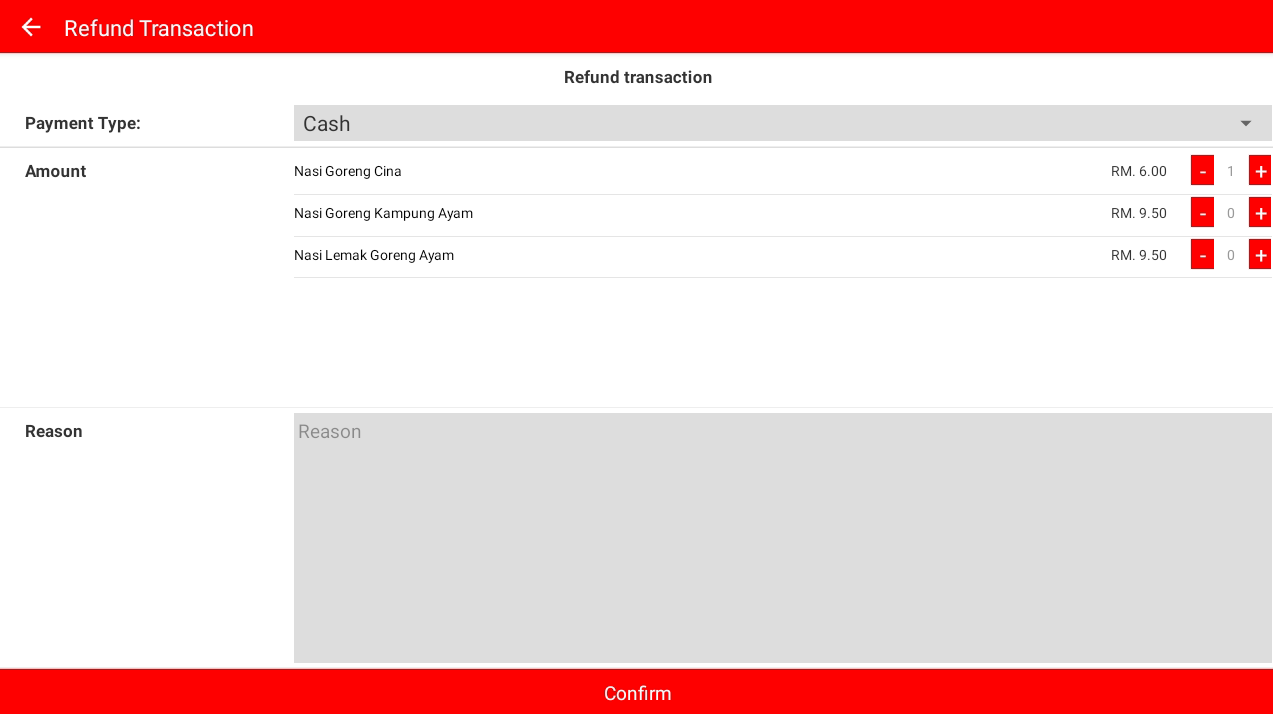
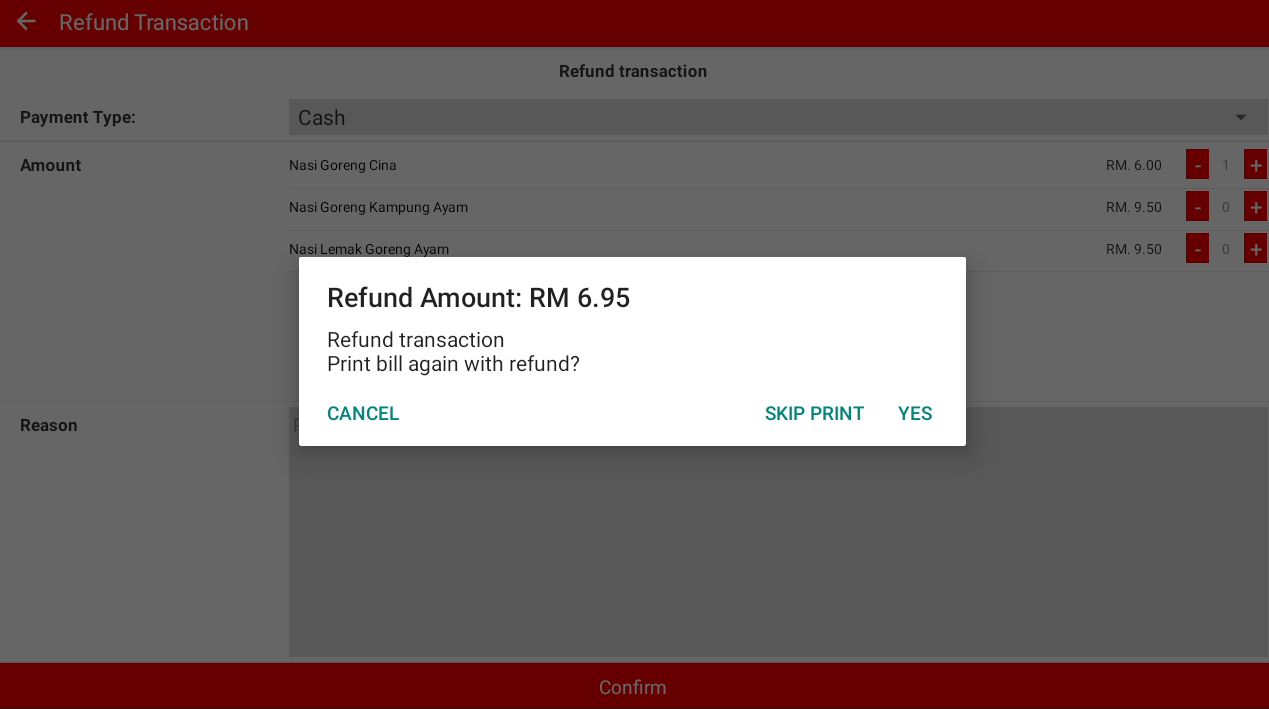
- Refund amount will include the tax amount(if any)
Enhancement 2: Pricing Type on Bill Receipt
- When manually key in other platform order, you can switch the item to other pricing type
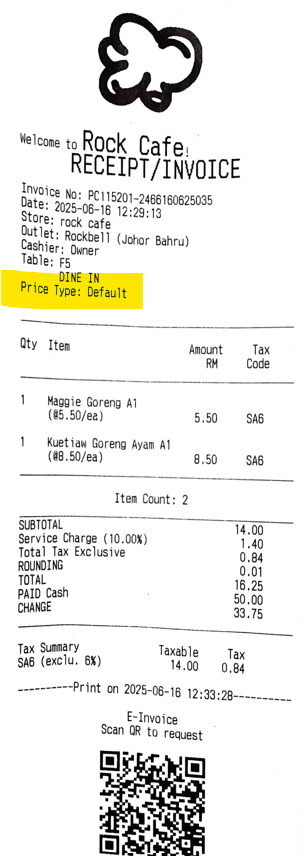
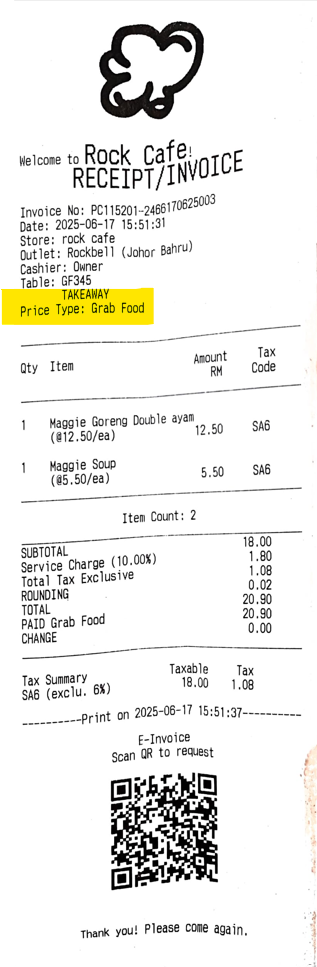
Enhancement 3: New Bill Receipt Format for E-Invoice & SST Item Tax
Enhancement 4: Service Charge Setting for Malaysia & Singapore
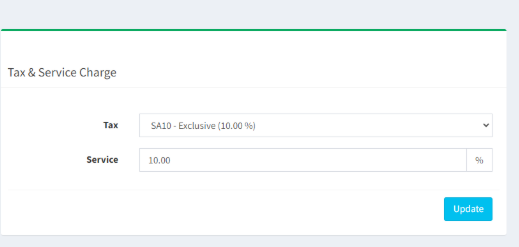
- Malaysia: SST is calculated before service charge.
- SST is calculated on the food price only (before service charge).
Example:
Food: RM100
Service Charge (10%): RM10
SST 6% on RM100: RM6
Total: RM100 + RM10 + RM6 = RM116
✅ SST is not charged on service charge.
- Singapore: GST is calculated after service charge (on the total amount including service charge).
- GST is calculated on the total amount after adding service charge.
Example:
Food: SGD100
Service Charge (10%): SGD10
Subtotal: SGD110
GST 9% on SGD110: SGD9.90
Total: SGD100 + SGD10 + SGD9.90 = SGD119.90
✅ GST is charged on both food and service charge.
Still stuck?
Our team is happy to walk you through this step by step.
