Introduction of Edge by Popcorn
Introducing Edge by Popcorn – Your Smart Sales Companion!
Stay ahead of your business with Edge by Popcorn, the ultimate tool for tracking and analyzing sales performance. With real-time insights into revenue, expected sales, and outlet performance, managing your business has never been easier.
Why Choose Edge by Popcorn?
Monitor sales in real-time - Get instant updates on your revenue and transactions.
Track performance across multiple outlets - Compare sales across locations effortlessly.
Make data-driven decisions effortlessly - Use insightful reports to optimize your strategy.
Take control of your sales and maximize your business potential! Try Edge by Popcorn today and experience seamless business intelligence at your fingertips.
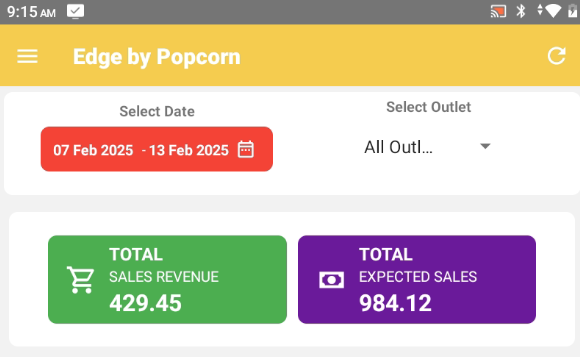
Navigation & Controls
- Menu (☰) – Tap to access more features and reports.
- Refresh Icon (⟳) – Instantly update data for real-time insights.
Date & Outlet Selection
- Date Range: Easily filter sales data by selecting a date range.
- Outlet Selection: Choose a specific outlet or view data for all locations.
Sales Summary Section
This section provides key performance indicators (KPIs):
- Green Box (Total Sales Revenue )
- Displays the total revenue earned during the selected period.
- Purple Box (Total Expected Sales )
- Shows the predicted or expected sales based on trends or targets.
--------------------------------------------------------------------------------------------------------------------------------
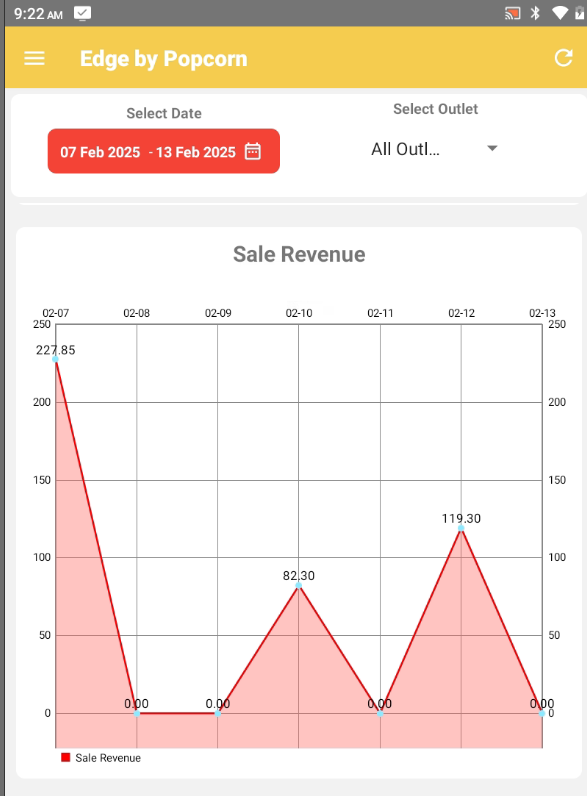
Sale Revenue:
- Clearly indicates that the chart tracks revenue for a specific period.
- Easily analyze which days had the highest earnings.
- Use this data to plan better sales strategies.
--------------------------------------------------------------------------------------------------------------------------------
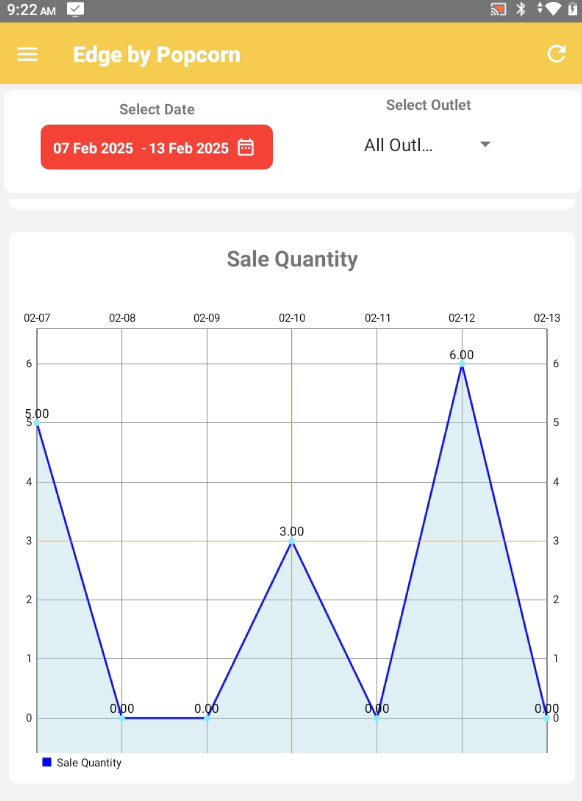
Sale Quantity:
- Indicates that the chart is specifically focused on the number of units sold rather than revenue.
- Track your daily sales quantity with this graph.
- Analyze product demand and sales trends.
- Improve inventory management and marketing efforts.
--------------------------------------------------------------------------------------------------------------------------------
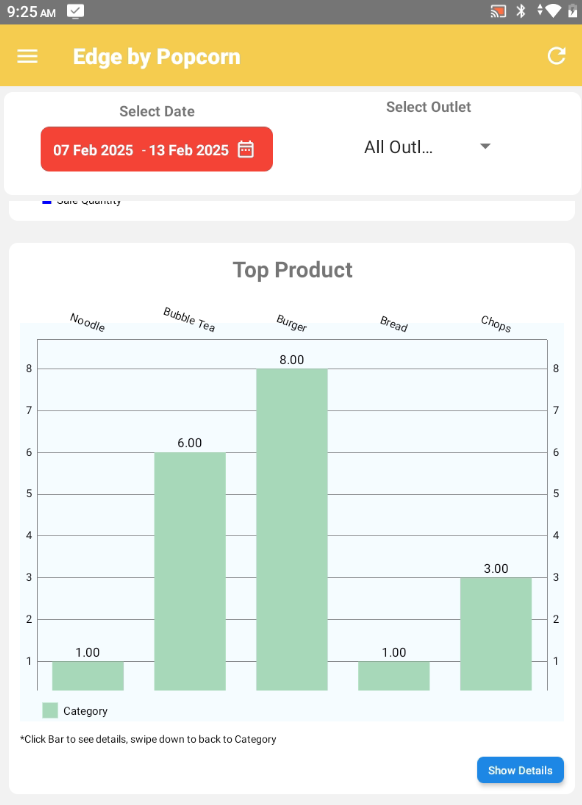
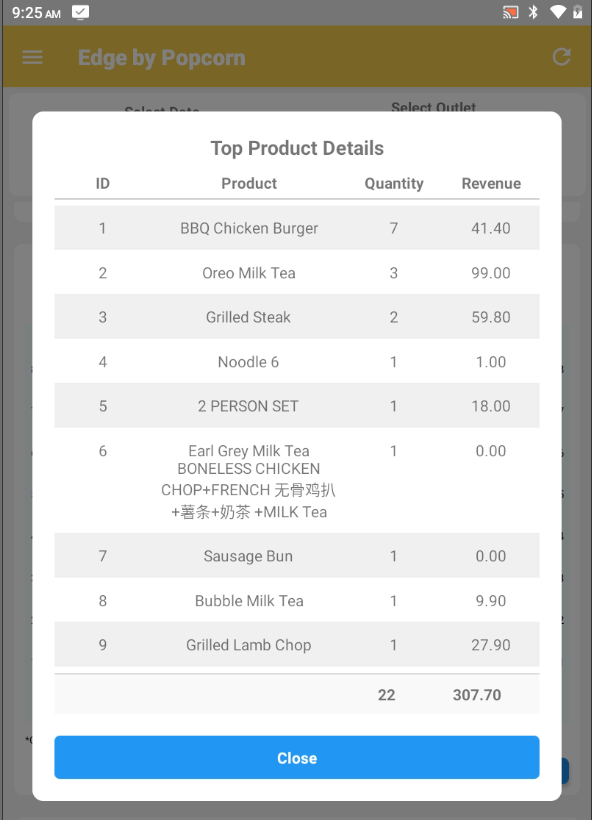
Top Product:
- Identify best-selling items based on quantity and revenue.
- View detailed sales data for each product to identify top performers.
- Analyze which items generate the highest sales and revenue at a glance.
--------------------------------------------------------------------------------------------------------------------------------
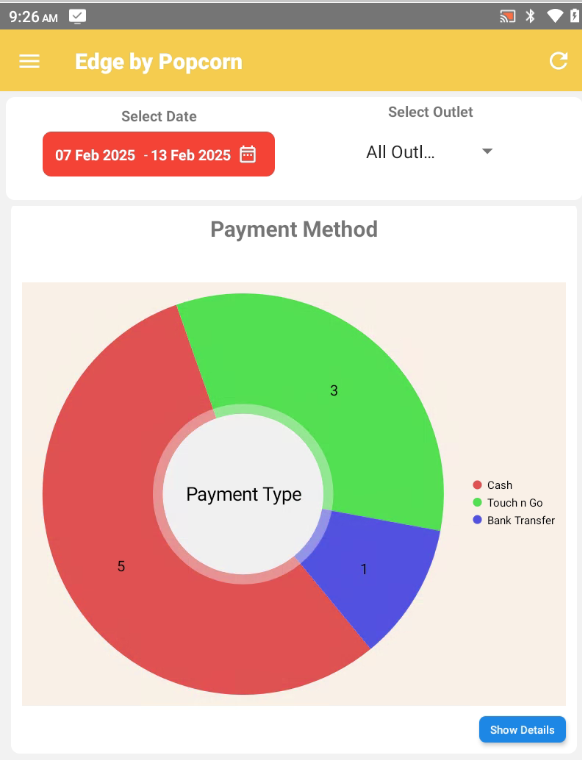
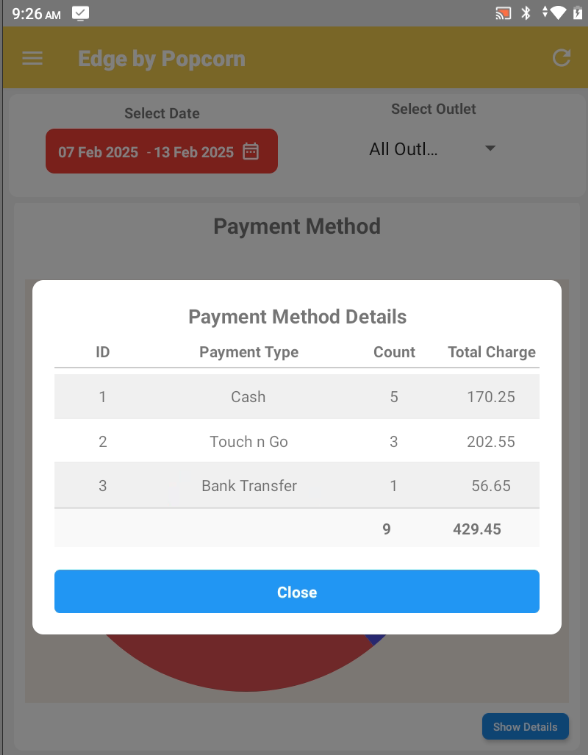
Payment Method:
- Track customer payment trends across different methods.
- View transaction counts and total revenue for each payment type.
- Identify the most popular payment options among customers.
--------------------------------------------------------------------------------------------------------------------------------
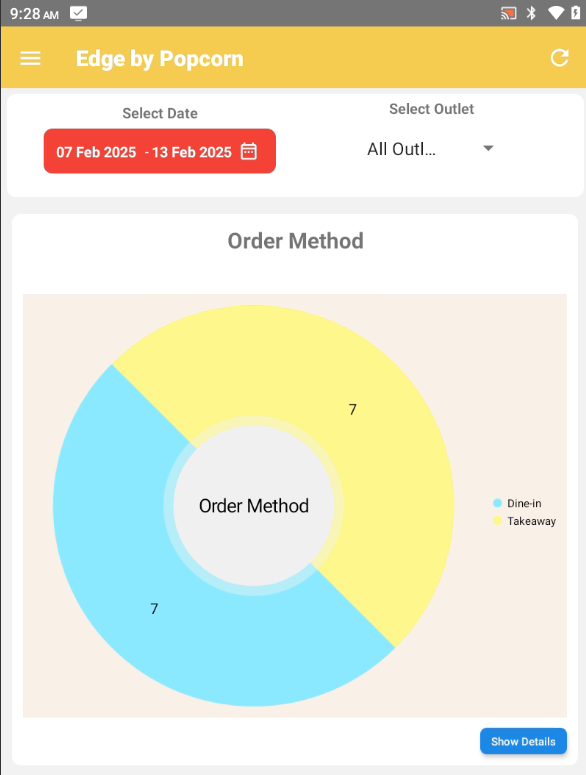
Order Method:
- Analyze sales by order type: dine-in, takeaway, or online orders.
- View detailed records of each order
- Quickly access order details for better management and decision-making.
--------------------------------------------------------------------------------------------------------------------------------
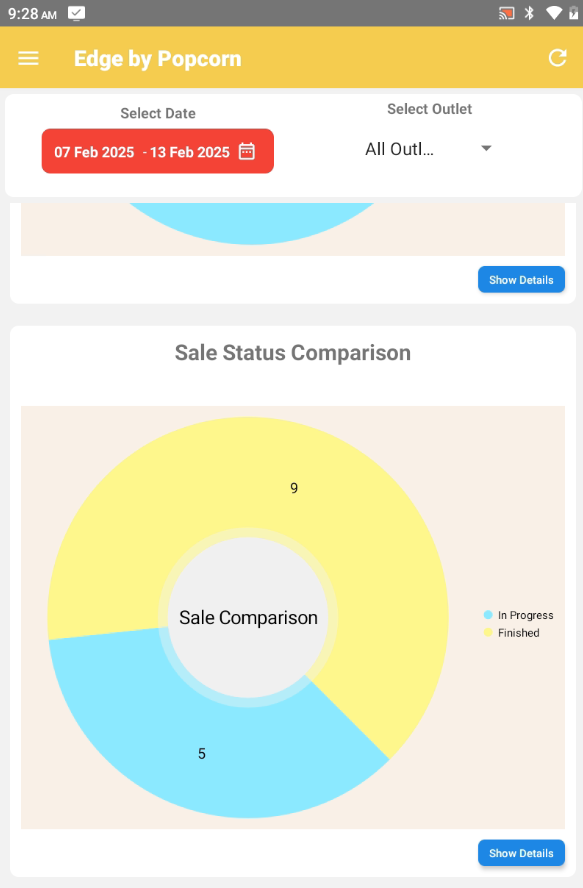
Sale Status Comparison:
- Monitor sales in real-time, tracking ‘In Progress’ and ‘Finished’ orders.
- View real-time updates on completed and ongoing sales transactions.
- Improve efficiency by identifying pending and completed transactions easily
--------------------------------------------------------------------------------------------------------------------------------
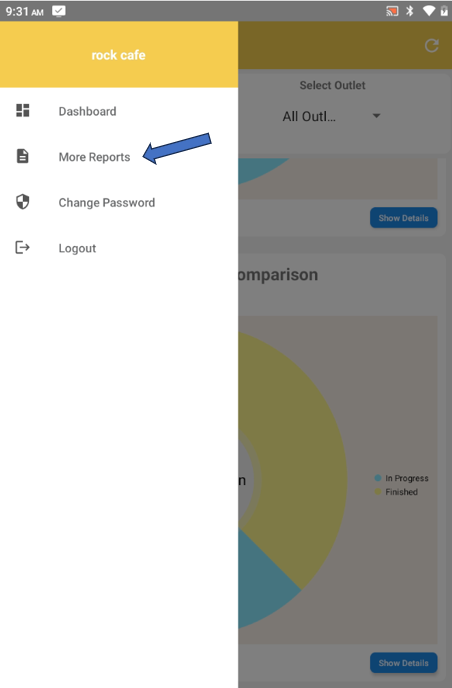
More Reports:
- Access detailed analytics by clicking the menu icon (☰) → "More Reports"
- Get insights into sales, performance, and trends.
- Easily navigate between different report types.
- Use reports to make data-driven business decisions.
- Navigate easily between different report types in one place.
- Enhance your business strategy with detailed reports.
--------------------------------------------------------------------------------------------------------------------------------
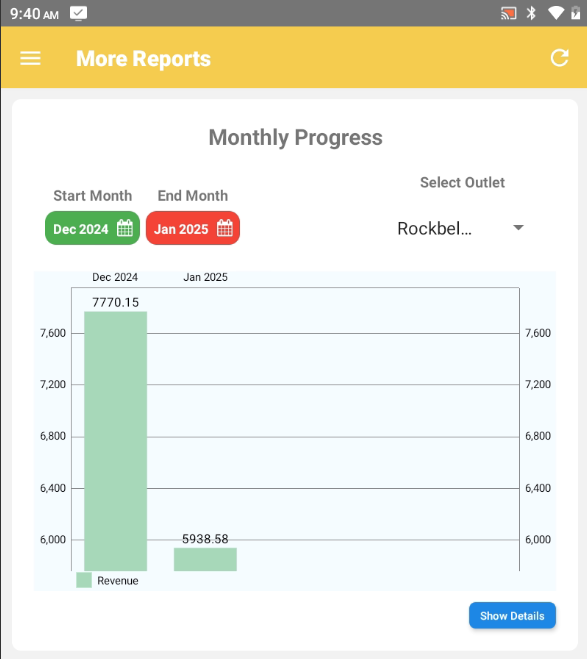
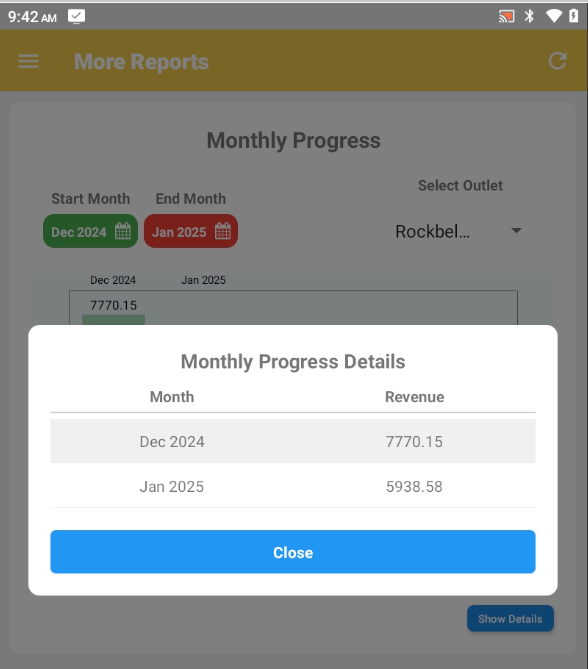
Monthly Progress Report:
- Track your monthly progress with this report.
- Compare sales performance between different months.
- View revenue trends to analyze business growth.
- Select a start and end month for custom comparisons.
- Filter data by outlet to check specific location performance.
- Use this report to make better financial decisions.
--------------------------------------------------------------------------------------------------------------------------------
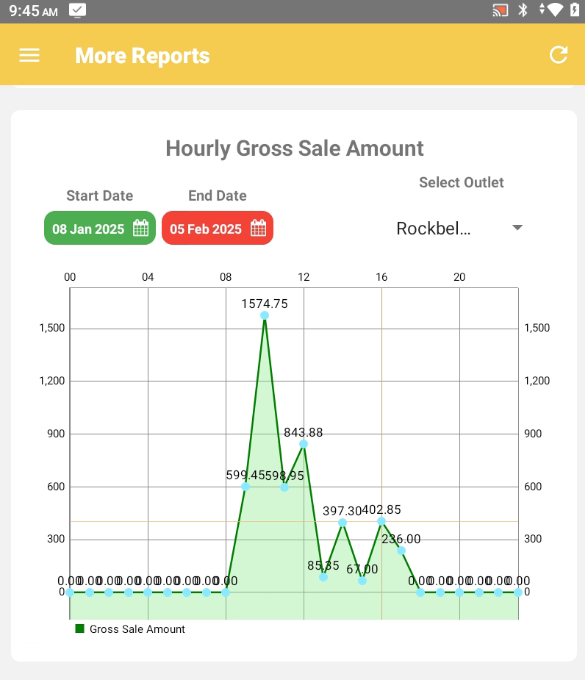
Hourly Gross Sale Amount:
- Track your gross sales amount on an hourly basis.
- Identify peak sales hours to optimize operations.
- Compare sales performance between different time periods.
- Select a date range to analyze trends over time.
- Filter data by outlet for specific location insights.
- Use this report to improve business strategies and boost revenue.
--------------------------------------------------------------------------------------------------------------------------------
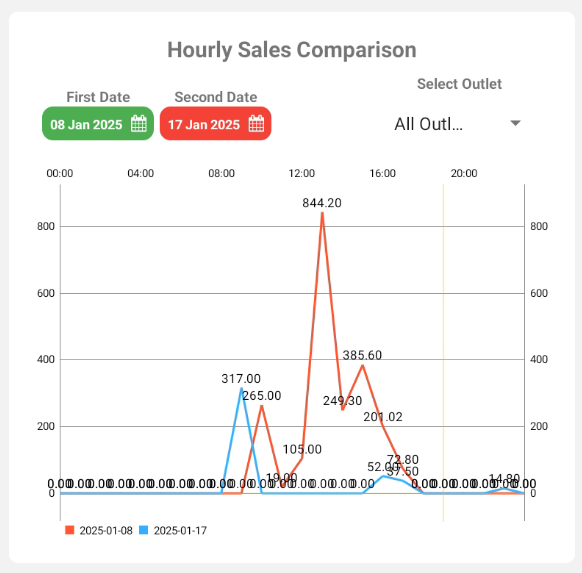 Hourly Sales Comparison:
- Compare hourly sales between two different dates.
- Identify peak sales hours on each date.
- Analyze trends to improve sales strategies.
- Select different dates to see performance variations.
- Filter by outlet for location-specific insights.
- Use this report to optimize staffing and promotions.
--------------------------------------------------------------------------------------------------------------------------------
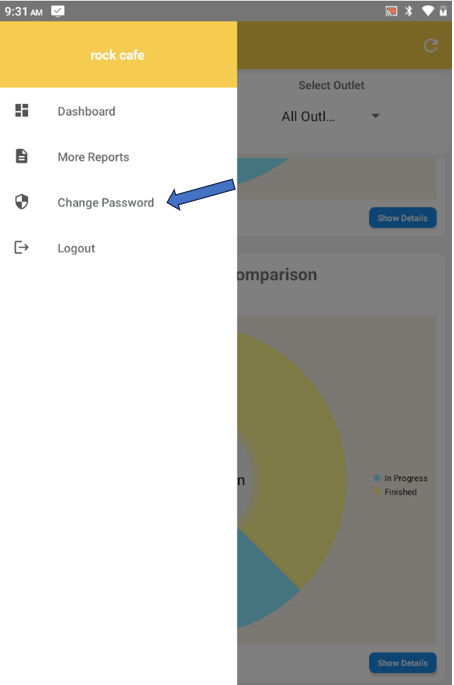
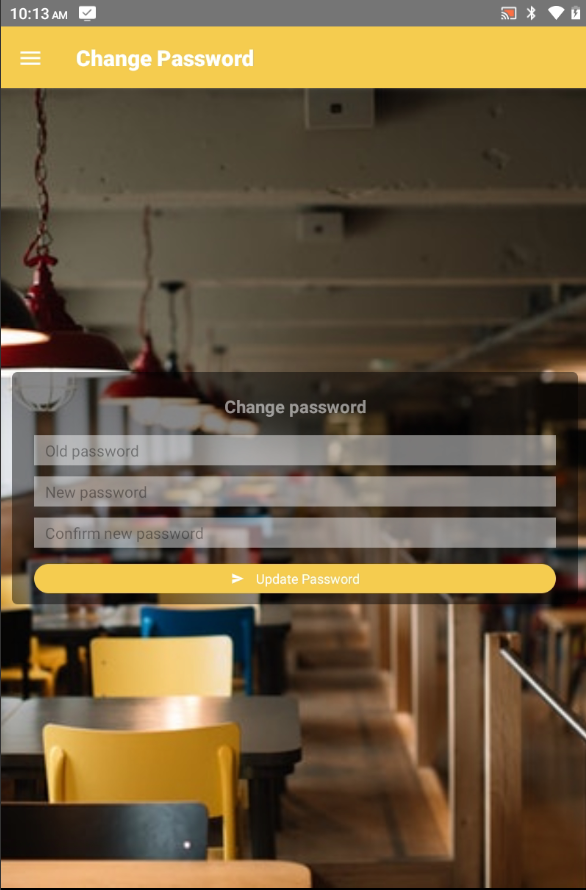
Change Password:
- Change your password by clicking the menu icon (☰) → "Change Password"
- Easily update your password for security.
- Enter your old password to verify your identity.
- Set a new password and confirm it for accuracy.
- Click "Update Password" to save the changes.
- Ensure your password is strong for better security.
- Use this feature to keep your account protected.
----------------------------------------------------------------------------------------------------------------------------------------------------------
Please refer to the video below for more information:
Still stuck?
Our team is happy to walk you through this step by step.
