BACKEND REPORT -Transaction (Owner)
1. In your dashboard home page, scroll down to Transactions row and press Report.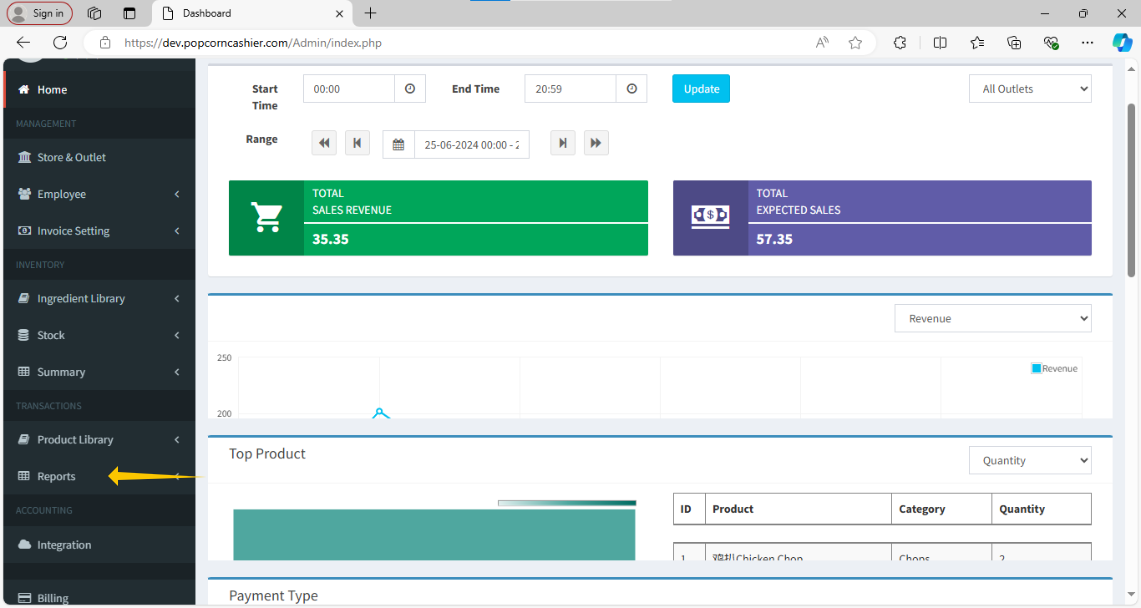
2. Then, click on Transaction. 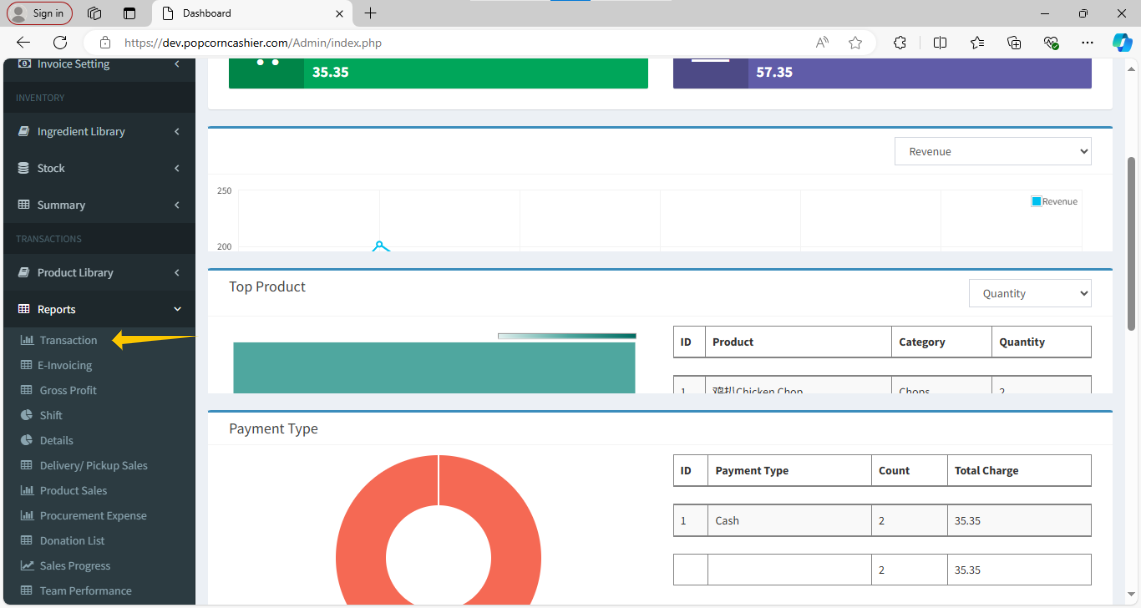
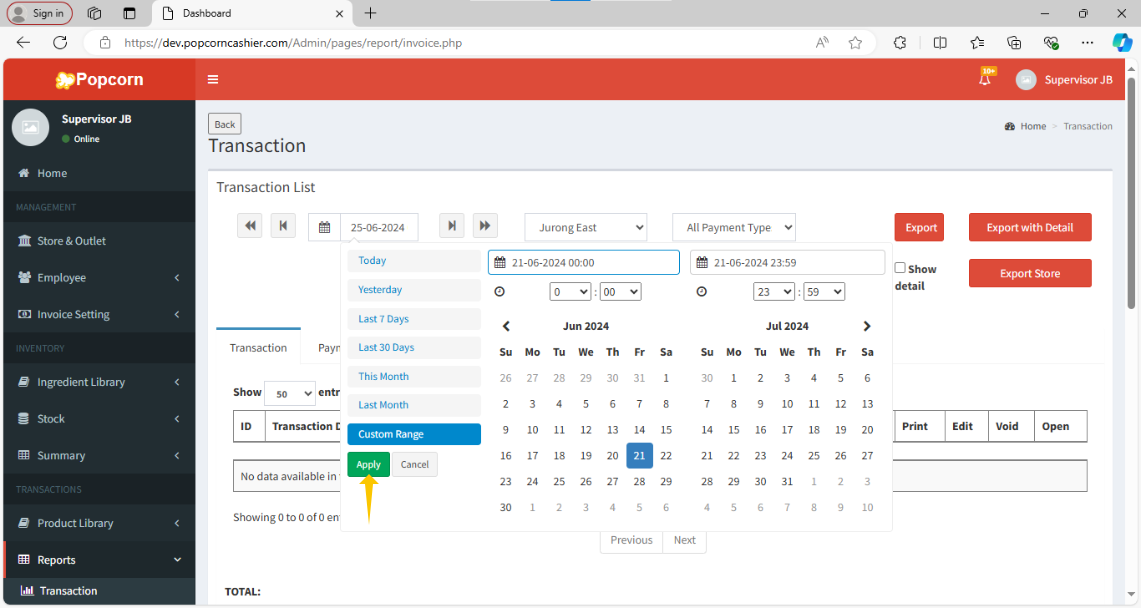
3. Click on the Date option to choose the date for preview the transactions.
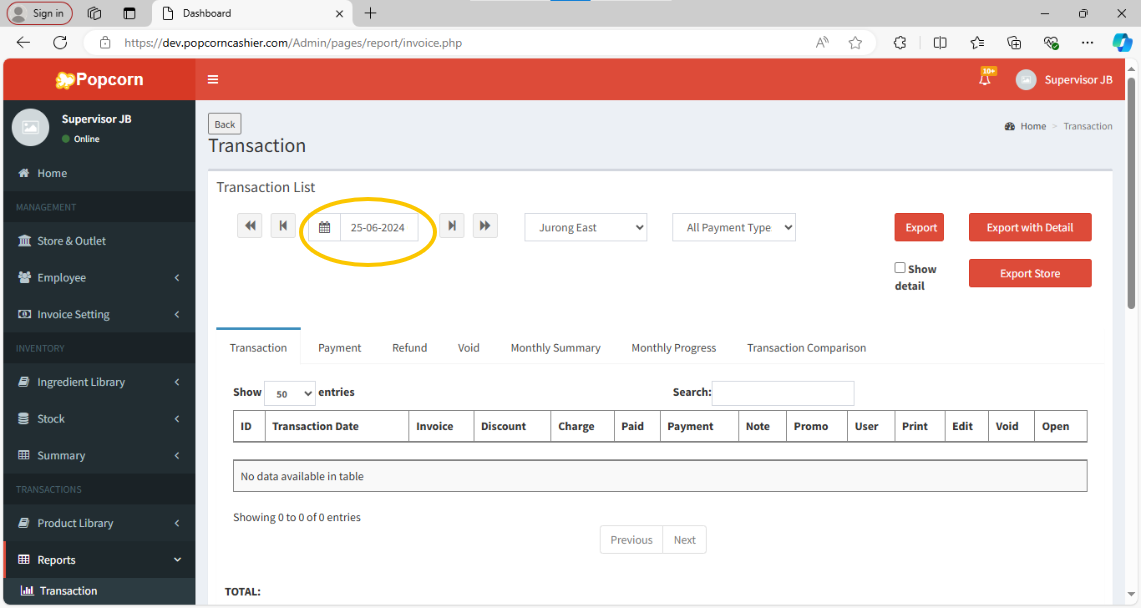
4. Choose the date that need to review.
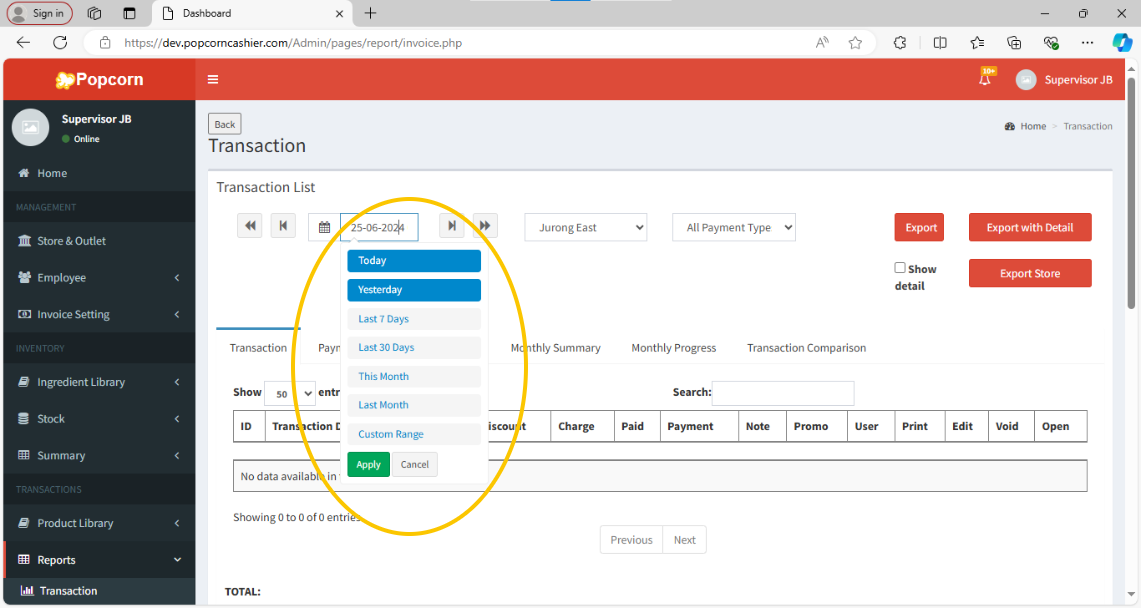
5. Click on "Apply" to apply the date.
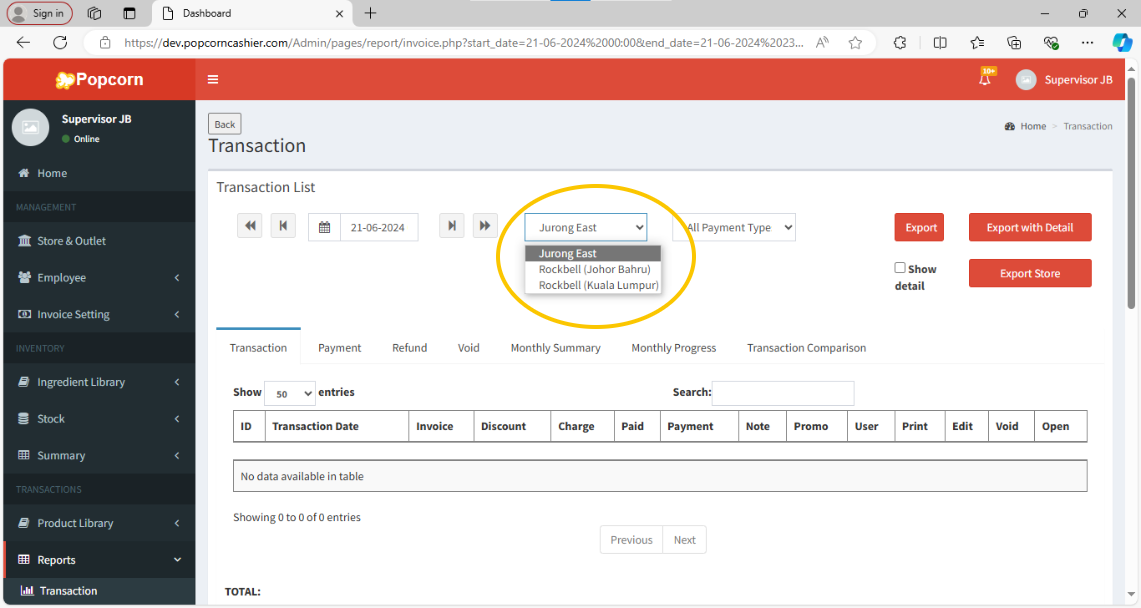
6. Choose the outlet that need to review.
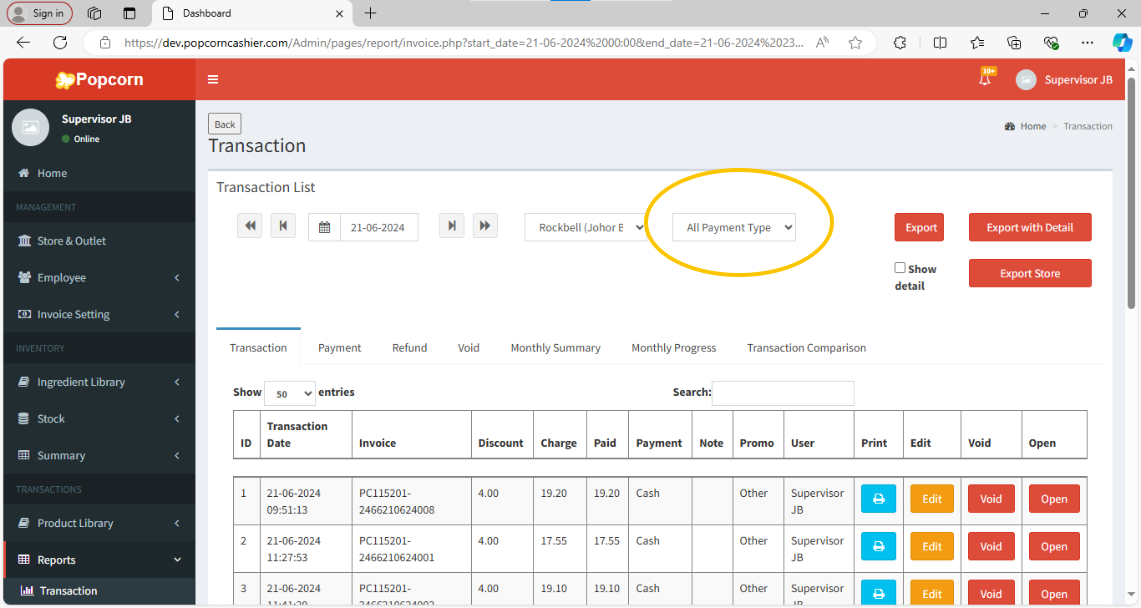
7. Choose the payment type.
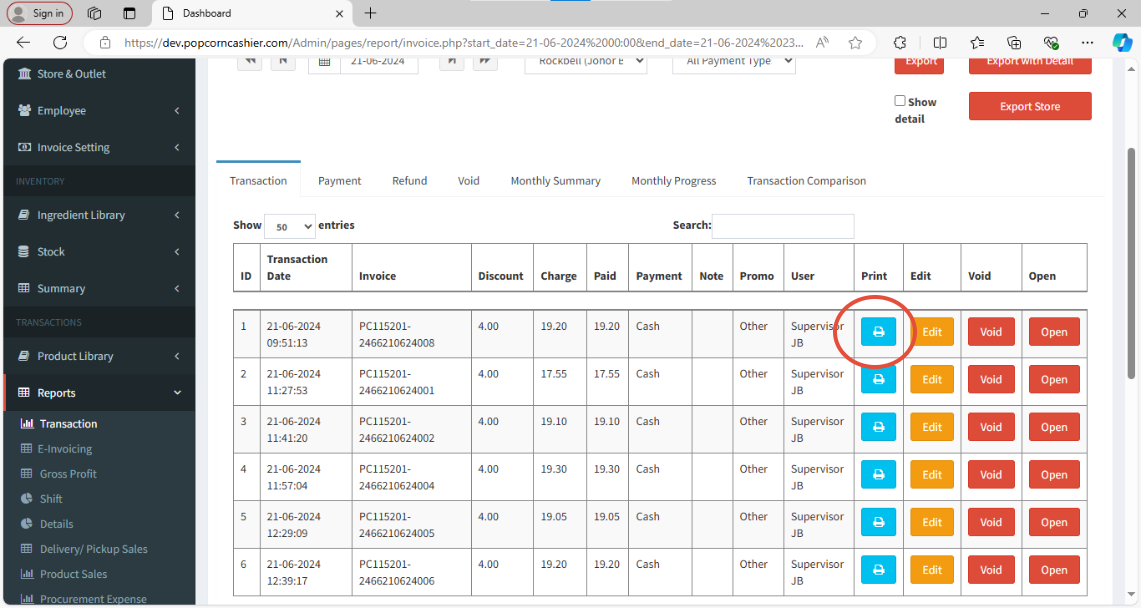
8. By pressing "Print" button can view the previous receipts.
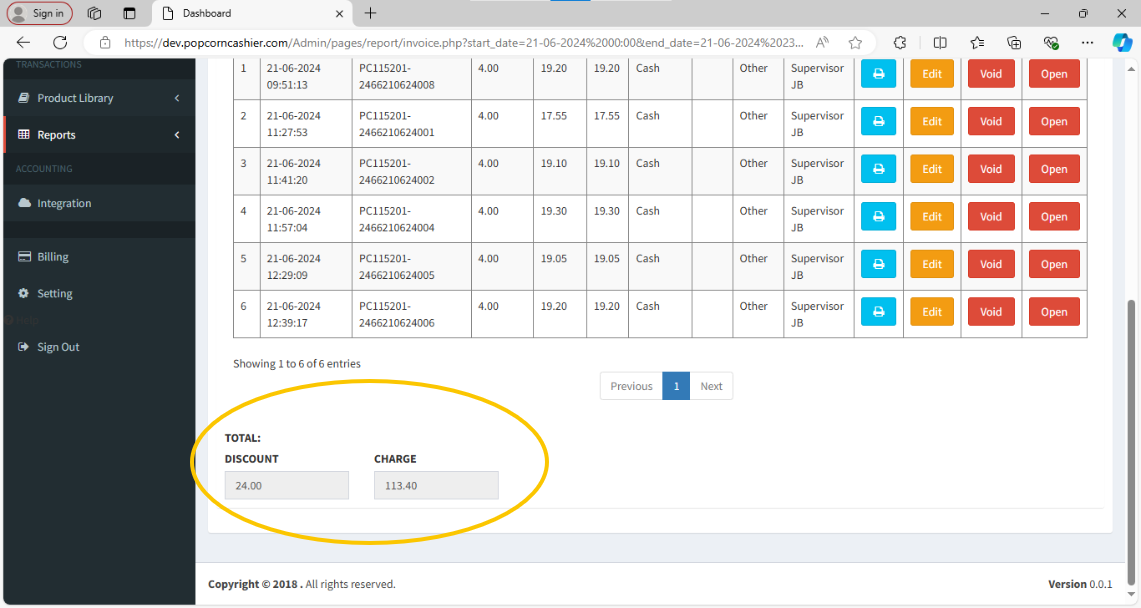
9. Scrolling to bottom will find the totals of the discounts and charges recorded of the selected day.
10. When need more details, scroll up to the top and check the "show details" box.
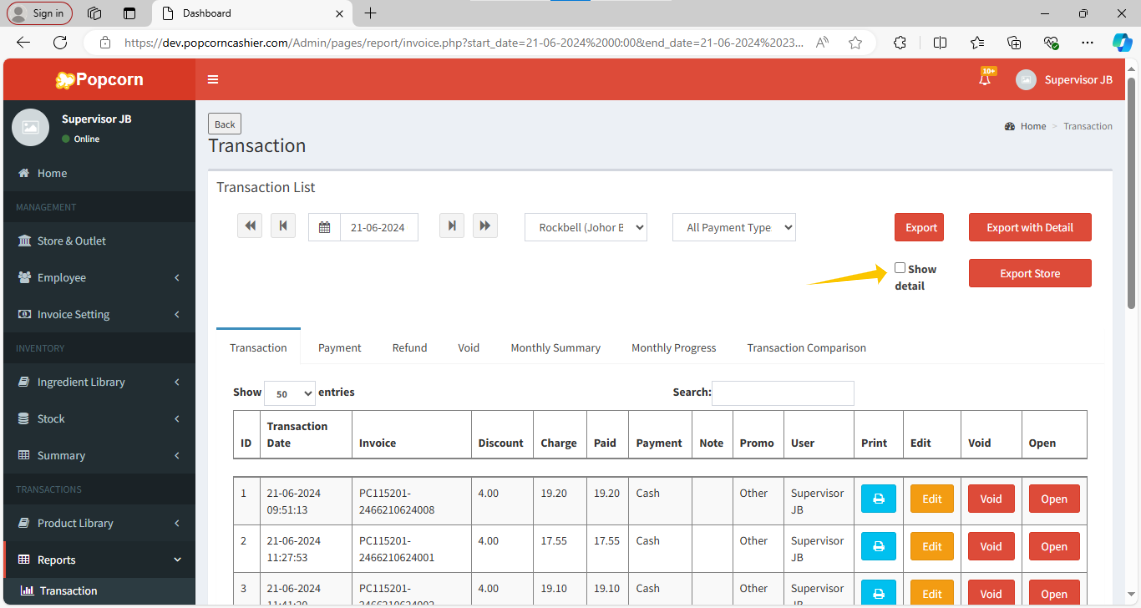
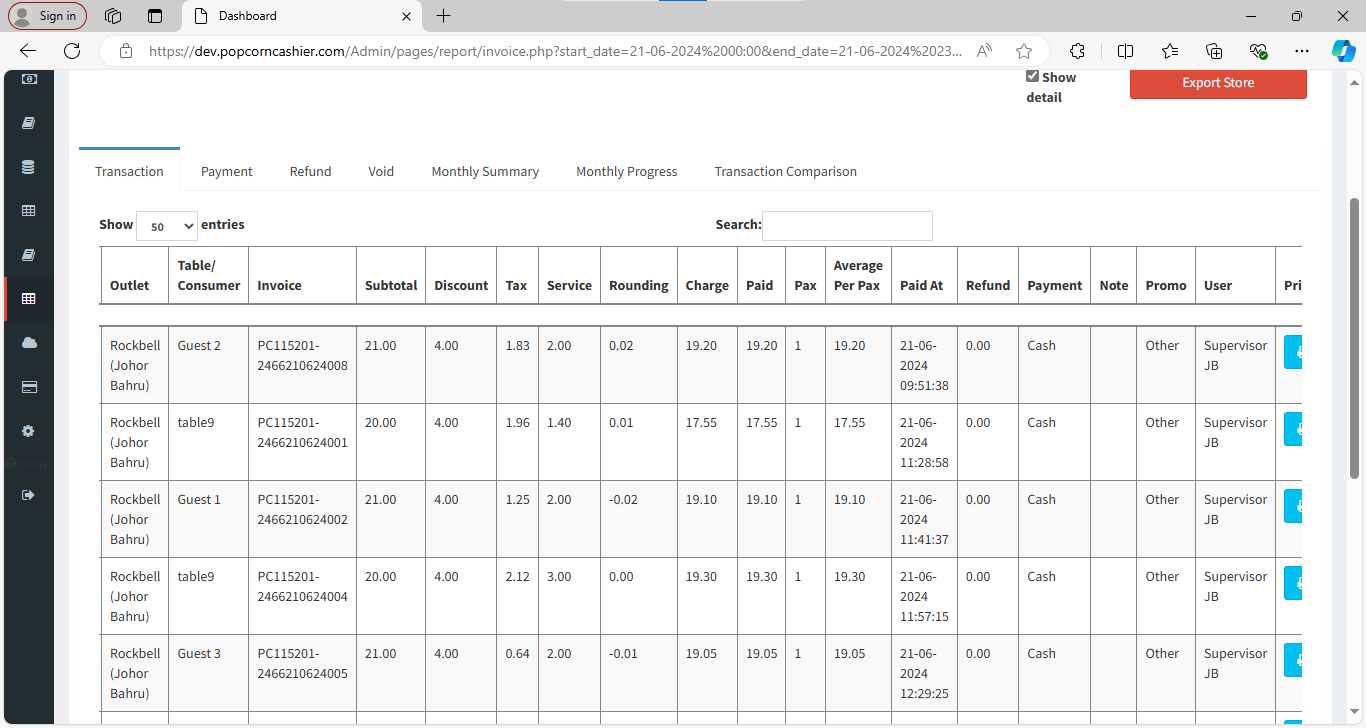
The table below will list more payment details out.
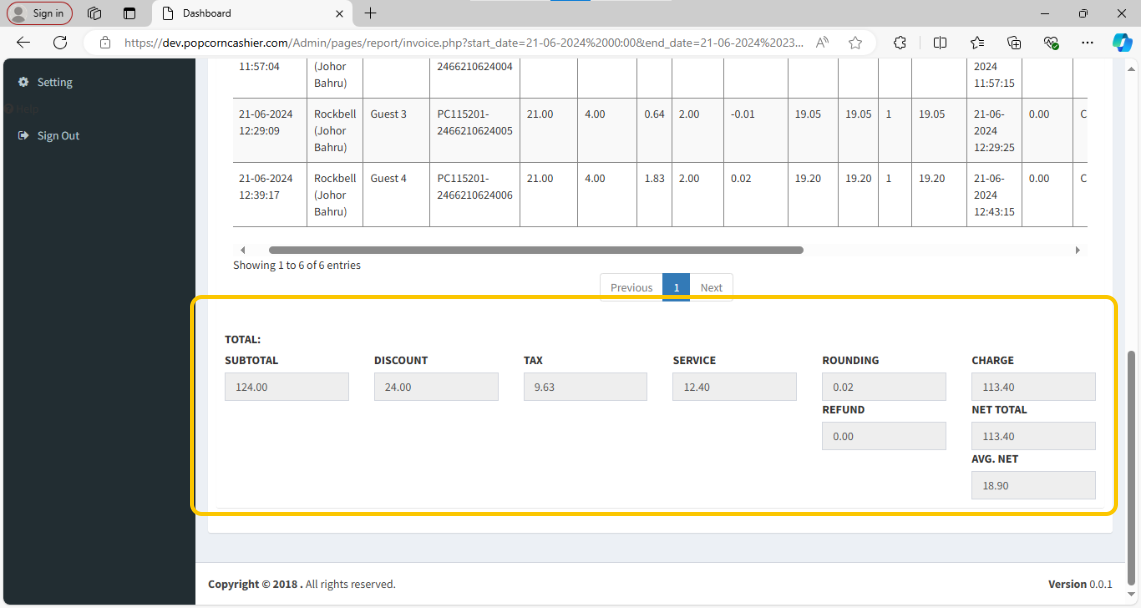
Scroll to the bottom will find more totals of payment details displayed down below.
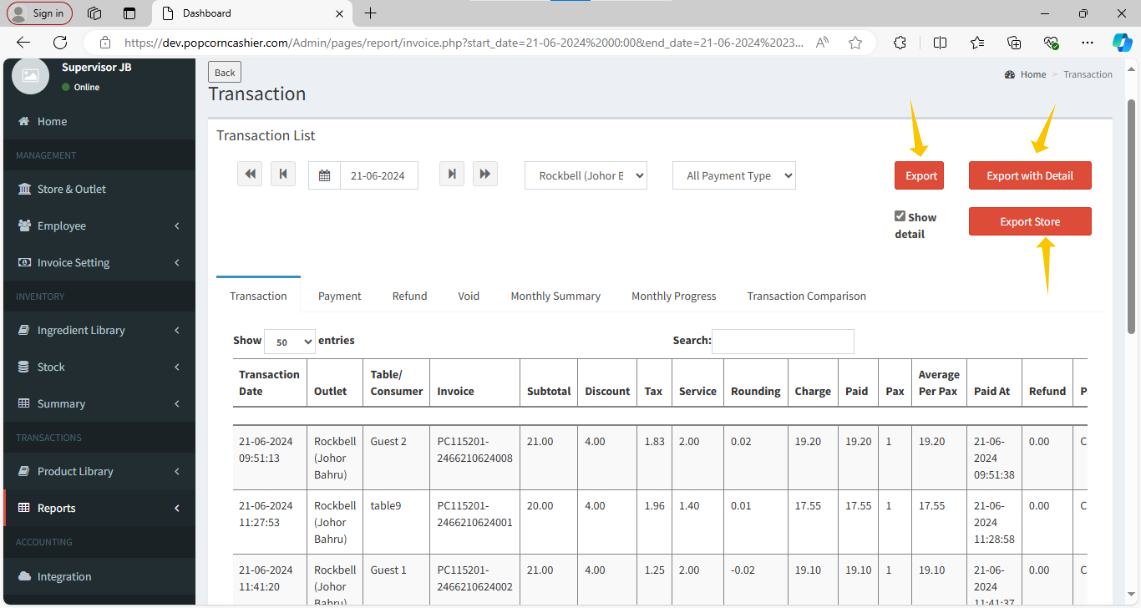
11. After selecting all the options, scroll to the top and export the report to an Excel spreadsheet by clicking the three red buttons on the right-hand side.
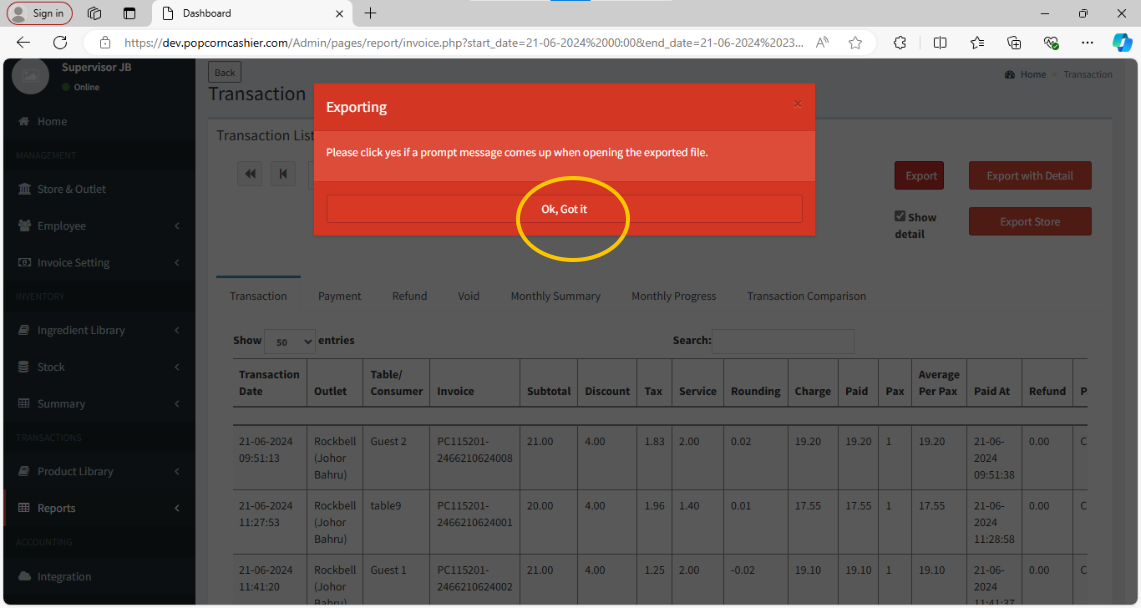
After click on the export button, click "OK, got it" to confirm the file export.
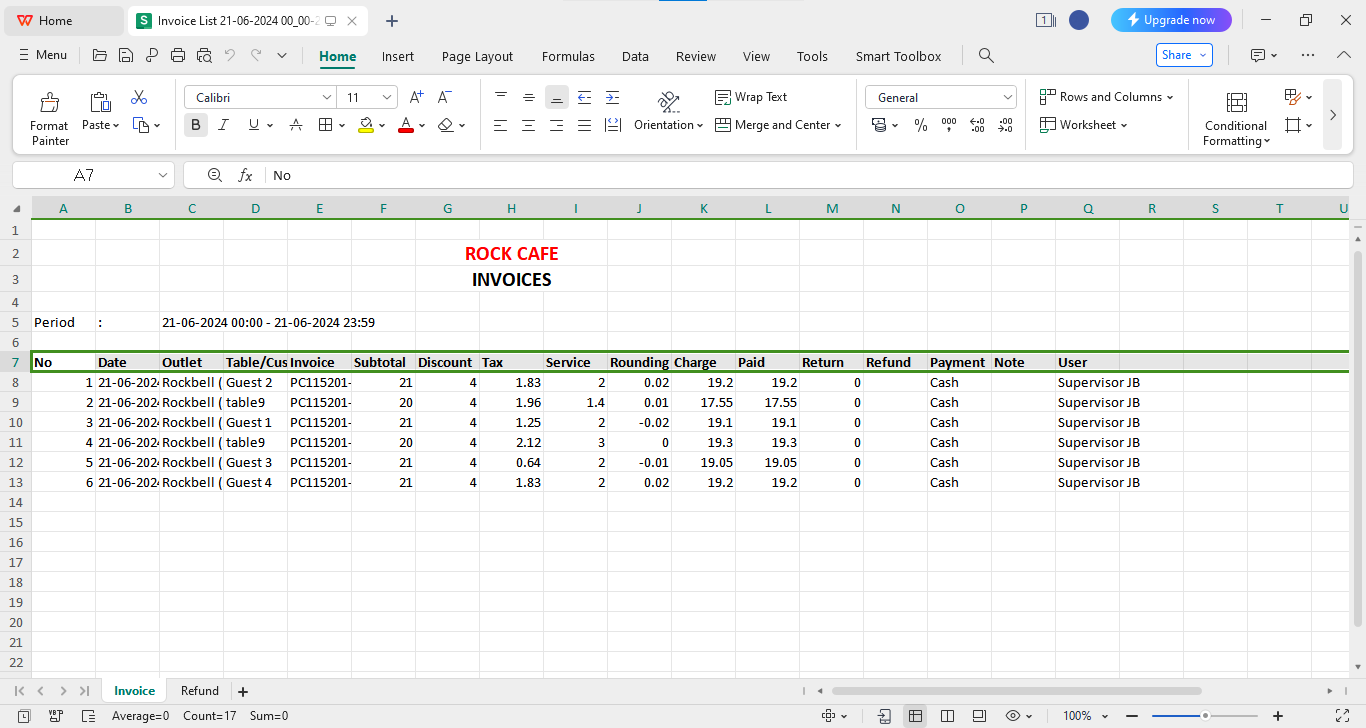
And it will be downloaded. By open the file the report will be view because of it has been successfully exported.
----------------------------------------------------------------------------------------------------------------
Still stuck?
Our team is happy to walk you through this step by step.
