BACKEND REPORT- Transaction Comparison (Owner)
1. In your dashboard home page, scroll down to Transactions row and press Report.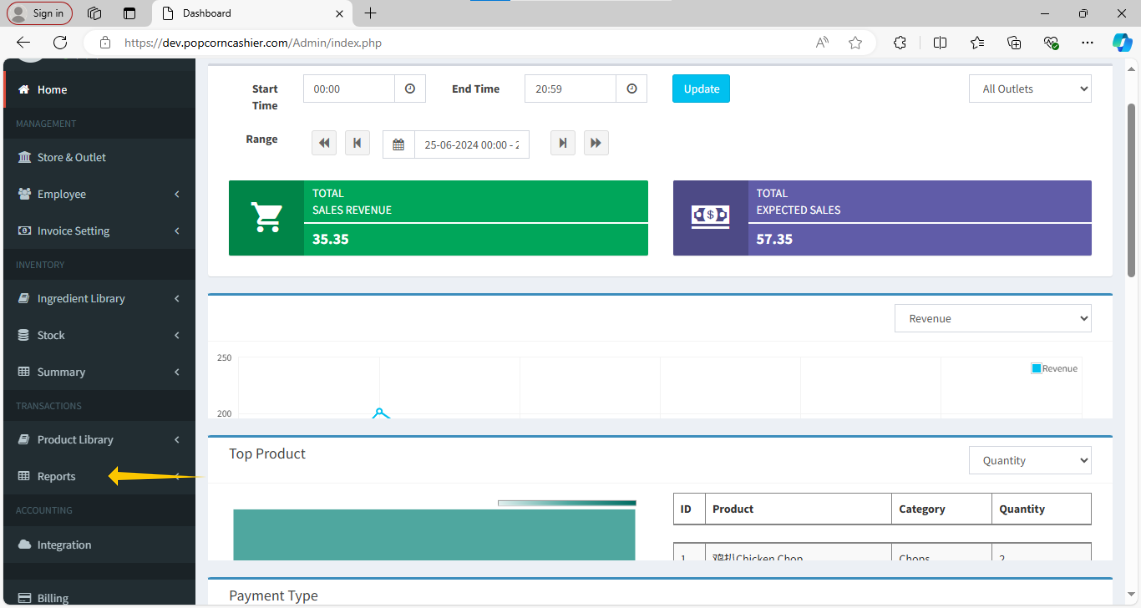
2. Then, click on Transaction. 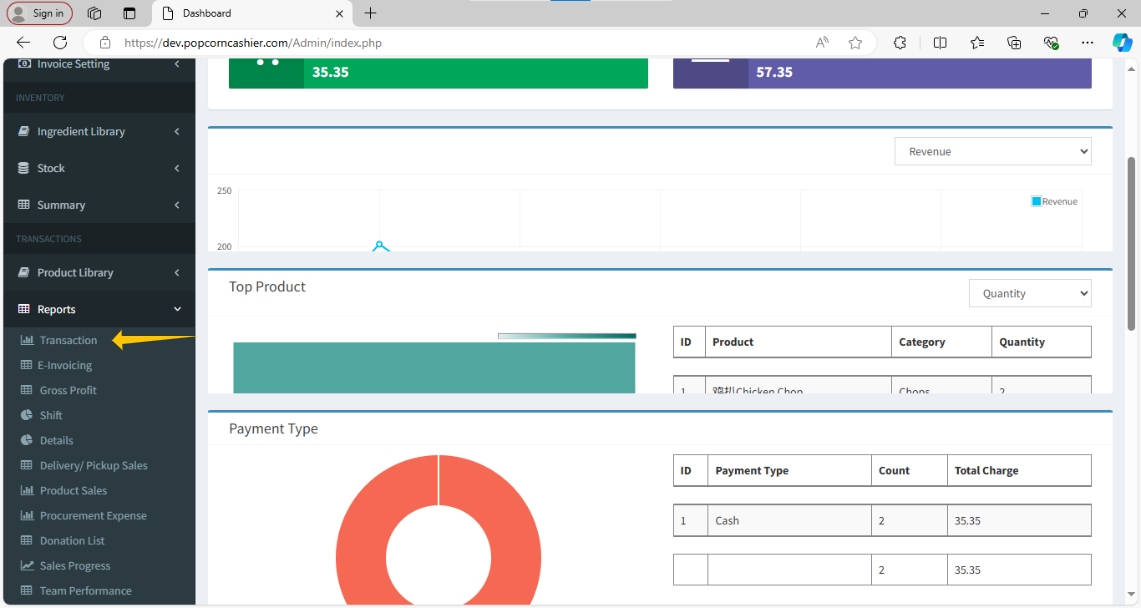
3. After click on Transaction in the left-hand side, click on Transaction Comparison.
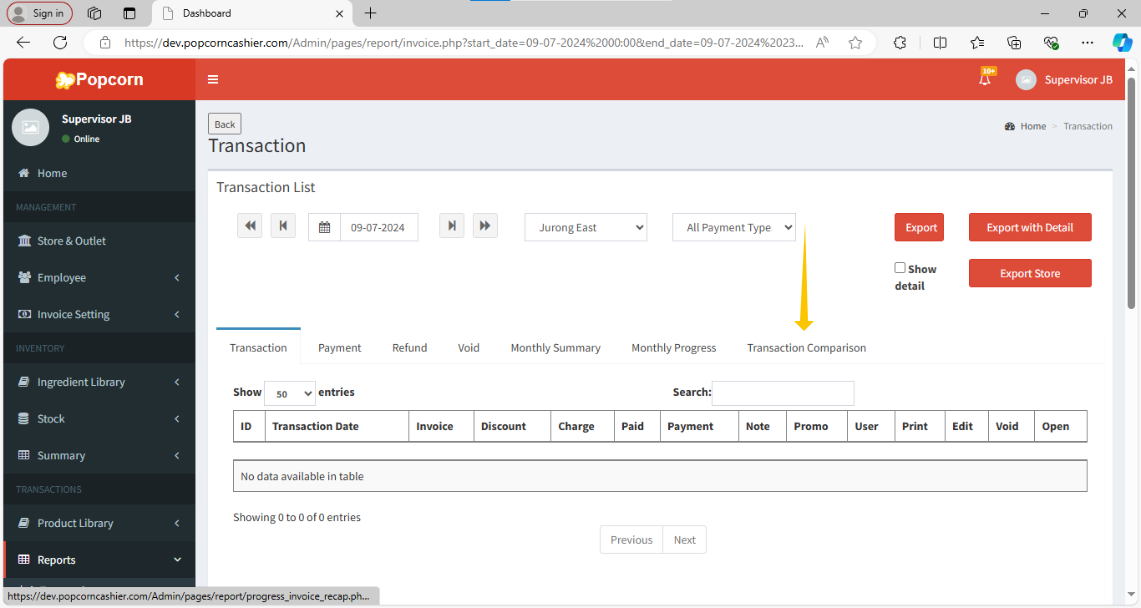
4. It will show a comparison table between the selected last year month and the selected this year month.
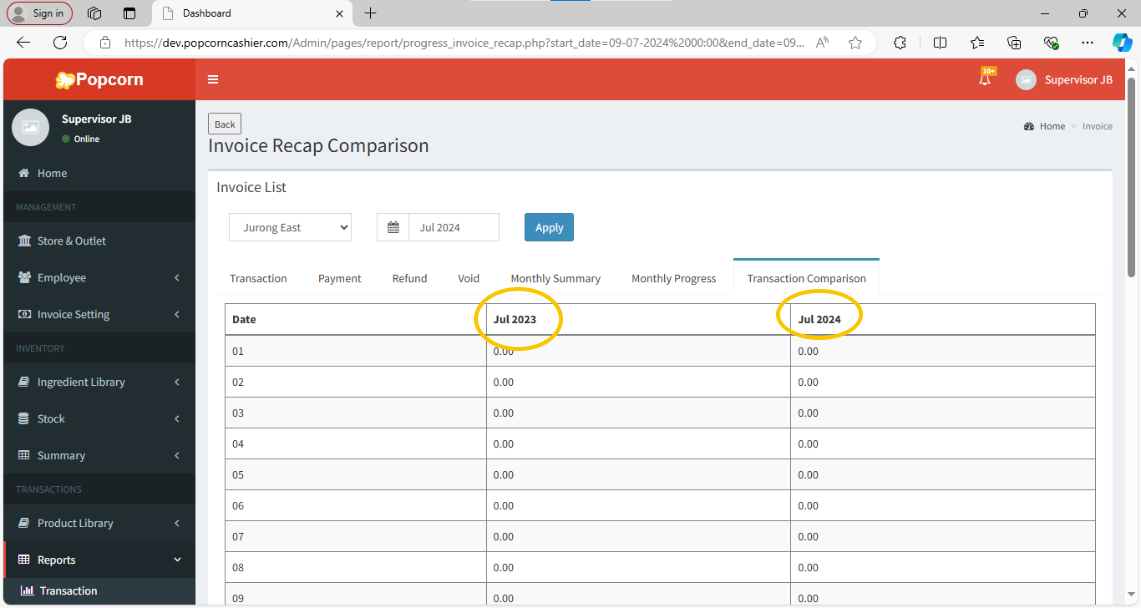
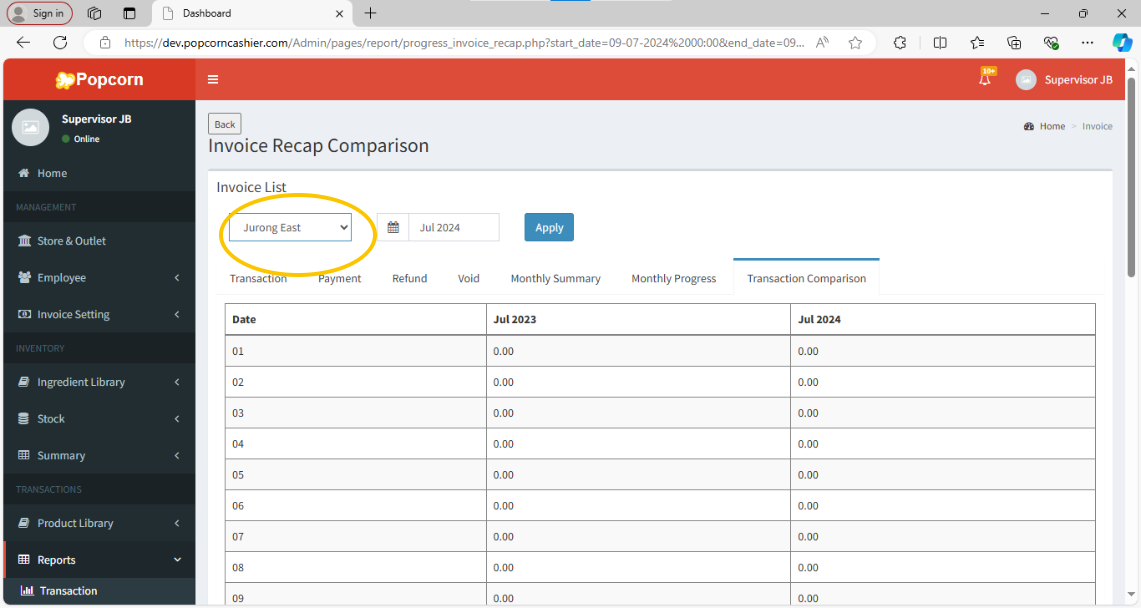
5. First, select the Outlet that need to view.
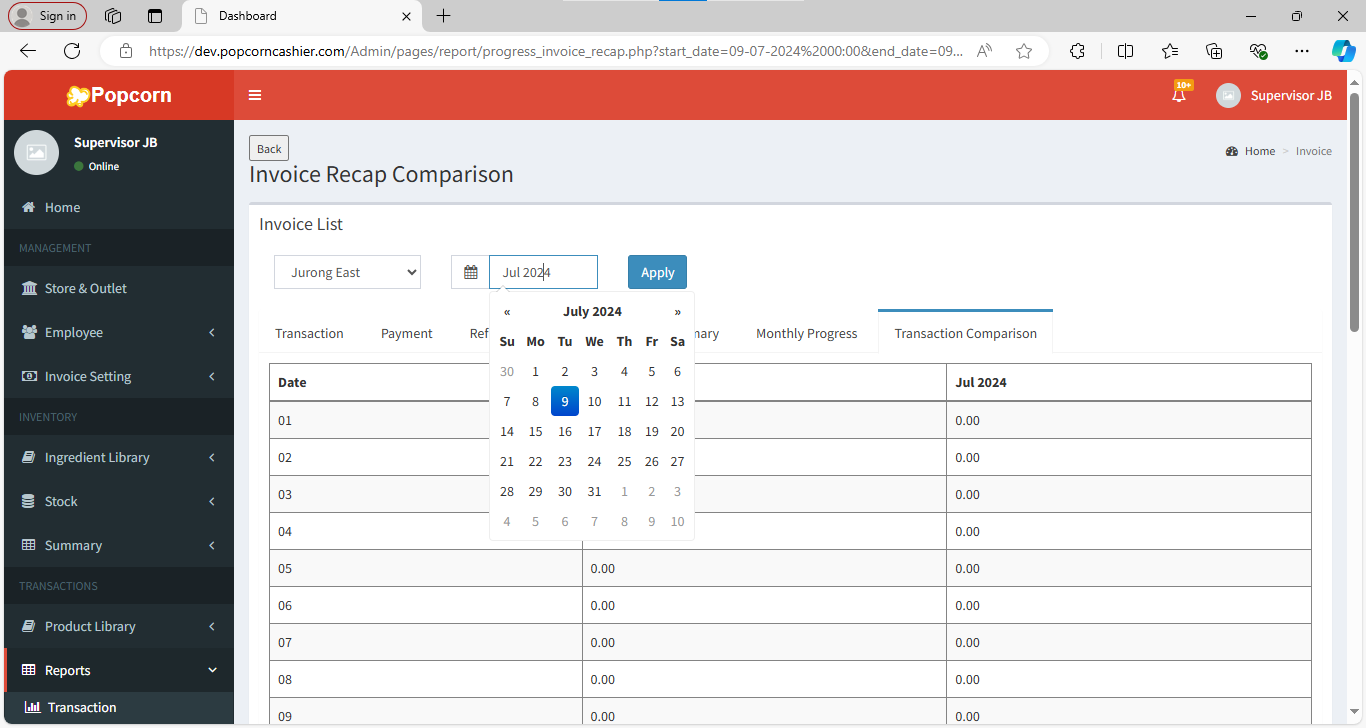
6. Then, select the Date to make a comparison.
7. Click on Apply to generate the comparison table.
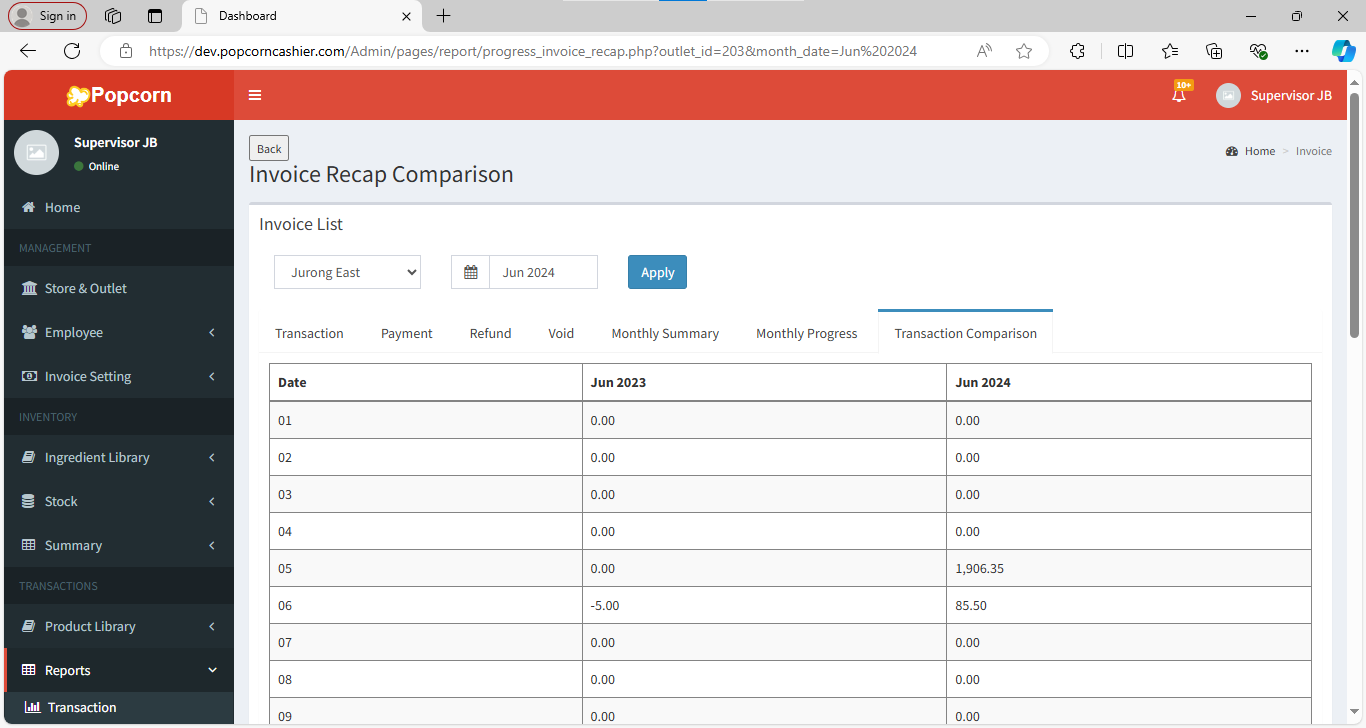
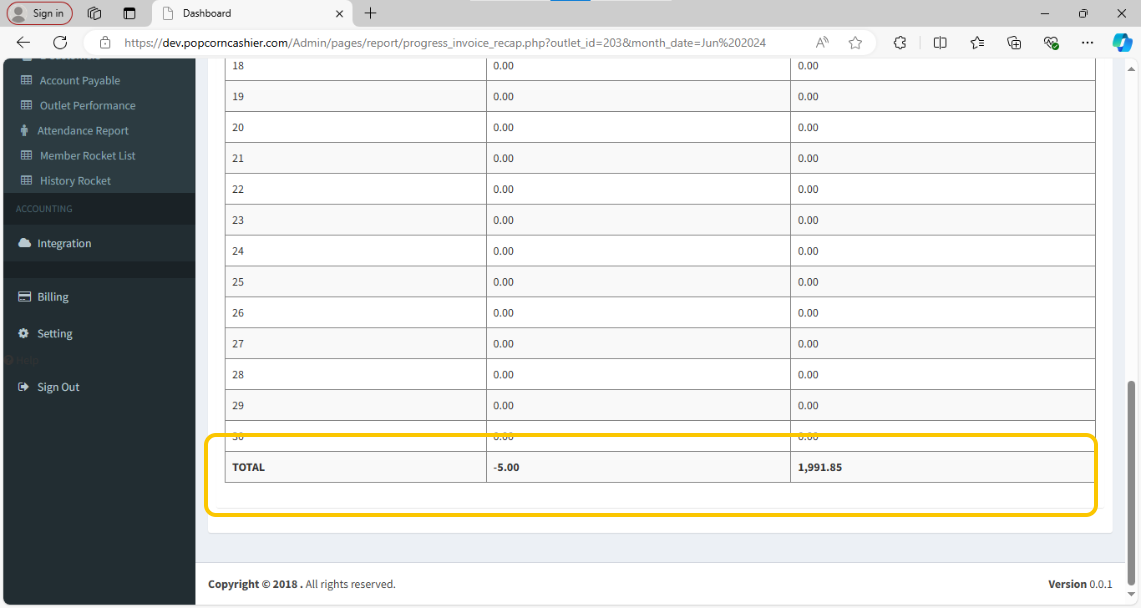
8. And the comparison will be showing by table format. By scrolling down and to see the total.
Still stuck?
Our team is happy to walk you through this step by step.
