How to Set Sales & Service Tax (SST)
*IF SST IS NO NEEDED, CAN SKIP CREATE
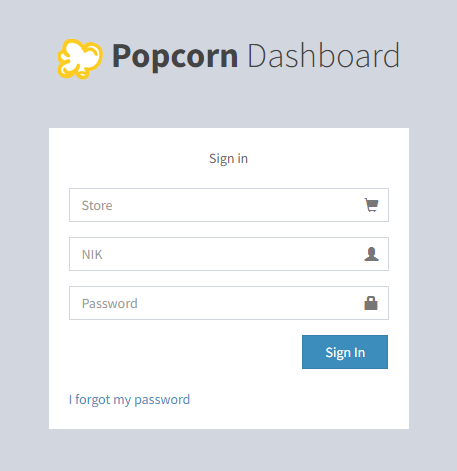
- Access to the link: https://www.popcorncashier.com
- To log in: Please fill in the Store Name, NIK (User ID) & Password
- After log in, it will shows out the Home Screen as below:
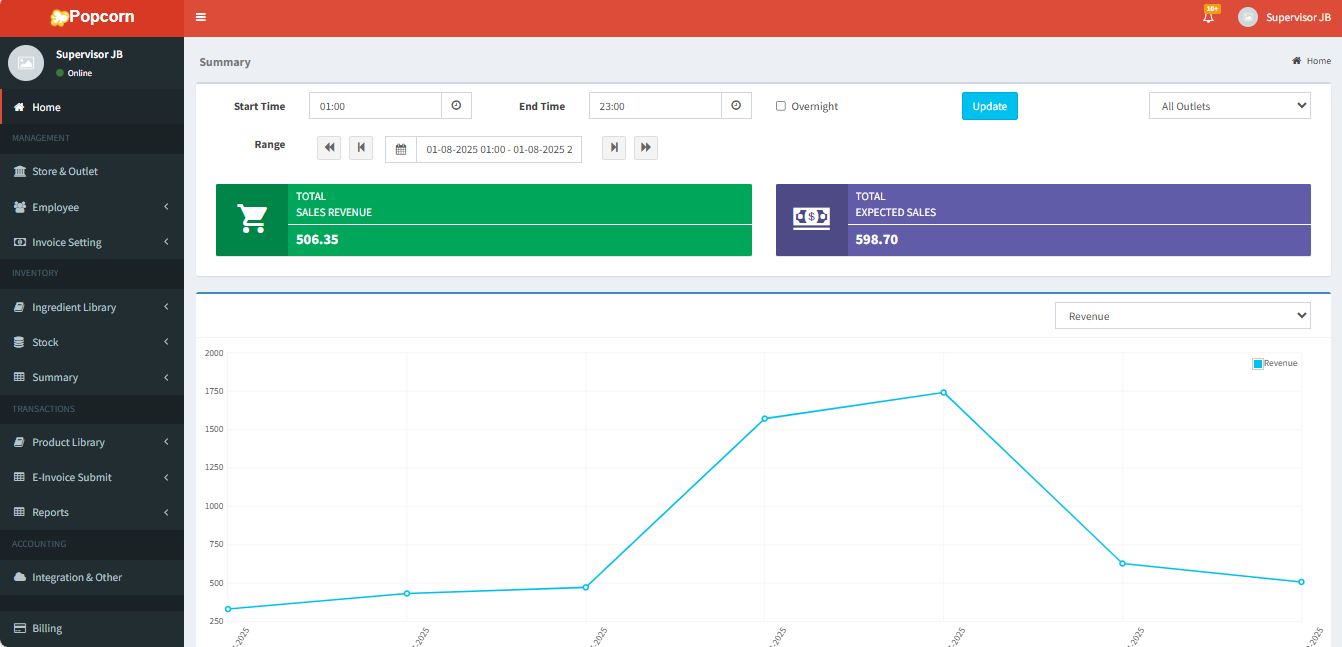
Store & Outlet
Go to Management > Invoice Setting > Tax & Service:
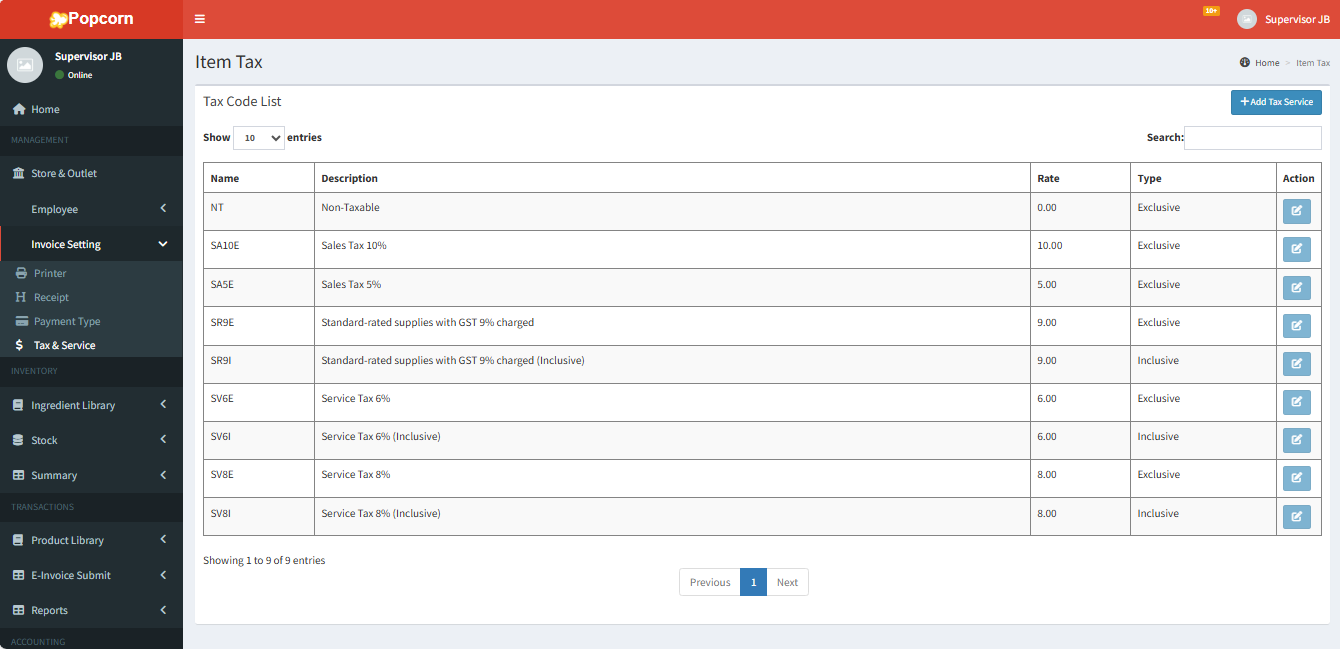
- Click Add Tax Service to create SST

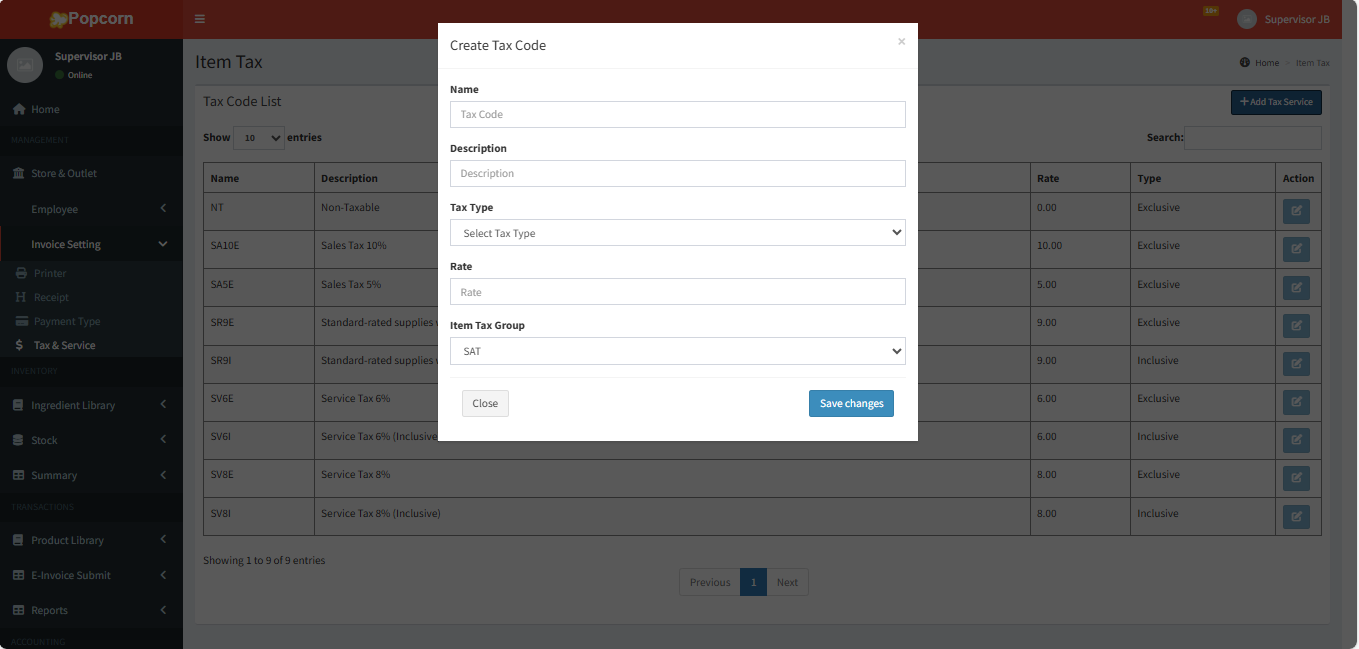
- Enter the data to create SST
- Name: SV6 (Example)
- Description: Service Tax 6%
- Tax Type: Exclusive/Inclusive
- Rate: 6/8 (Depend on your requirement)
- Item Tax Group: SAT (Fixed)
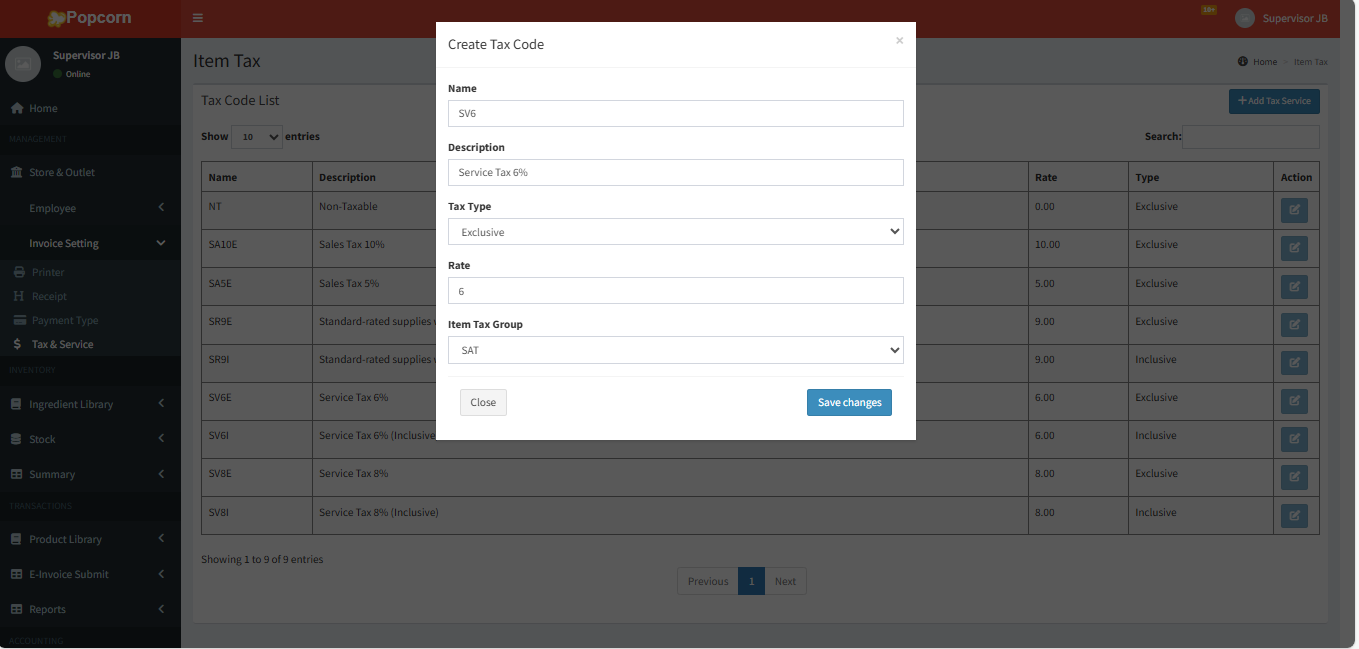
- After that click Save Changed to save the Tax

--------------------------------------------------------------------------------------------------------------------------------
Please refer to the video for more information:
Still stuck?
Our team is happy to walk you through this step by step.
