How to Integrate Popcorn into Million Accounting System
Summary:
Step 1) Identify Million Accounting Server's PC SQL Server ML001 Port Number
Step 2) Login to the router admin page (e.g. 192.168.1.1) and set Port Forwarding for the SQL Port Number
Step 3) Assign a fixed IP to the Server PC
Step 4) Window Defender Firewall - Create new rule for Inbound & Outbound Rule for SQL Port number
Step 5) Login to www.popcorncashie.com > Store & Outlet > Million Setup > Setup Basic Setting
Step 6) Choose the correct Account GL number
Step 1: Identify the PC SQL Server ML001 port number
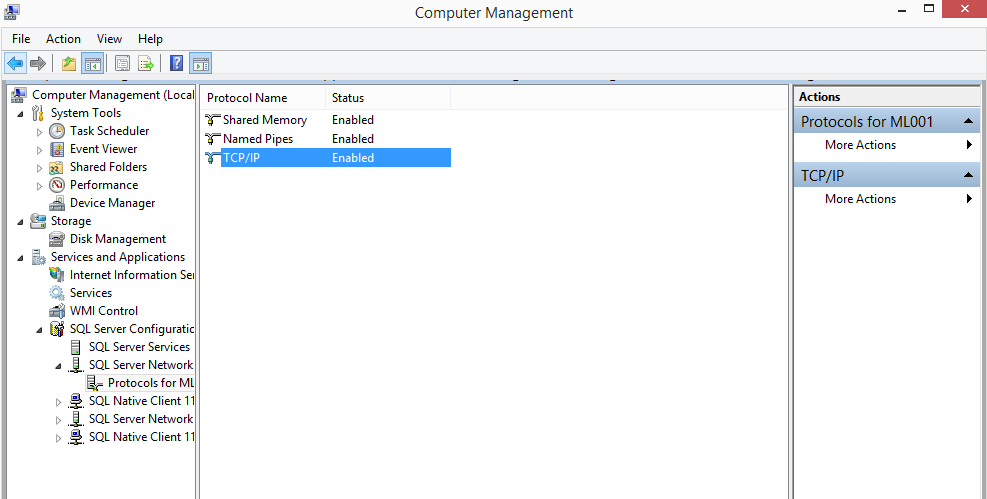
- Go to Computer Management & Select Services and Application or Search SQL Server Configuration Manager
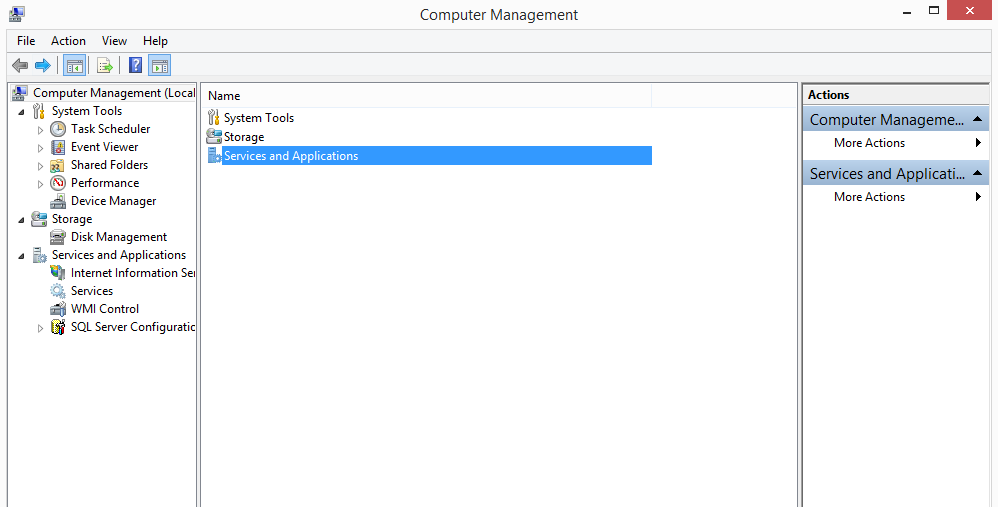
- Select SQL Server Configuration Manager
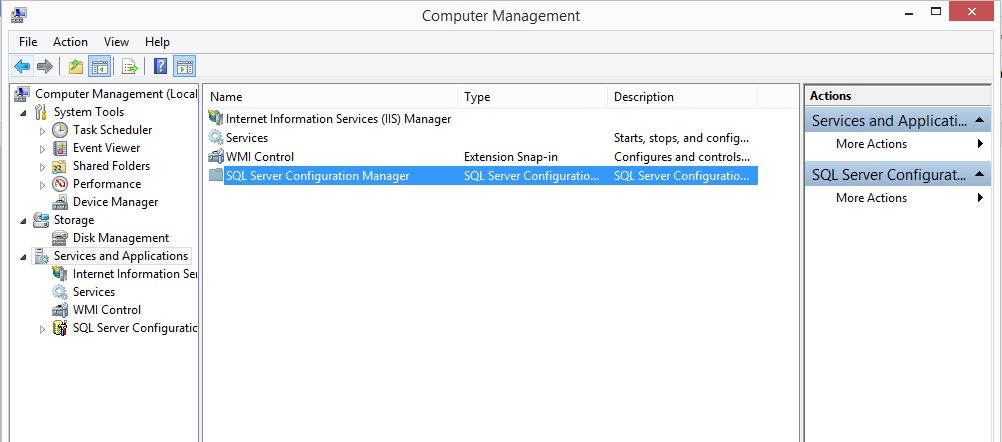
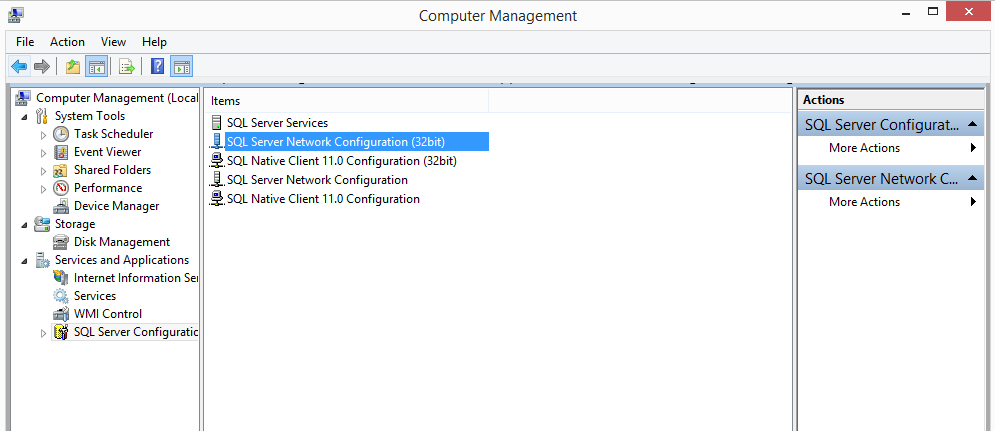
- Select SQL Server Network Configuration
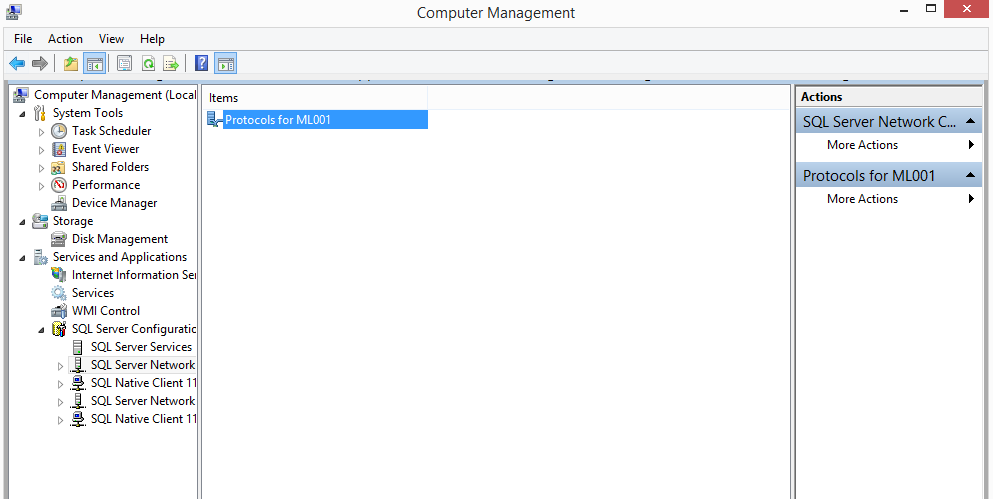
- Select Protocols for ML001
- Select TCP/IP
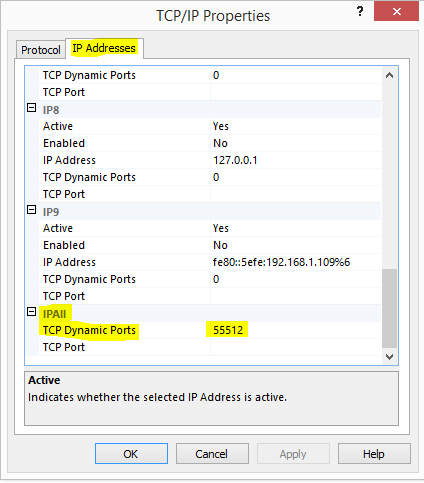
- Select IP Addresses & refer to TCP Dynamic Ports (This is the SQL ML001 Port)
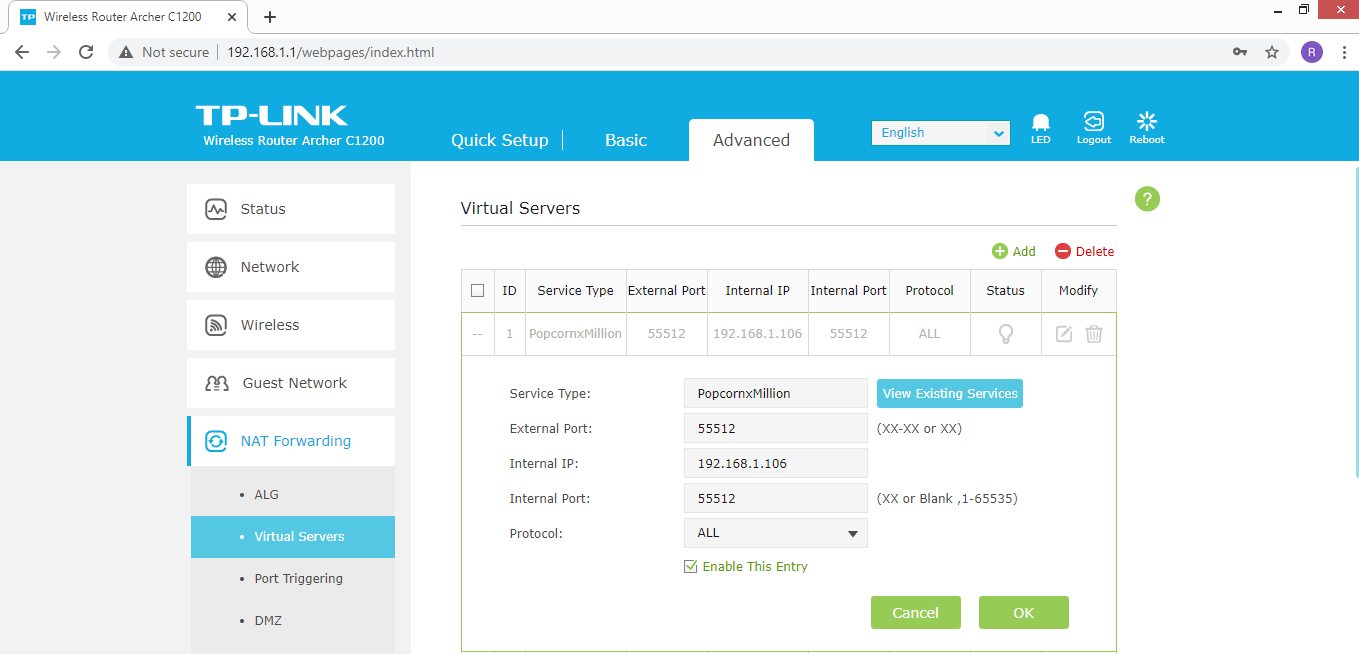
Step 2: Set Port Forwarding for that SQL Port in Router
- Login to Router Admin Portal (192.168.1.1), and set Port Forwarding for SQL Port (Different brand of router may have different method to set)
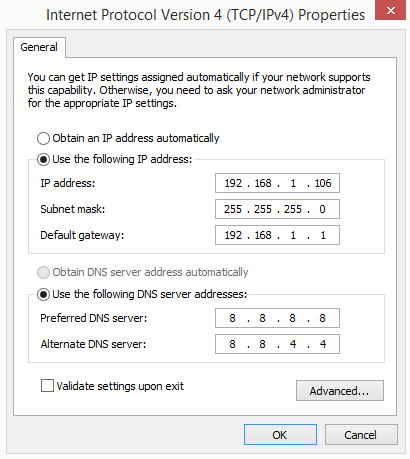
Step 3: Assign a fixed IP to the Server PC
Step 4: Window Defender Firewall - Create new rule for Inbound & Outbound Rule for SQL Port number
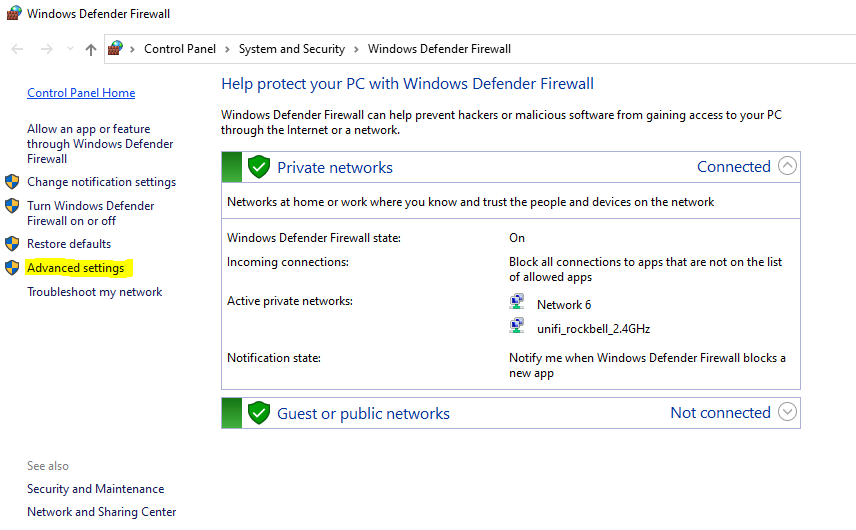
- Go to Window Defender Firewall & Select Advanced Settings
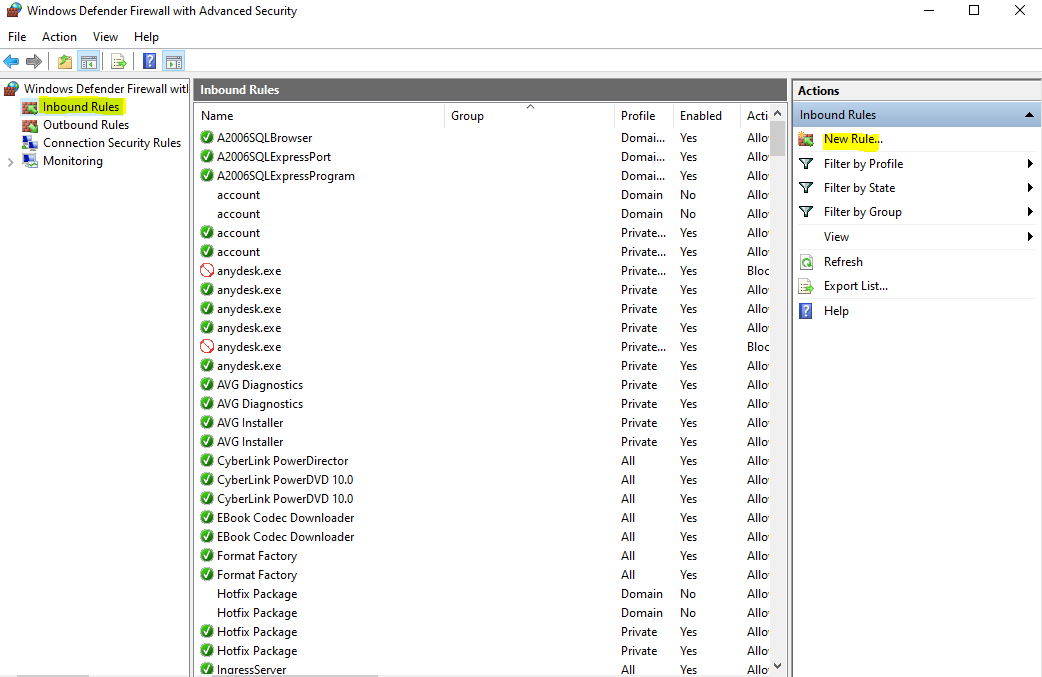
- Select Inbound Rule & Create New Rule
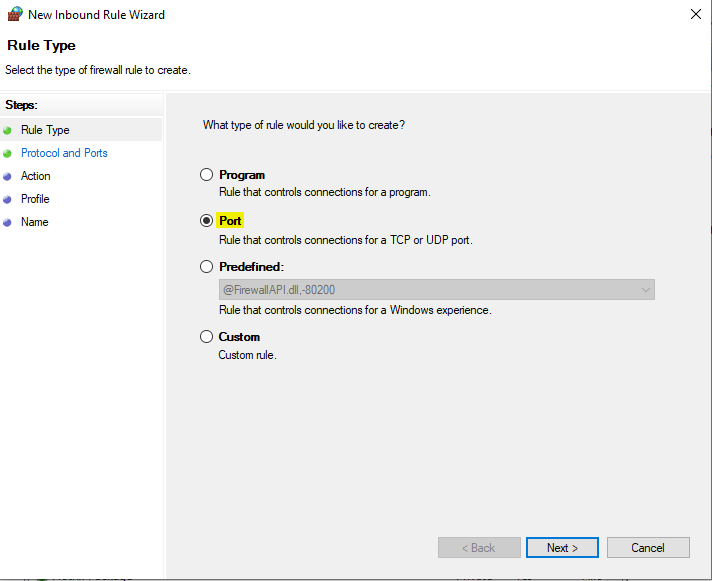
- How to create Inbound New Rule:
1) Select Port
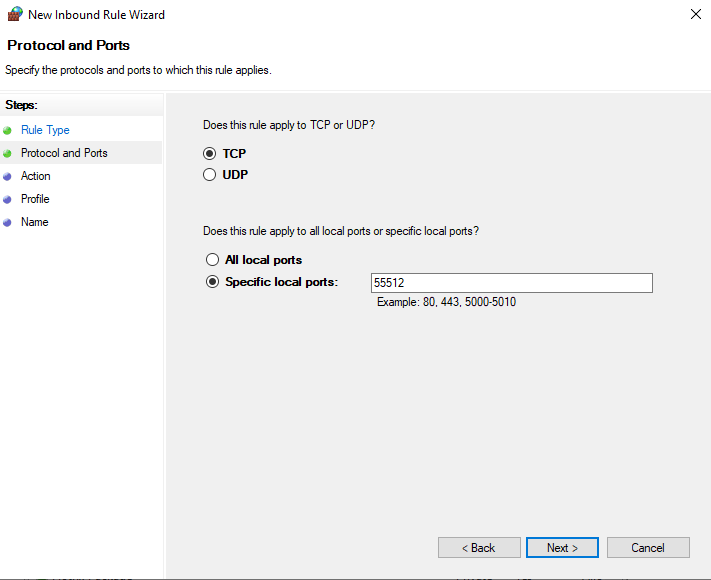
2) Select TCP and key in Port Number
3) Allow the connection
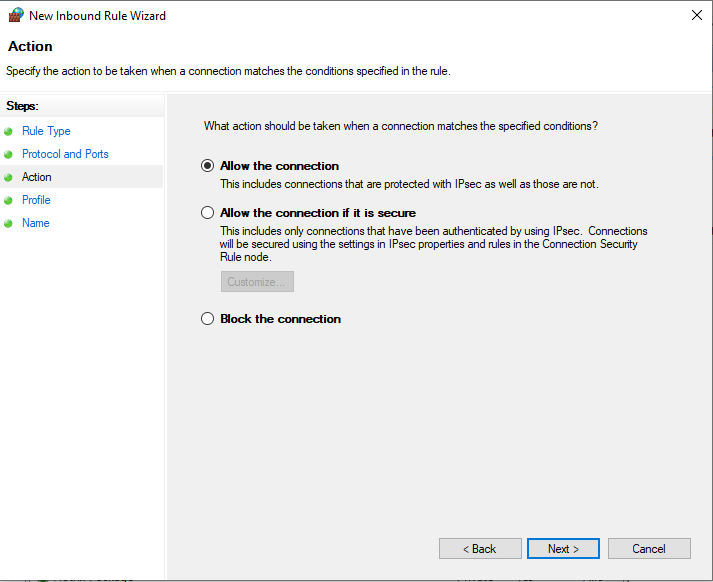
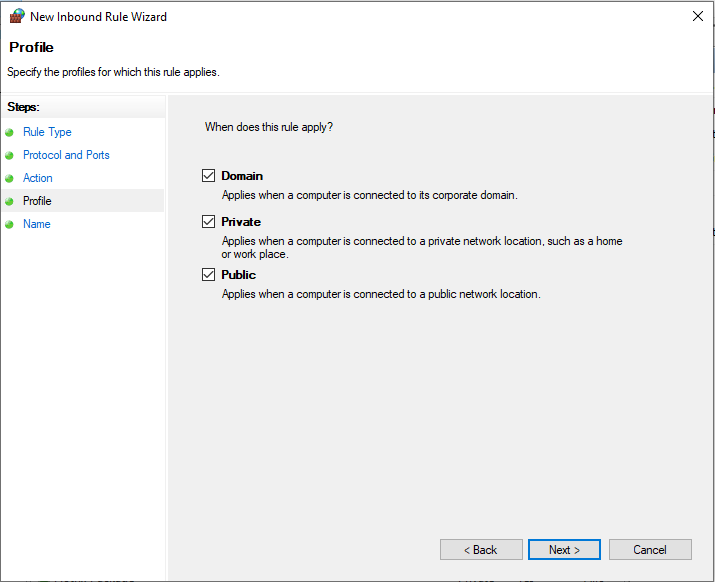
4) Tick all the option
5) Key in the Name and click Finish
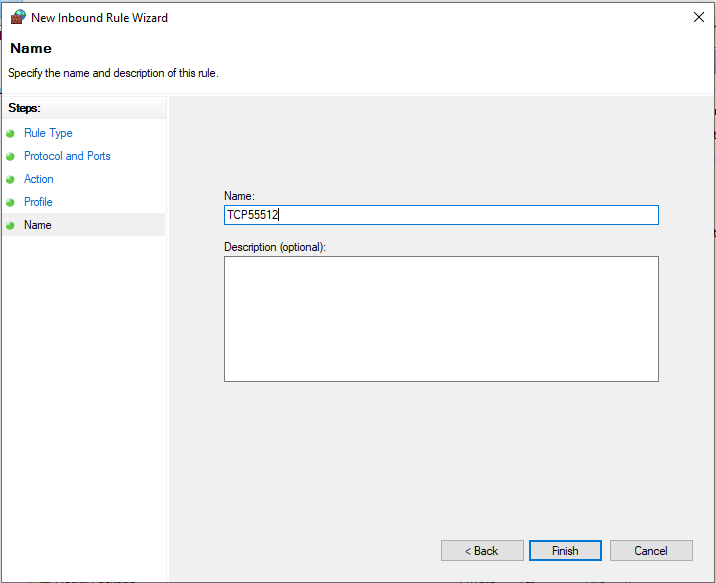
6) Continue the steps above to create UDP rule
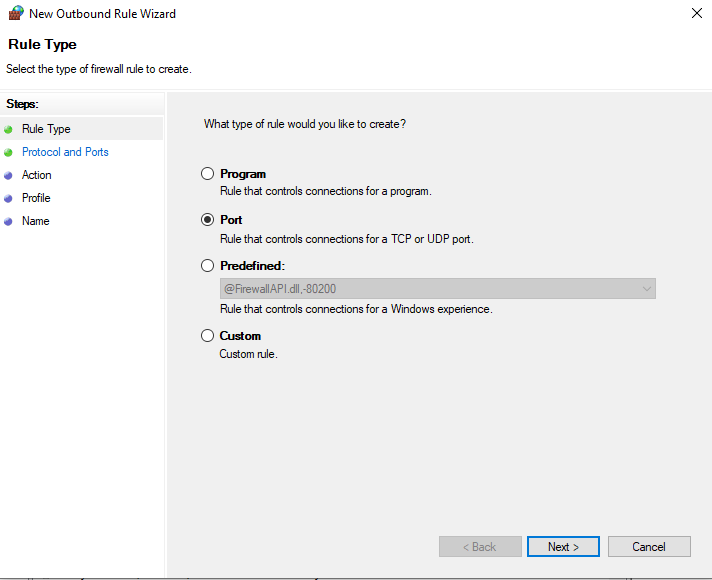
- How to create Outbound New Rule:
1) Select Outbound Rule & Create New Rule
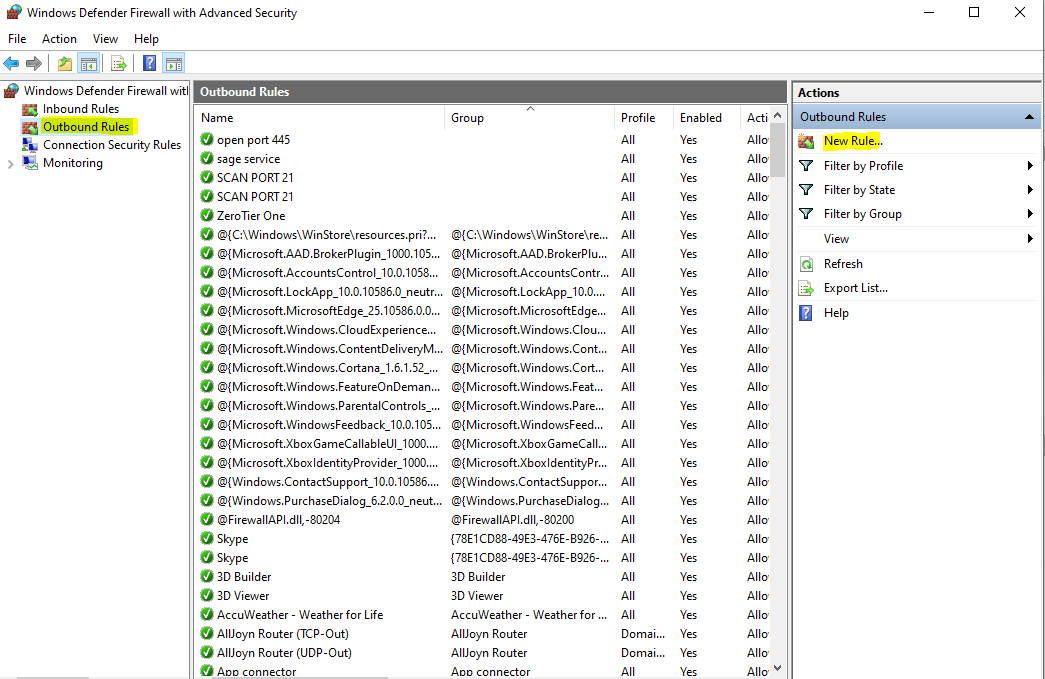
2) Select Port
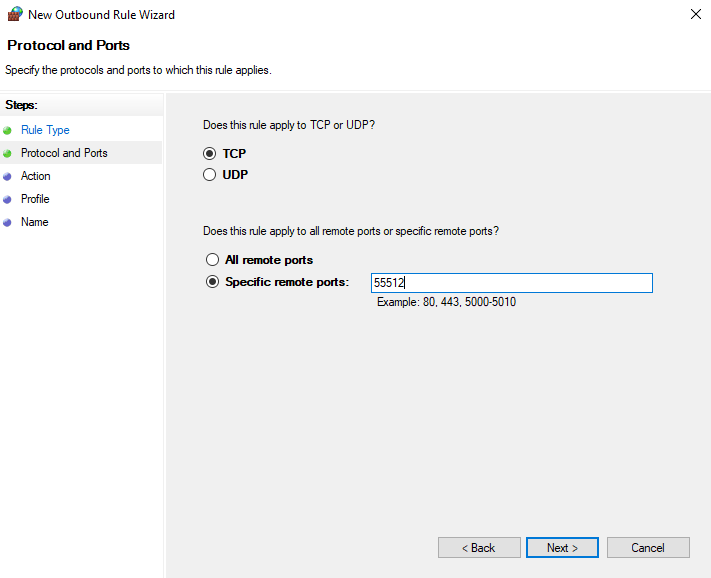
3) Key in The SQL Port Number
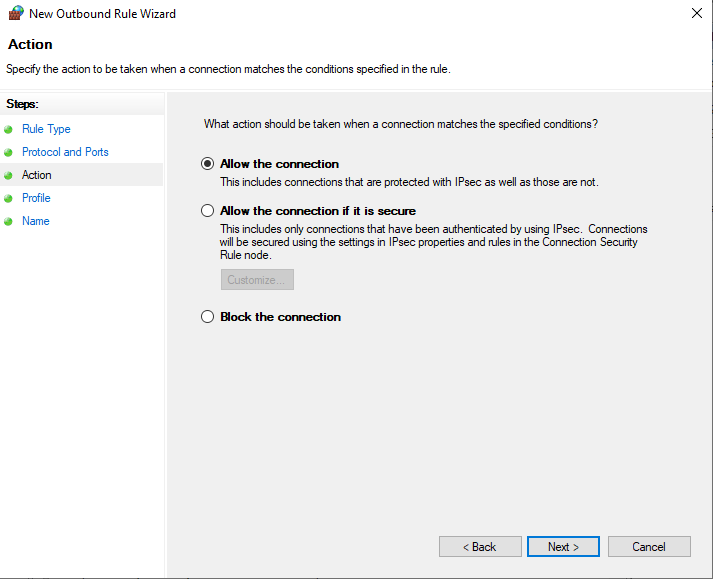
4) Allow the Connection
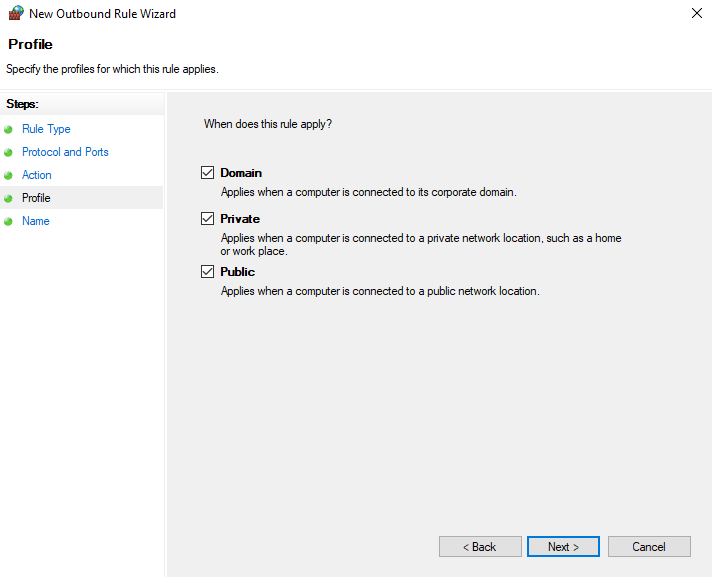
5) Tick all the option
6) Key in the name and click Finish
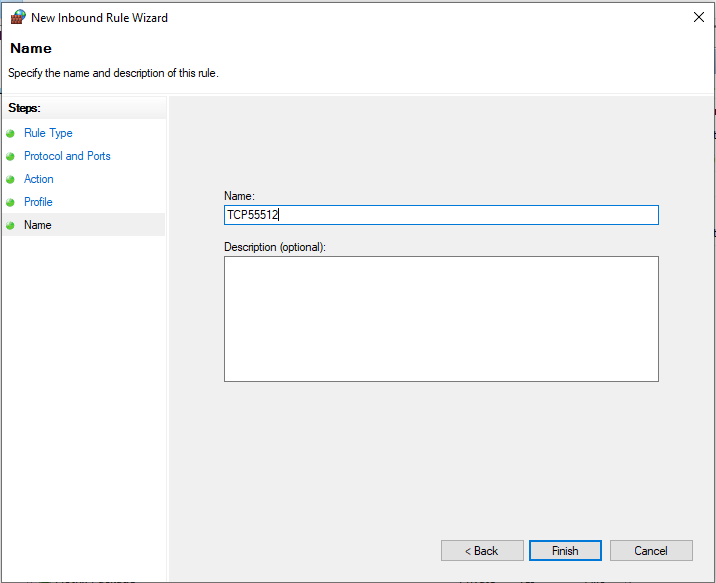
7) Continue the steps above to create UDP rule
Step 5: Login to www.popcorncashier.com > Store & Outlet > Million Setup
Database Link : PUBLIC IP ADDRESS,PORT NUMBER\\ML001 (115.133.104.225,62594\\ML001)
(You can Google Search: What is my Public IP)
Database Name: Million Accounting Database Name
Export Period: Single Transaction/Daily Transaction/Monthly Transaction
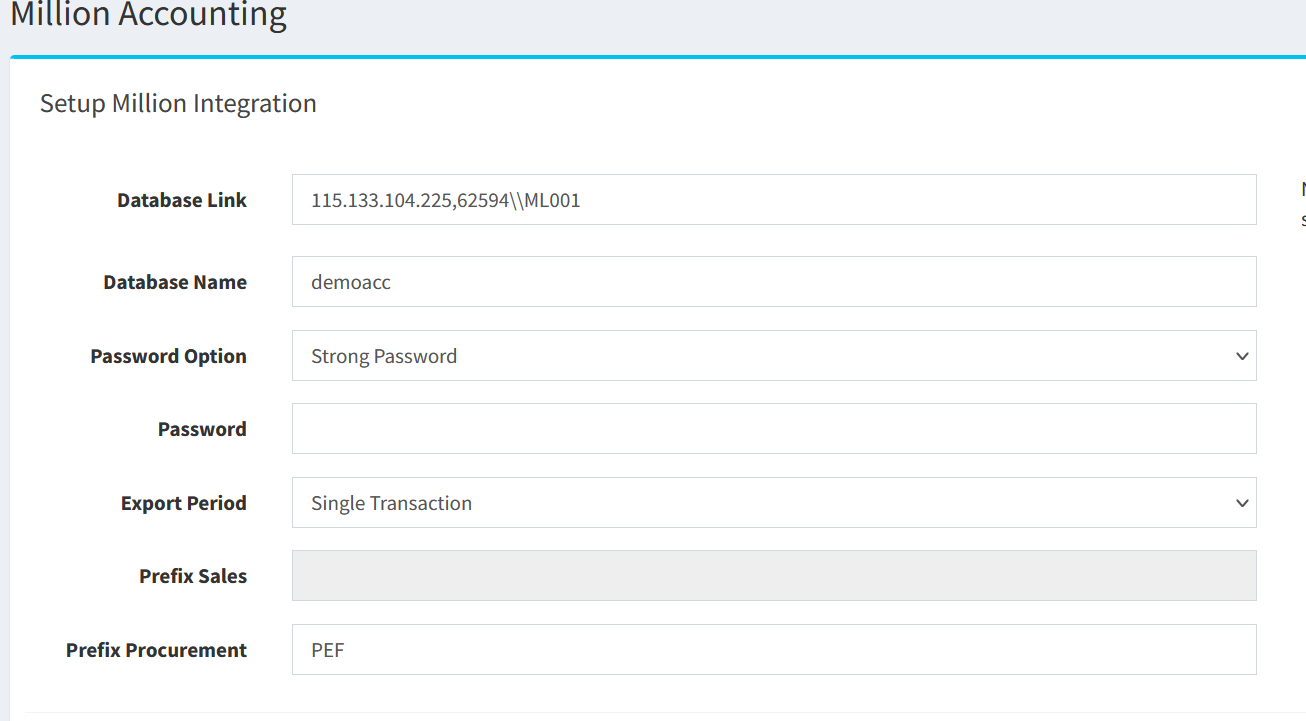
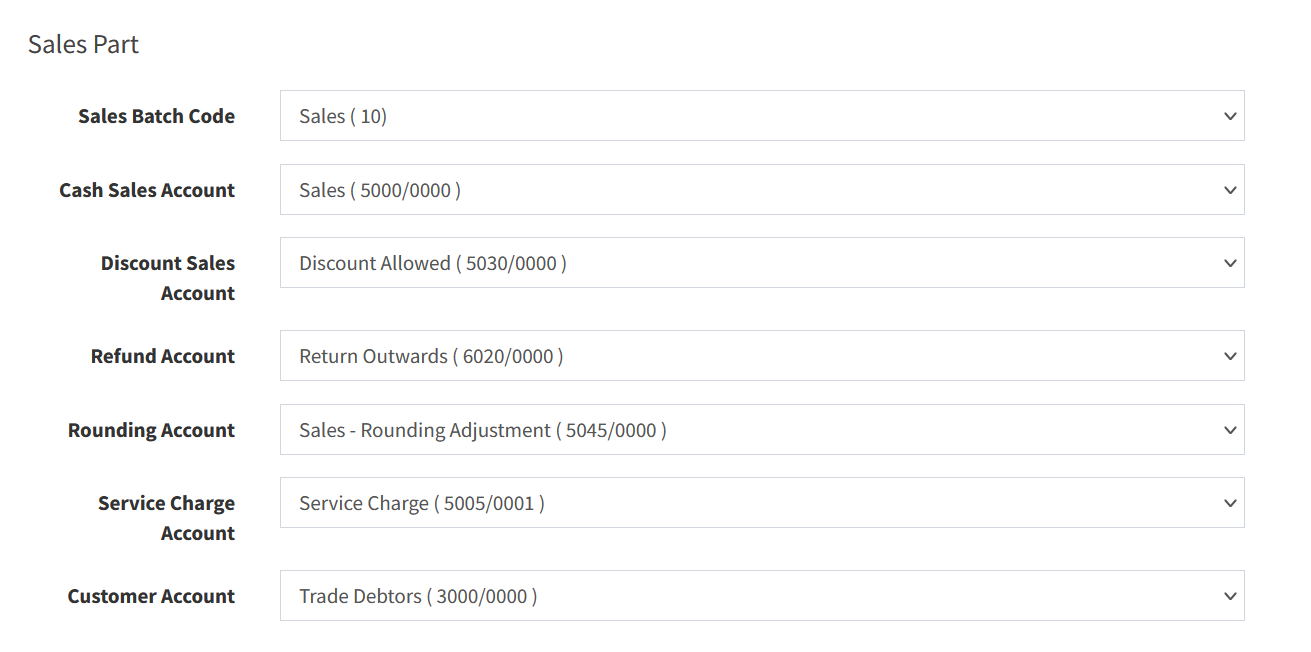
Step 6: Choose the correct Account GL number
- Go to www.popcorncashier.com > Integration & Other
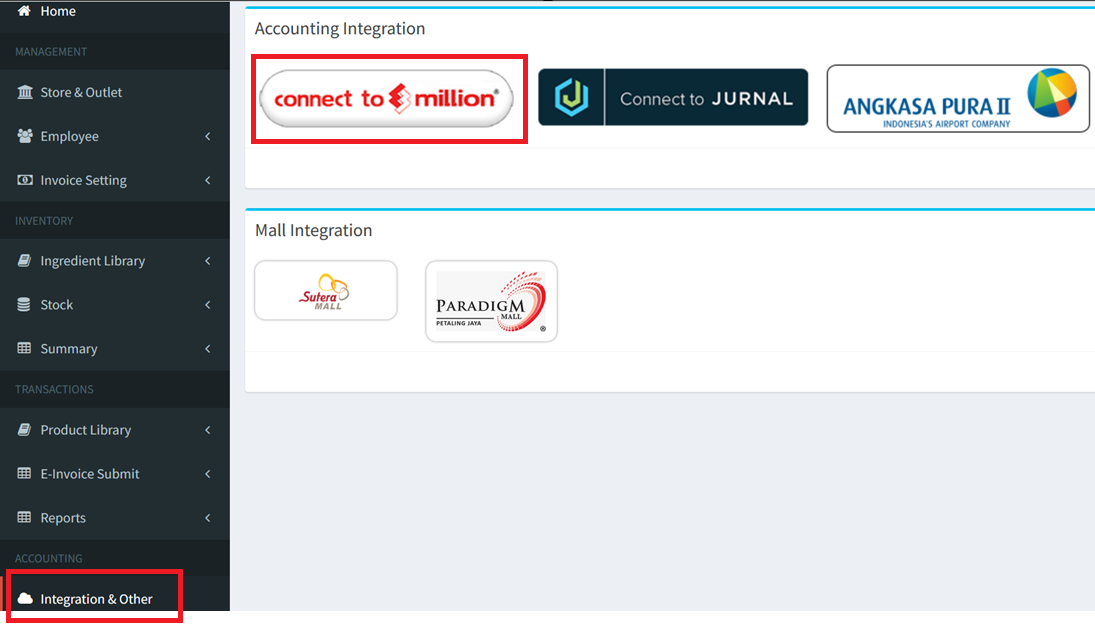
- Select Account Number in Million Accounting System (Payment Type Part, Sales Part
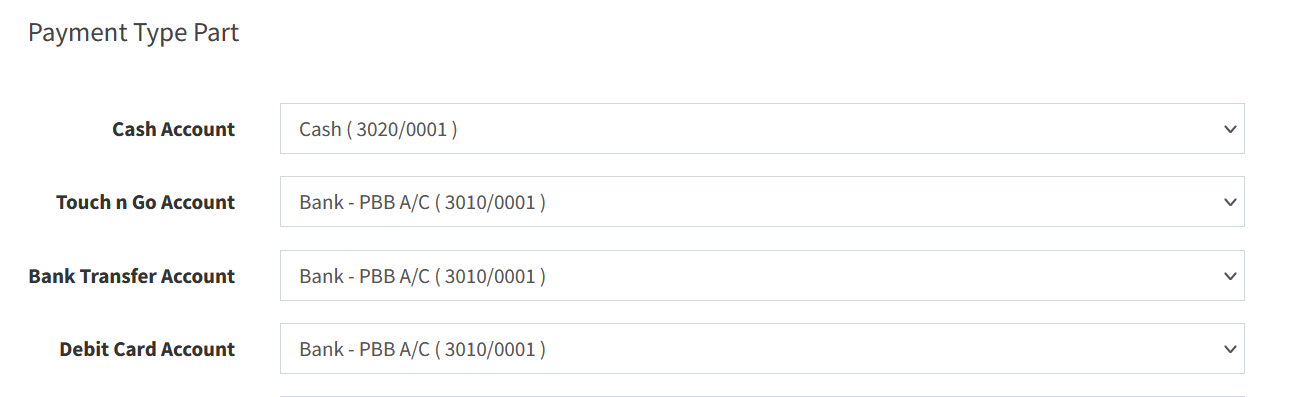
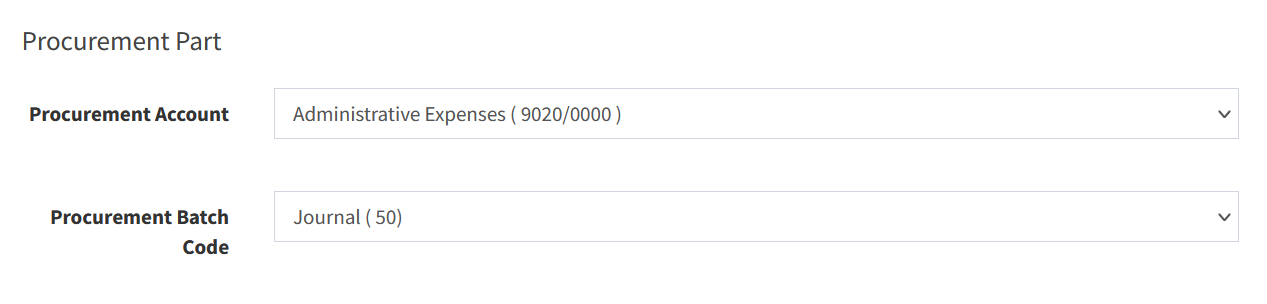
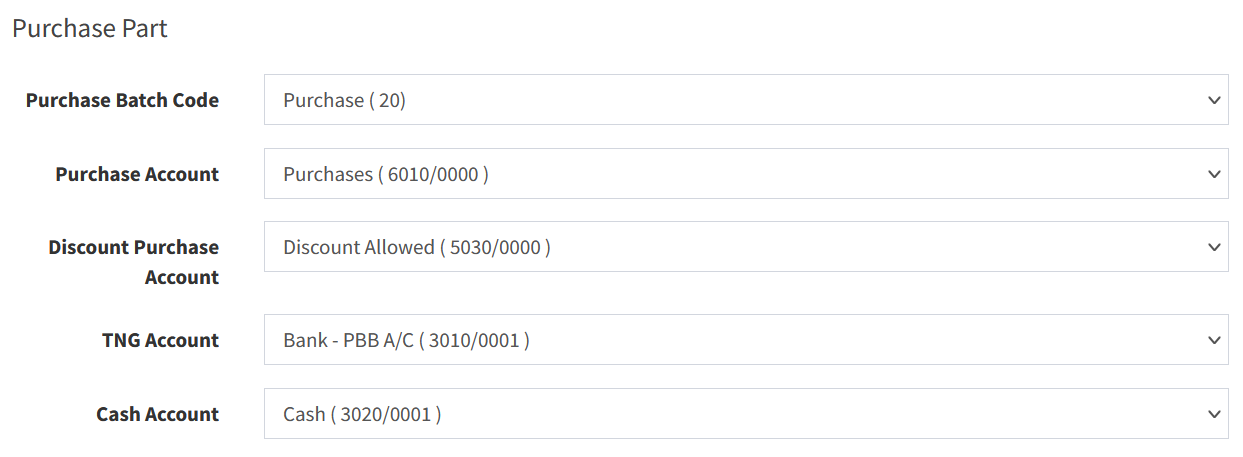
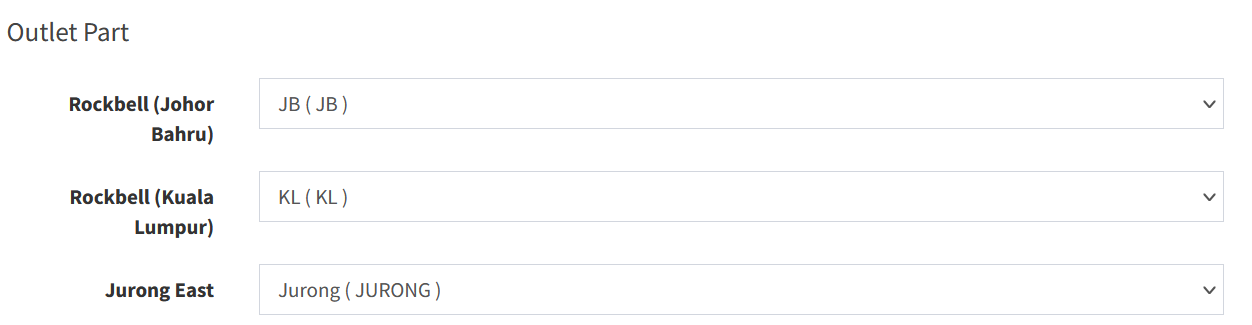
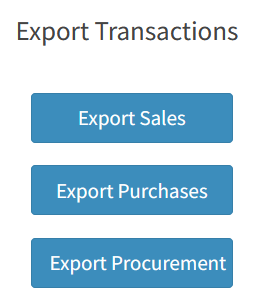
- Select outlet to export (Sales/Purchases/Procurement)
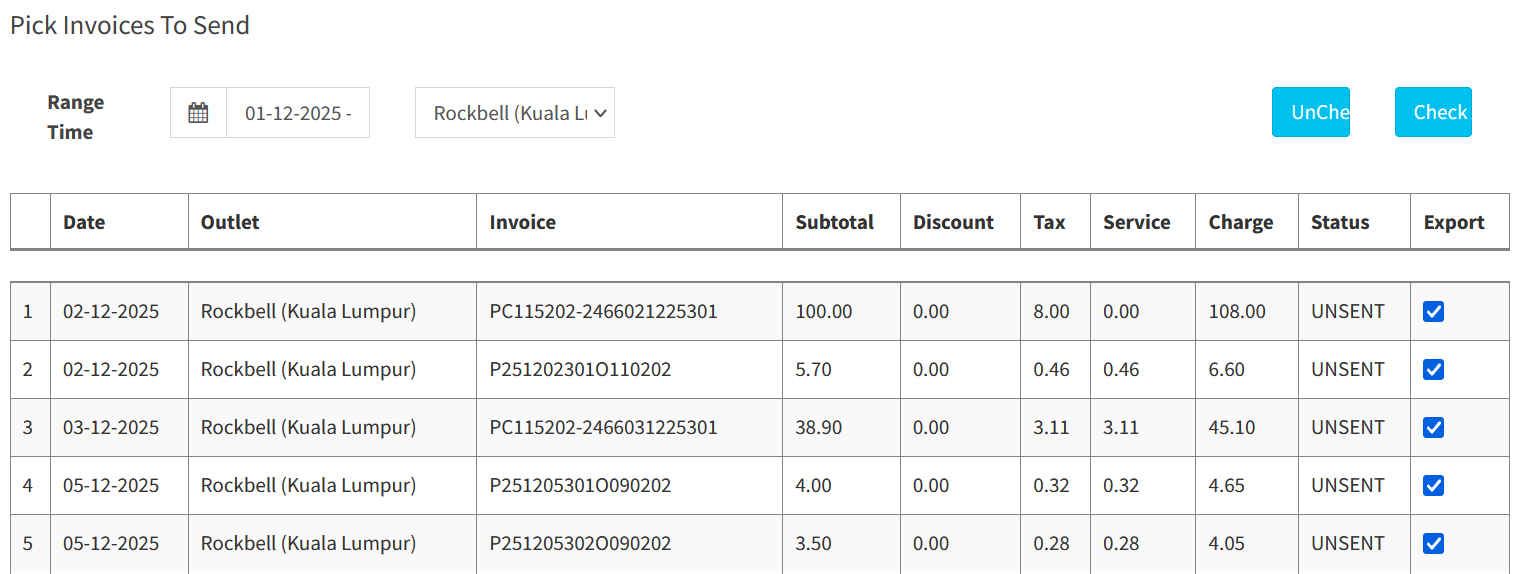
- Can select date range , outlet and invoices that want to import to the Million Accounting System
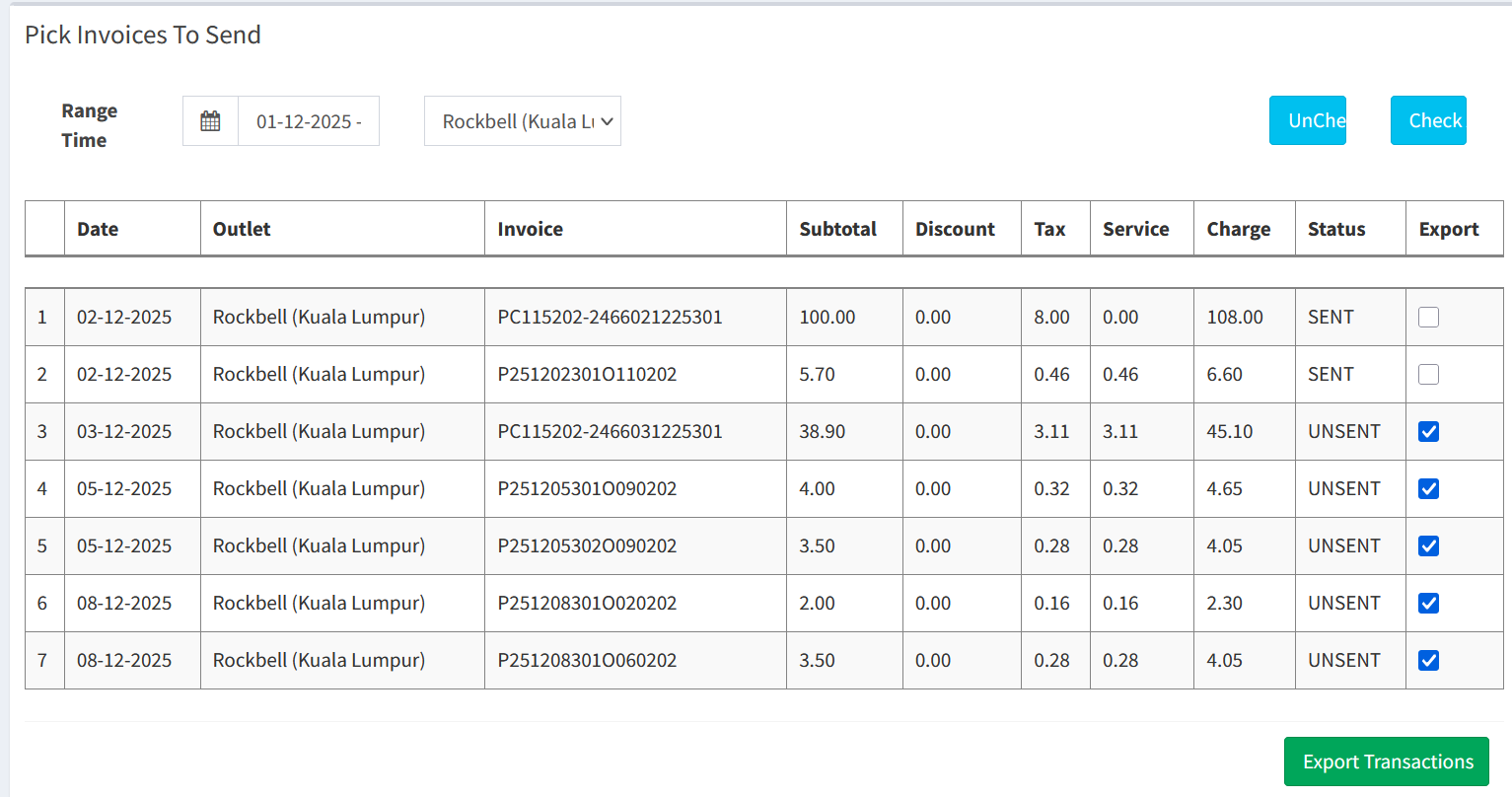
- After click export, the status will show SENT
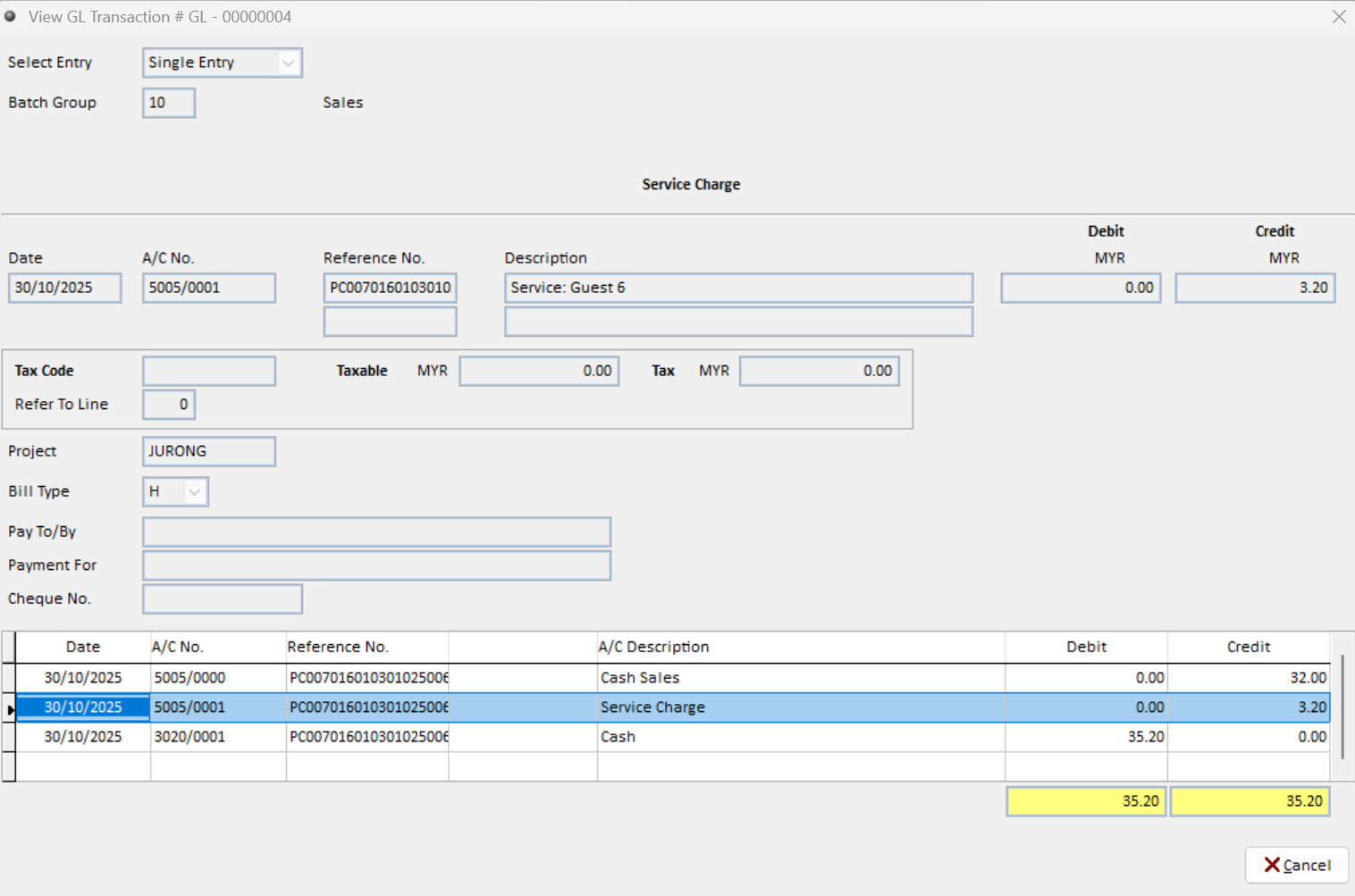
Million Accounting System
- Million Accounting will automatically show out the Double Entry

Still stuck?
Our team is happy to walk you through this step by step.
