Outlet Menu Book Setting
Go to Transaction > Product Library > Outlet Menu Book:
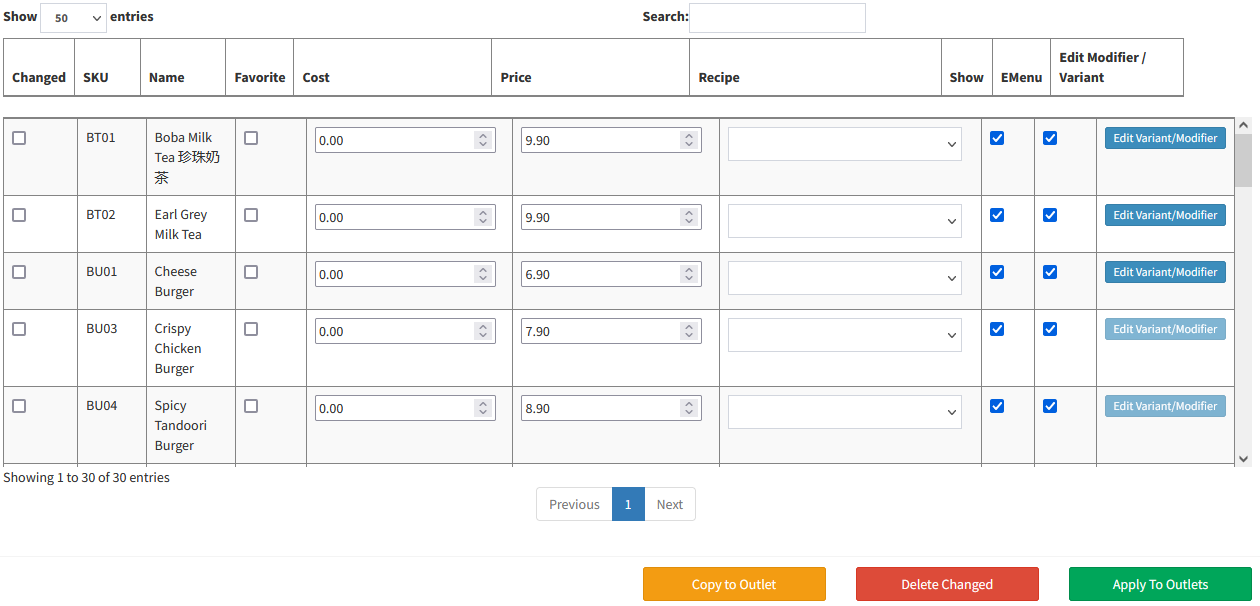
- Outlet Menu Book: If you have more than one outlets, and with different menu or different price, you can set the price or menu through Outlet Menu Book.
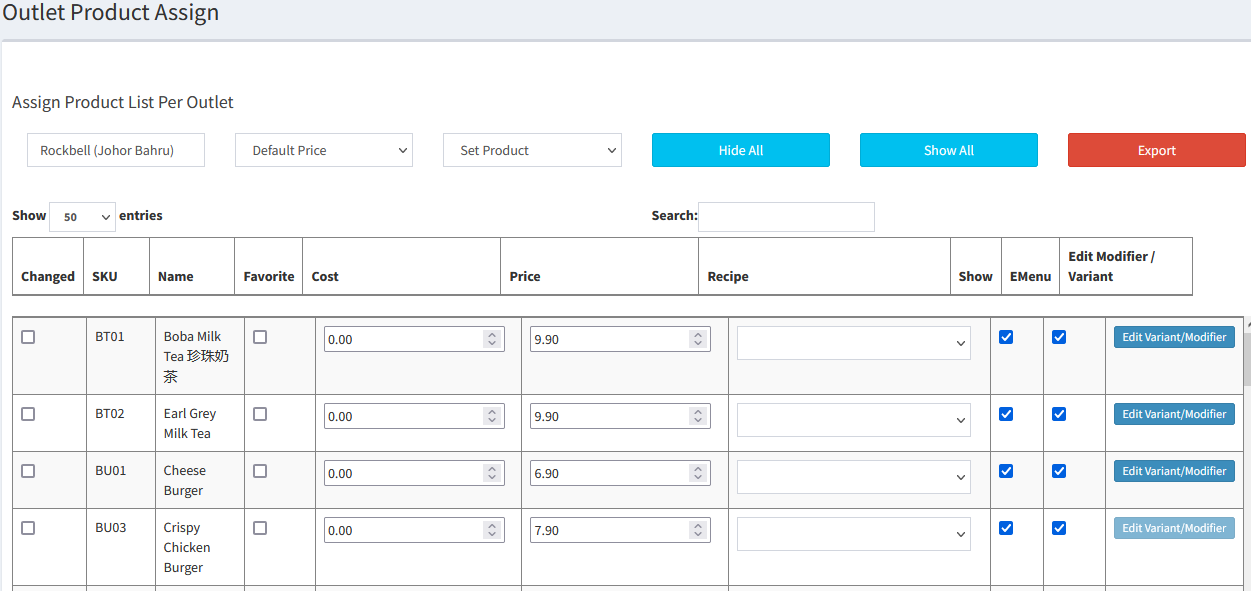
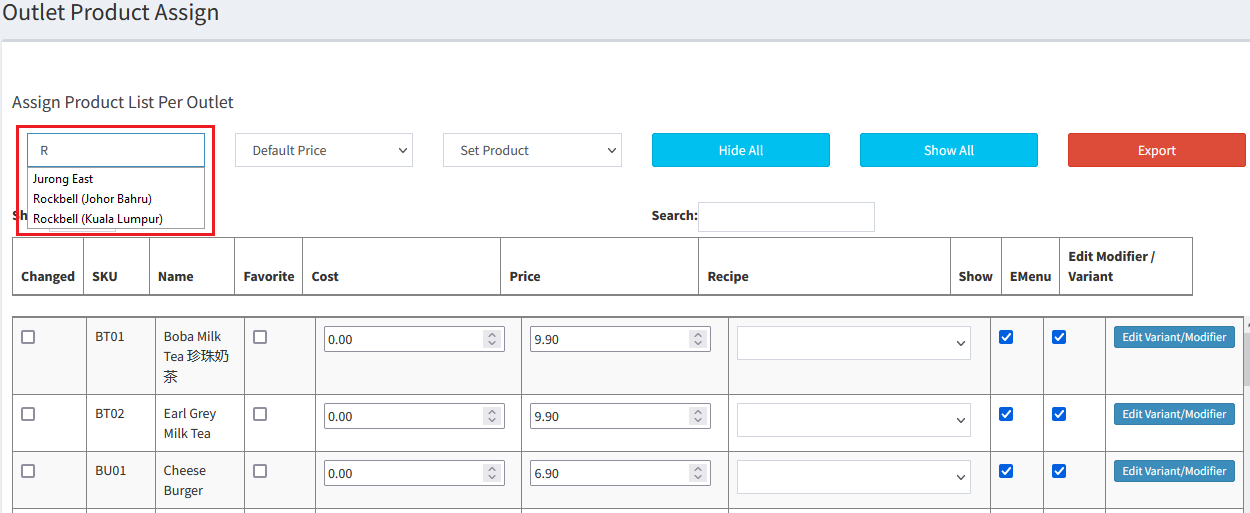
- Select Outlet (Key in the keyword in the column)
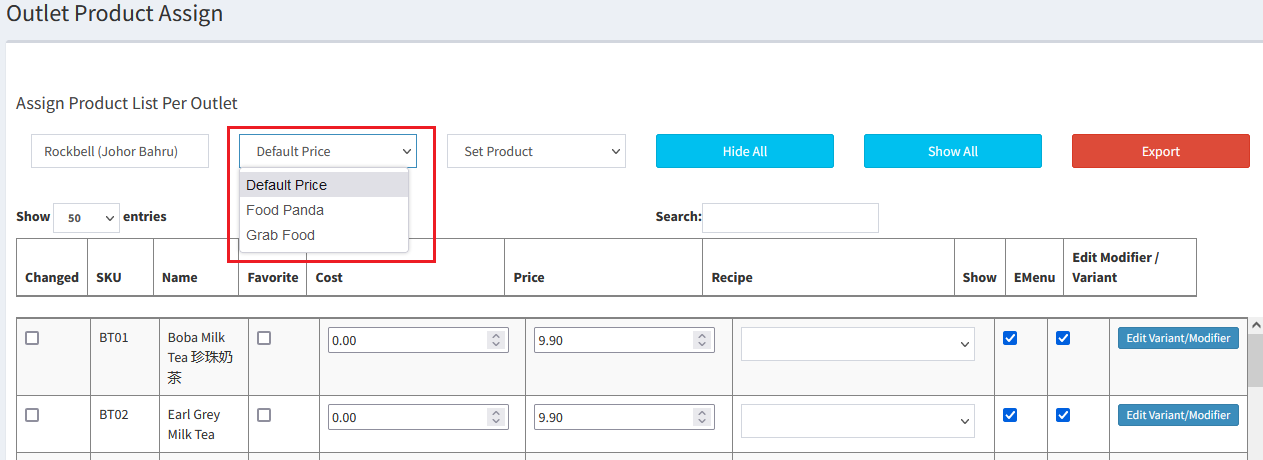
- Select Pricing Type (Product Pricing)
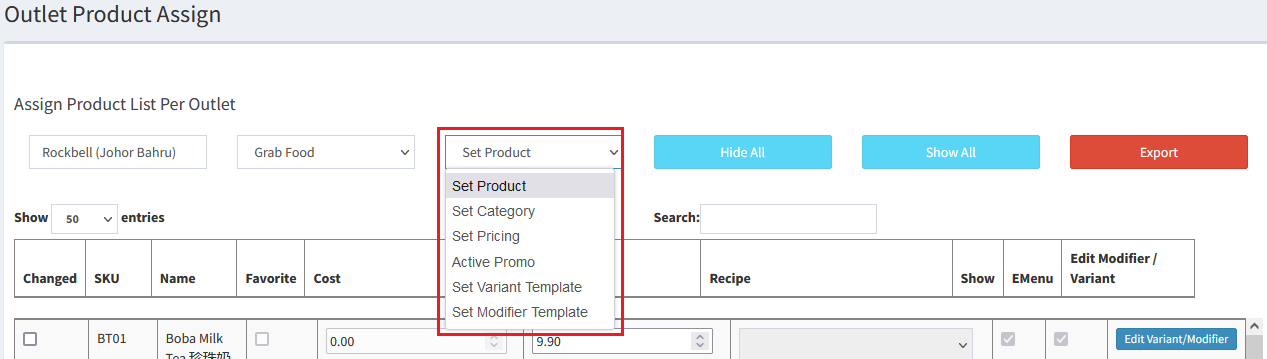
- Besides of setting Products, you can set by Product Category, or other setting like Set Pricing Type, Active Promo, Set Variant Template and Set Modifier Template
- Save changes:
- All the menu and selling price able to copy from one outlet to another by selecting

- Select
 to delete changes that have been made
 - Select
 to apply the changes to certain outlet
---------------------------------------------------------------------------------------------------------------------------------------------------------
Please refer to the video below for more information:
Still stuck?
Our team is happy to walk you through this step by step.
